Salesforce User Adoption: Training and Support

You can now read an org, shape its interface, automate it, manage its configuration, prove a change works, and release it safely. Every one of those skills is about getting a change into production correctly. None of them makes anyone use it.
This is the failure mode nobody puts on a release plan. The deployment succeeds, the tests pass, the feature works exactly as specified. Three months later you find out the team is still using the spreadsheet. Or you look at the new field and find a single . on every record.
That’s not a user problem. It’s worth being precise about what it is instead, because the possible answers need opposite responses. Some of it genuinely is communication: the message did not reach the people it was for, or it reached them and said nothing about their work. The rest isn’t communication at all. People understand the change perfectly and avoid it because it costs them more than it gives back. They satisfy it without adopting it. Or they work out before you do that it solves nothing for them, and they’re right. Only the first two are fixed by explaining better, which is why announcing it again, louder, so often changes nothing.
This chapter is about user adoption in that practical sense: preventing the first kind and recognising the rest. Most of it is the work you do before release: name the audience precisely, explain the change in the language of somebody’s job, close whatever people were doing instead, stage the rollout, and build the support route before people need it. The last section is for when something has already shipped and the number is bad. It’s deliberately less technical than the chapters before it, and it’s still the one most likely to decide whether your work matters.
🎯 Plan the rollout before you build
Section titled “🎯 Plan the rollout before you build”🔀 Decide how much rollout this change needs
Section titled “🔀 Decide how much rollout this change needs”If you over-prepare for a behind-the-scenes tweak, the worst that happens is you’ve wasted an afternoon announcing something nobody needed to hear about. But if you say nothing about a daily workflow change, someone is going to log in on Monday morning and find their routine suddenly broken.
Three levels cover almost everything an admin ships:
| Level | What it looks like | What it needs |
|---|---|---|
| Record-only rollout | An invisible technical or administrative change: nobody’s task, access, output, or recovery path is different afterwards | Nothing user-facing. It may still need release notes for whoever operates the org, and the business owner still hears it happened |
| Targeted rollout | Visible but local. One audience, one task, no change to what anybody is required to do | One message to that audience, guidance at the point of use, and somewhere to get help |
| Full rollout | Required behaviour, a hand-off between teams, a significant permission change, replacing a tool people already use, or anything with real workaround or failure risk | The whole method in this chapter |
Even that first level has an audience. Plenty of changes need nothing from the people using the org and still need the owner told and the change recorded, because the person who inherits your org in two years has only what you wrote down.
👥 Name the audience before you describe the feature
Section titled “👥 Name the audience before you describe the feature”“All users” is what you write when you haven’t thought about the audience yet, and it produces communication addressed to nobody in particular that everybody therefore ignores.
The useful split is between people whose daily work changes, people who need to know it happened, and people who will be asked about it. Those three groups need completely different things from you, and conflating them is why so many rollout messages are simultaneously too long for most readers and too vague for the ones who actually needed detail.
| Group | What changes for them | What they need from you |
|---|---|---|
| Directly affected | Their daily task is different tomorrow | What to do differently, why, and where to get help |
| Indirectly affected | Their reports, queues, or handoffs shift | What moved and what it means for their numbers |
| Asked about it | Nothing, but their team will ask them | Enough to answer confidently, and where to escalate |
| Approving it | Nothing operationally | The business outcome and any risks worth knowing about |
That third row is the one most rollouts skip, and it is the least effort of the four. Team leads and long-standing colleagues absorb an enormous amount of support load informally. If they hear about a change at the same moment as everyone else, they can’t help, and they will pass questions to you that they could have answered themselves. Briefing them two days early takes one message and removes a surprising share of follow-ups.
These are your peer champions, whether or not anybody uses that word. They already exist in every team: the person others turn to first because they are nearby and they answer.
Every change also needs a named business owner who is not you. You own whether it works; they own whether it was worth doing. When adoption is poor, that distinction decides whether the conversation is “the admin built the wrong thing” or “we asked for the wrong thing”, and it is much easier to agree who holds which question before the answer matters.
📣 Decide how people find out
Section titled “📣 Decide how people find out”Most change communication fails in a predictable way: it goes out once, to everyone, through the channel most convenient for the sender, at the moment of release.
Three things fix most of it, and none require a communication plan.
Send it more than once, differently. Advance notice, a short note at release, and a check-in a week later catch people at three different moments. The check-in is the valuable one and the one everybody drops, because it is the only message that arrives after people have questions.
Lead with the change to their work, not the feature. “You’ll now need to add resolution notes before closing a case, so the team can see why repeat issues keep coming back” lands. “We have deployed a new validation rule on the Case object” does not, and it also tells people something they have no way to act on.
Say what happens if they get it wrong. Anxiety, not ignorance, is what drives workarounds. A sentence confirming that a mistake is recoverable, and that asking is fine, does more for adoption than another paragraph of instructions.
Timing is worth a thought too. Releasing a change to a customer-facing team on their busiest morning guarantees the workaround gets invented before the training lands, and it is far harder to dislodge a workaround people already rely on than to teach the new way to somebody who hasn’t invented one yet.
🚪 Close the old path and name who expects the new one
Section titled “🚪 Close the old path and name who expects the new one”Communication changes what people know. It doesn’t change what’s easiest, and it doesn’t change whether anybody notices. Those two things decide most of what happens after release, and both are settled before it.
Start with the habit you’re competing against. Every change that asks for new behaviour is up against something that already works (or kind of works), is already open on somebody’s second screen, and asks for no new place to click. If the old way still runs and is still accepted, it wins. Anyone being sensible with their morning would make the same choice.
So decide what happens to the old path, and write it down beside the change: retired, kept read-only for a defined period, or deliberately allowed to continue because there’s a reason.
Inside Salesforce you already have the tools. Remove the old report from its dashboard, retire the list view, take the field off the page layout, drop the Quick Action, or pull access with the same permission set you used to grant it. Leave a pointer where the old thing was rather than a dead end, because people will look there for a month. Outside Salesforce you have none of that. No permission set retires a spreadsheet on a shared drive, a shared inbox, or the Teams channel that has quietly been the real process for three years. That one is a conversation with the business owner, and it’s a concrete reason for having named one.
Then name the person whose own work now depends on this. Not the business owner, who owns whether the change was worth making, and not the champion, who helps people through it: the person whose routine breaks if everybody ignores it. The manager who runs Monday’s meeting from the new report instead of the spreadsheet. The team lead whose weekly check reads the new field.
Sometimes nobody fits, and the honest version is “nobody, but I’ll look at the number in a month”. A change like that is optional in practice regardless of what the validation rule says, and you’ll be the only person who minds when the number is bad.
A change that makes somebody’s own work faster carries itself: the benefit arrives at the moment of use, and the person doing the task is the person who gains. A change that captures information for somebody else’s report gives the person doing the work nothing back, so the expectation has to come from somewhere other than your announcement. That’s why naming this person matters most when you’re asking for new behaviour.
If you can’t name anyone, you have the announcement test from earlier asked from the other end. That one asked what problem this solves for the person doing the work. This one asks who notices if it does not get done. A change with no answer to either is worth pausing rather than shipping.
🎓 Train for the job, not the feature
Section titled “🎓 Train for the job, not the feature”Feature-shaped training teaches the org’s structure: here’s the new field, here’s the new flow, here’s the new report. Most training takes that shape because it’s a list of what you built. Job-shaped training teaches the person’s task instead: here’s how you close a case now, start to finish, including the bit that changed.
People remember the second kind because it’s a change to a routine they already have. The first kind leaves them to work out for themselves where your field, flow, and report fit into that routine. That’s work you could have done for them, and skipping it is usually why “we trained them” and “they know how to do it” turn out to be different claims.
🧭 Choose a training format that fits the change
Section titled “🧭 Choose a training format that fits the change”Match the format to the change rather than defaulting to whatever your organisation usually does. What decides it is the size of the task, how people feel about the change, and whether you can predict where they’ll get stuck:
| Format | Good for | Your effort | How it fails |
|---|---|---|---|
| Short written guide | A single task with clear steps | Low | Nobody finds it when they need it |
| Recorded walkthrough | A multi-step process, new starters | Medium | Goes stale silently after the user interface changes |
| Live session | Changes with genuine disagreement or anxiety | High | Only reaches whoever attends |
| In-app guidance | A moment of confusion at a known place | Low | Hard limits on how many you can run |
| Peer champion | Ongoing questions, local context | Low | Depends on one person staying |
The last column is the one to take seriously. Every one of these formats is fine, and every one fails in its own way, so the practical answer is usually two of them: something durable people can find later, and something immediate at the moment of confusion.
The peer champion row deserves more than a table cell, because it is the format that costs you least and lasts longest. Brief them before release, and give them three things: the task guide the rest of the team gets, the limitations you already know about, and the point at which they should send somebody to you rather than guessing. That third item is what makes the arrangement safe. A confident wrong answer from a champion will spread faster than a correct one.
What a champion must not become is the support route. They go on holiday, they change teams, and an org whose help depends on one named person has a single point of failure with a human face.
Recorded walkthroughs age badly and silently: a Lightning page change that takes you a minute can invalidate a video nobody’s going to re-record. If you record, keep each clip short and scoped to one task, so a change costs you two minutes rather than a full re-shoot.
💡 In-App Guidance: prompts, walkthroughs, and the limits
Section titled “💡 In-App Guidance: prompts, walkthroughs, and the limits”In-App Guidance puts help inside Lightning Experience itself: a prompt is a single message on a page, and a walkthrough is a sequence of steps guiding someone through a task. Both are built in Setup, both target by app, page, and audience, and neither needs a developer.
It’s the closest thing the platform gives you to a note left exactly where somebody’s about to be confused, and it solves the “nobody finds the documentation” problem, because the documentation comes to them.
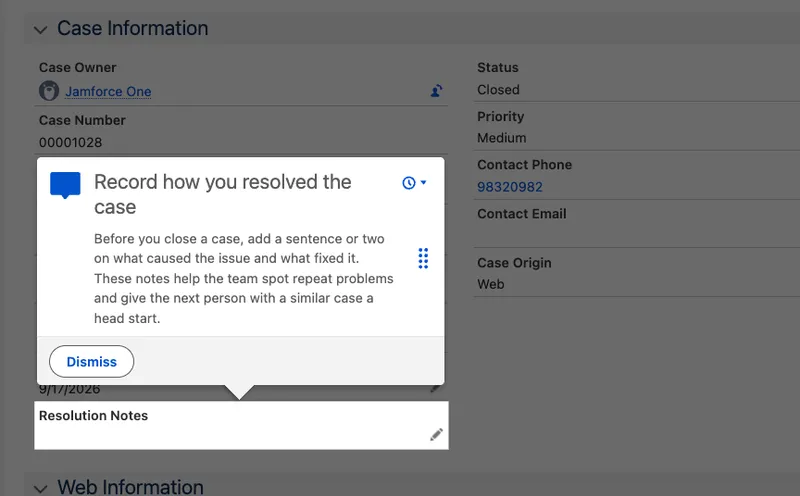
This one is a targeted prompt, anchored to the field it’s about. Use it when the confusion is about a specific field or button. A floating prompt can sit in one of nine positions on the page and suits a page-level message. A docked prompt stays open while the user moves between pages and suits anything longer than a few lines.
Before planning your training around it, check the limits, because one of them is much tighter than people expect. The figures below are current as of Summer ’26 (release 262) and haven’t changed for three releases:
| Item | Limit |
|---|---|
| Active walkthroughs without the Enablement add-on | 3 |
| Steps in a single walkthrough | 10 |
| Walkthroughs created | 500 |
| Prompts created | 500 |
| Prompts or walkthroughs installed from AppExchange | No enforced limit currently; 500 recommended |
Three active walkthroughs is the number to plan around. That’s three running at once across the whole org, so they belong on the highest-friction moments you have, and they need retiring as soon as the confusion they addressed has passed. Deactivated guidance doesn’t count against the limit, so retiring one is how you free a slot for the next.
Prompts are the everyday tool. Nothing caps how many are active, only how many you create. Lightning Experience users do not need a separate permission to see one, but delivery is still conditional: the app and page location, audience targeting, schedule, org-wide display delay, and a user’s previous interaction can all decide whether a prompt appears. In-App Guidance is not supported in Salesforce mobile. Build guidance as a prompt by default, and spend a walkthrough slot only on a multi-step task that people can’t work out from the page itself. The ten-step ceiling is a useful constraint: a task that needs more than ten guided steps usually needs simplifying, not documenting.
One case takes the choice away. A field inside a quick action window, such as the standard Close Case action, can’t carry a standalone prompt: the builder insists that a prompt on a quick action follows a step on the same action or on its record page, which makes it a walkthrough and spends a slot on what would otherwise be a one-line note. If the field also sits on the record page, target it there instead.
On the free allowance, that’s what In-App Guidance is for: a handful of high-friction moments rather than a training programme. The limit lifts with Enablement, a paid add-on for Enterprise, Performance, Unlimited and Einstein 1 Sales editions, and buying it changes more than the count. Once the licence is in place, only users with the Use Custom Walkthroughs permission set can see any custom walkthrough, and the three free ones stop being available to everyone. The trade-off is more than three active at once, up to the 500 you can create, in exchange for deciding and maintaining who is allowed to see them.
Experience Cloud sites have no free allowance at all. Guidance there needs Enablement and a supported Partner Relationship Management (PRM) add-on licence, but those are only part of the boundary: the site must use an Aura template, not a Lightning Web Runtime template, and only floating prompts or walkthroughs made entirely from floating prompts are supported. Partner users also need the Take In-App Guidance for Partners permission, normally supplied by the Use In-App Guidance for Partners permission set, and the Walkthroughs permission set licence.
🪜 Start with a pilot group, then measure adoption
Section titled “🪜 Start with a pilot group, then measure adoption”🚦 Roll out in stages, not all at once
Section titled “🚦 Roll out in stages, not all at once”Releasing to everybody simultaneously means your first feedback arrives from the whole organisation at once, and any problem is already everyone’s problem.
Permission sets can be a staging control for many changes. Deploy the components to production unassigned, give access to a small first group, listen, adjust, and widen. The change is in production from day one, but only the people you chose can reach it.
That works directly for a field or an assigned app. A whole Lightning page is activated by app, profile, record type, and form factor, so staging one usually means putting it in a pilot-only app. A report is shared through its folder, so stage that by sharing the folder with a pilot public group. The principle is the same, but the switch can be something other than a permission set.
The things that run on save need one more step. A validation rule, a record-triggered flow, or a trigger applies to everyone on the object the moment it is active, whoever holds the permission set, so assigning it to a pilot group limits nothing on its own.
For those, the staging control goes inside the rule rather than around it. Create a custom permission, add it to the permission set you are already using for the pilot, and reference it in the error condition with the $Permission global variable:
AND( $Permission.Resolution_Notes_Required, ISPICKVAL(Status, "Closed"), OR( ISNEW(), ISCHANGED(Status) ), ISBLANK(Resolution_Notes__c))The rule is active org-wide but fires only when somebody holding that permission creates a Closed Case or moves an existing one to Closed without a note. Widening is the same action it was for a field: assign the permission set to more people. Once everybody has it you can drop the clause, or keep it as the switch you will want the next time this rule needs changing. A record-triggered flow takes the same variable in a Decision element. The more familiar inverse, wrapping it in NOT() as a bypass, is the same mechanic pointed the other way, for the data load or integration user that has to stay exempt permanently.
-
Choose a pilot group of five to ten people who span the range: an enthusiast, a sceptic, someone who does the task fifty times a day, and someone who does it monthly. A pilot made only of volunteers tells you what enthusiasts think.
-
Give them a way to report problems that is not a corridor conversation. A Chatter group, a queue, a channel: anywhere the reports are visible to somebody other than you and survive being forgotten.
-
Run for a defined period, not “until it feels fine”. A week is usually enough to catch the obvious problems and short enough that people remember they are piloting.
-
Record the decision and its evidence. The pilot can validate the design, reveal a change worth making, or surface a reason to stop. Write down which happened and why.
-
Retest any revision with the pilot group, then make an explicit go, revise, or stop decision. Widen only when the evidence supports it.
-
Widen in groups, briefing each new group as the pilot group was briefed rather than assuming the message spread on its own.
The sceptic in step 1 is the most valuable person in the pilot and the one most often left out. They will tell you about the edge case that breaks their week, they will tell you early, and their objection is usually a real workflow you did not know existed rather than resistance to change.
The monthly user matters for a different reason: they are the one who will have forgotten everything by their next attempt, which makes them a live test of whether your guidance works without you sitting beside them.
📈 The Lightning Usage App and picking one adoption signal
Section titled “📈 The Lightning Usage App and picking one adoption signal”“Adoption” is unmeasurable as stated. Pick one signal you can check in a minute, decide in advance what a good number looks like, and check it on a date you have written down.
Choose the signal that matches what the change was for. If a field was added so a report could answer a question, the signal is the proportion of new records with that field populated. If a process was meant to be faster, the signal is a time. If a screen was meant to replace a spreadsheet, the signal is usage of the screen, and possibly a conversation about the spreadsheet.
The Lightning Usage App (App Launcher → Lightning Usage App) gives you the platform-level view: daily and monthly active users, the pages people visit most, the profiles and users switching back to Classic most often, browser mix, the slowest desktop record pages, and active licence counts. The Classic-switching numbers are more interesting than they first look, because a user repeatedly switching back is usually telling you something specific about a task that is harder in Lightning.
Two practical notes on it. You cannot export the app’s data to reports from the interface; Salesforce exposes that data through the Lightning Usage App’s application programming interface (API) instead. The underlying objects are available for custom reports, though, so if you want this on a dashboard, build a custom report type. One gap to know before you build it: there is no Lightning Usage App object for login metrics, so logins are not available that way.
For login-level detail, Org Health & Monitoring already covers Login History and user monitoring. Those answer a different question: not whether people are using the new thing, but whether they are showing up at all.
Activity is not adoption. A field is populated on every record, which looks like success, until you sort by value and find four hundred of them holding a single .. Those four hundred people are complying with a required field, not using it, and the change has made their work slower without producing the information it existed to capture. Look at what people are entering, not just whether they entered something.
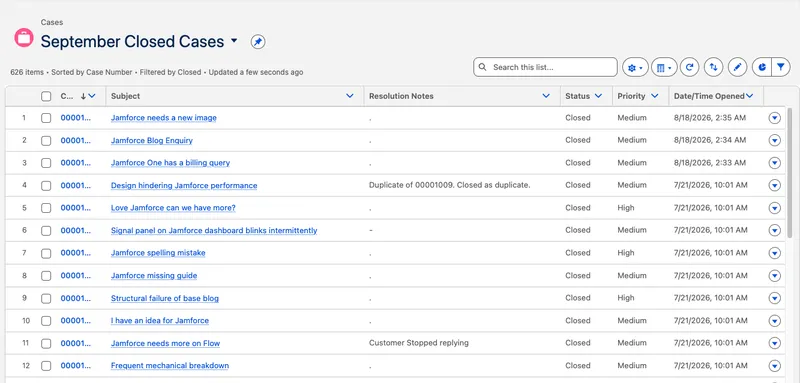
The Lightning Usage App and the custom usage reports this section leans on are covered hands-on in the Trailhead module below. Work through it once with the Resolution Notes number you wrote down above, so the metrics you learn are attached to a rollout you can judge.
🛟 Build the support route before you need it
Section titled “🛟 Build the support route before you need it”The support route is the answer to a question every user has and few ask out loud: when this doesn’t work, what do I do?
If there’s no answer, they’ll invent one. They ask the colleague next to them, who guesses. They stop using the feature. They message you directly, which works until you are away or the org outgrows it. None of those produce a record of the problem, so the same issue is solved repeatedly without the cause being fixed.
A workable route needs four things, and only the last one is difficult:
- A destination that is a place rather than a person: a queue, a channel, a form. A route that runs through one named individual stops working whenever they are away and disappears when they leave.
- An expectation about response, even a rough one. “Same working day for anything blocking” prevents the anxious follow-up and the assumption of silence.
- A triage rule separating “broken” from “working as designed but disliked” from “this is a new request”. These need entirely different responses, and confusing the second for the first produces emergency fixes to things that were correct.
- A path back into the backlog. This is where most support routes fail. Problems get solved individually and repeatedly, nobody records the pattern, and the underlying cause stays in place because no single instance justified a fix.
That last point is what turns support from a cost into a source of requirements. Three people confused by the same field in one week is a design problem showing up in your queue, and it is much cheaper to notice as a pattern than as thirty individual conversations.

Peer champions sit in front of this route rather than beside it. Most questions stop with them, which is the point, and the ones that do not should arrive at the destination above with the champion’s attempt already attached. That gives users a faster first line and gives the support destination better context when a question reaches it. Both benefits disappear when the route depends on one named person: it should run past the champion, not through them.
Whatever route you choose, it belongs in the rollout message and in the in-app guidance, not only in a document. The moment somebody needs the support route is the moment they are least willing to go looking for it.
From experience: Early in my time on the platform, the team I was in added a three-level dependent picklist to Case so we could understand why cases were coming in, with the idea of automating responses to the common ones. The build was fine.
It also suddenly became the thing everyone complained about: agents couldn’t find the option they wanted, and with Email-to-Case and chat work arriving through Omni-Channel, there was no time between one conversation and the next to navigate long lists of categories and sub-categories. We tidied some of the options, and the complaints died down, which looked like the problem had been solved. It wasn’t.
When we started reporting on the fields, many cases were misclassified and many had simply been filed under the general options. The agents weren’t being difficult; they tried their best, but the lists were too long for the pace of the work.
What fixed it was not another message or another training session. We cut the lists to far fewer options that made sense to the people picking them, and only then did the data start showing up. The complaints had been telling us that from the start; the report just made it impossible to ignore.
📖 The Resolution Notes rollout, end to end
Section titled “📖 The Resolution Notes rollout, end to end”None of the steps above is difficult on its own. Doing all of them on one real change, in order, is the part that takes practice, so here is the whole method run through a single change: the Resolution Notes field, validation rule, and follow-up flow that the earlier testing chapter tested.
This is a worked illustration rather than a case study. The shape is what transfers: the decisions, their order, and the fact that each point produces one. The specific objection and the specific number are there to make the sequence legible, not because they were measured somewhere.

The level. This is required behaviour in a task the support team performs many times a day, which makes it a full rollout. Had the field been optional, this would have been a targeted rollout and most of what follows would have been unnecessary.
Who was affected, and what each group heard.
| Audience | What they were told |
|---|---|
| Support agents (directly affected) | Closing a case now needs a sentence on why, so the team can see why repeat issues keep coming back. Here is what to do if you get stuck |
| Team leads (asked about it) | The same, two days early, plus the known rough edges and where to send anything they cannot answer |
| Reporting and ops (indirectly affected) | A new field exists and close times may shift slightly while people adjust |
| The support manager (business owner) | What the change is meant to achieve, and the agreement that they own whether it was worth it |
Who expects it. The support manager’s monthly review of repeat issues now reads the notes instead of guessing from case subjects. That is the routine that makes the field load-bearing for somebody other than the admin who built it, and it was agreed before release rather than hoped for afterwards.
The pilot. Eight people: two who close cases constantly, one who does it a few times a month, one team lead, three volunteers, and one person who had argued against the change in the requirements session. That last inclusion is deliberate and uncomfortable and it is the one that pays.
What the pilot surfaced. In this illustration, the sceptic isn’t objecting to the field. Closing a batch of related duplicate cases now takes eight sentences of typing where it used to take one action, because every one of them demands its own reason. That is not resistance to change; it is a workflow the design did not know about.
What changed because of it. The rule was narrowed so it does not apply to cases closed as duplicates. Note what this is: a design change caused by a pilot, made before the whole team met it. Widening without that week would have produced the same discovery as a support queue instead.
The old path. Here the validation rule is what closes it, and because the rule is gated by the pilot’s permission set, the old way of closing a case stopped working for the pilot group on day zero and for everyone else on day ten, not for the whole org at release. The duplicate-case exemption is the other half of the same decision: close the path, but leave a sensible exit, or the people who genuinely need one will build their own.
The target and the date. Seventy per cent of cases closed in the month having a note that is a sentence rather than a character, checked thirty days after widening. Written down before release, so the check is an observation rather than a negotiation.
The first repeated support question. Not “how do I fill this in”, which the guidance covered, but “what do I put when the customer just stopped replying”. A real gap in the design, surfaced by the pattern rather than by any single person, and answered by adding that as an accepted reason instead of by explaining harder.
The decision. Widen at day ten, with the duplicate-case revision in place. The day-thirty review is where the change either stays as built, gets revised again, or is withdrawn, and that decision belongs to the business owner rather than to you.
🩹 When adoption has already failed
Section titled “🩹 When adoption has already failed”Everything so far assumes you are planning a release. Plenty of readers arrive at this chapter from the other direction: something shipped months ago, the number is bad, and the question is what to do now.
The instinct is to communicate again, louder. That is the right response to exactly two of the seven things that might be wrong, and doing it in the other five teaches people that your messages can be ignored.
Diagnose before you act. The evidence usually tells you which problem you have:
| What you observe | The likely problem | What actually helps |
|---|---|---|
| People do not know it exists | Reach. The message did not land | Targeted communication to the specific audience, plus guidance at the point of use |
| They know it exists but cannot say why it matters | Meaning. The message landed and said nothing useful | Reframe around their work and the outcome, not the configuration |
| They understand it and avoid it anyway | Friction. The workflow or design is wrong | Watch somebody do the task, then change the solution rather than the explanation |
Required fields hold ., n/a, or copied text |
Compliance without adoption. The requirement is being satisfied, not met | Revisit whether the field should be required, and start measuring the quality of what is entered |
| The same question keeps reaching support | Guidance gap. The interface is not saying what people need at the moment they need it | Fix the interface, or put the answer where the confusion happens |
| The old spreadsheet or list view is still being kept up to date alongside it | Competition. The previous path still works and nobody ever said it shouldn’t | Retire it, or decide openly that both continue and say which one is authoritative |
| Use climbs after every reminder and decays within a fortnight | Reinforcement. Nothing depends on the change except your adoption number | Attach it to a routine somebody else owns, or accept that it is optional and stop reminding |
Only the first two rows are communication problems. The third is a design problem, the fourth is a requirements problem, and the fifth is an interface problem. The last two are neither: they are rollout steps that were skipped, and they are the two most easily mistaken for indifference on the part of the people you are blaming. Sending another announcement about any of the five is a way of looking busy while the cause stays exactly where it was.
The fourth row is the one that most often gets misread as success, because the field is populated and the report runs. Sorting by value takes a minute and settles it.
There is also an answer nobody likes, which is that the change was not worth making. If the task was fine before, the people doing it were right, and the honest move is to withdraw the change rather than keep pushing it. That conversation belongs to the business owner you named at the start, which is one of the reasons for naming one.
🧠 Final Thoughts
Section titled “🧠 Final Thoughts”A change nobody uses has the same effect as no change at all, except that it cost you the build and now costs the org the maintenance. That’s the reason to plan the rollout with the same care as the change itself.
The habit I would keep above everything else is writing the one-paragraph explanation before building anything. It takes five minutes and it is a genuine design review: a change you cannot explain in terms of somebody’s actual work is either solving a problem they do not have, or solving a real problem in a shape that will not survive contact with their day. Both are worth finding out early, and neither shows up in testing.
The other thing worth holding onto is that support load is data. The instinct is to treat questions as an interruption to the real work, but a recurring question is the clearest requirement you’ll ever receive: unprompted, specific, and from the person who actually does the task. Orgs that route support into a backlog get better; orgs that answer support in private message threads solve the same problem again and again.
The test for the plan: give it to someone who was not involved, and ask them who they would tell first and what they would do if the pilot group hated it. If they can answer both from what you wrote down, you have a plan. If they need you to explain it, you don’t yet.
None of this needs a change management framework or a user adoption programme. An audience you can name, an explanation in the user’s language, a pilot group with a sceptic in it, one number you check on a date, and somewhere for people to go when it breaks will carry almost any change an admin makes.
🚀 Next steps
Section titled “🚀 Next steps”This is the end of the Salesforce Administration section and the last required chapter of this stage of the Admin path.
Return to the Salesforce Admin Journey for the map and what follows. You have gone from reading an org to changing it safely and getting the change used, which is the operational core of the role.
Where you go from here depends on what your work is pulling you towards:
- Administering a support team? Build a Support Process continues the Case scenario through queues, assignment, escalation, email intake, and a backlog report in the Service Cloud Administration section.
- Consolidating? Run these chapters against your own org rather than reading them again. Auditing real monitoring, real automation, a real release, and a real rollout teaches what a second reading cannot.
- Moving towards code? Developer Mindset & Toolkit begins the development track, and the administration you have just finished is genuinely the right preparation for it.
- Thinking about architecture? Understanding the Role of a Salesforce Architect explains where that path leads and what experience it expects you to gather first.