Advanced Salesforce Sharing: Teams, Territories, and Scale

Four mechanisms cover most Salesforce orgs: the organization-wide default (OWD), the role hierarchy, sharing rules, and the occasional manual share. Record Access covers all four and is the right place to start. This chapter is everything after them.
Two things go wrong here, and they’re opposite mistakes. The first is reaching for a heavy mechanism too early, usually Apex sharing, to work around an OWD or a role design that should have been corrected instead. You end up owning code, a test suite, and a new way for access to break, where configuration would have cost you nothing to run. The second is leaving a model alone because it works. It was fine in a sandbox and nobody looks at it again, until the object holds a couple of million records and a recalculation stops finishing inside the maintenance window.
So this chapter has two jobs: help you pick the right mechanism, and tell you what each one costs when the org gets large. Neither is guesswork. The mechanisms have documented behaviour, and the scale characteristics have a developer guide behind them.
🧰 What’s Left, and When to Reach for It
Section titled “🧰 What’s Left, and When to Reach for It”Start from the requirement rather than the mechanism. Almost every design that goes wrong here started with someone deciding how before they had written down what.
| The requirement | The mechanism | What it costs to own |
|---|---|---|
| Collaborators chosen per record, by whoever owns it | Teams | Per-record administration, nothing reusable |
| Access follows a sales geography, not the org chart | Territories | A second hierarchy to design, maintain, and reassign |
| Work is distributed to a group who take ownership | Queues | Behaviour that changes with OWD and per-queue settings |
| Valid broad access needs narrowing for one group | Restriction rules | A filter to retest on every surface, and one active rule per user per object |
| Users need a smaller default view, not less access | Scoping rules | A default users can widen, so it guides rather than enforces |
| Access depends on something no grouping expresses | Apex sharing | Code, tests, a revoke path, and a support owner |
| Unauthenticated visitors to a public site | Guest user sharing rules | Read Only, and a deliberately narrow set of options |
Several of those rows carry an edition gate on top of the cost. Restriction rules are available in Enterprise, Performance, Unlimited, and Developer editions. Scoping rules are available in Performance, Unlimited, and Developer editions, but not Enterprise. Teams need Enterprise, Performance, Unlimited, or Developer, which puts them out of reach in Professional. Territories are available in Performance and Developer, and in Enterprise and Unlimited with Sales Cloud. Confirm your edition before you design around any of them. There’s no partial version to fall back on: if your edition doesn’t have it, you need a different design.
The rows follow the order this chapter covers them in, which is not an order of cost. Territories sit second and carry a higher implementation cost and more maintenance than several of the rows beneath them.
Use the table to match the shape of the mechanism to the shape of the requirement. A requirement that names this record, chosen by the person who owns it is a team. One that names a geography is a territory. One that names a stable group of people is a public group and a sharing rule, which is the previous chapter’s material and still the right answer more often than anything on this page.
Reach past it only when nothing simpler expresses the requirement, because most of these mechanisms can be bent into solving any of the others. That flexibility is the trap, not the feature.
🤝 Teams
Section titled “🤝 Teams”Teams exist on Account, Opportunity, and Case. The record owner builds a team for that one record and sets each member’s access level individually.
The constraint that shapes every design here is that a record has one team. If sales want their own collaborators on an Account and support want theirs, only one group can have the team. The other needs a different mechanism, and it’s better to decide which than to find out when the second group asks.
Who can maintain a team is also narrower than people expect: the account owner, users above the owner in the role hierarchy, and administrators, and they need Read on users and Edit on accounts to do it. A team member with Read/Write access on the record is not on that list. The person being added needs only Read on the object, not access to the record already, because granting that access is the point.
Each member’s access can be Read/Write or Read Only, but never lower than the account’s organization-wide default.
Who added a member turns out to matter later. When the account changes owner, members added by users with group-based access are removed from the team, and selecting Keep Account Team does not save them. Only members added by an admin, the account owner, or someone above the owner in the role hierarchy survive the handover. A team assembled by the wrong person looks perfectly correct until the account moves.
One implementation detail matters more than it looks. Adding a team member creates two records: the team member record and a share record behind it. Code that manages teams has to maintain both, and code that deletes one without the other leaves exactly the kind of orphaned grant that turns up in an audit two years later.
Reach for teams when collaboration is genuinely chosen record by record by the person closest to the work. When the same group of people always work together, that’s a stable audience, and a public group with a sharing rule describes it better and costs less to run.
🌏 Territories
Section titled “🌏 Territories”Sales Territories, still labelled Enterprise Territory Management on the Setup toggle that turns it on, gives you a second hierarchy that runs alongside the role hierarchy rather than replacing it. Access flows up the territory structure the same way it flows up the role structure: activating a territory model gives everyone above a representative in the territory hierarchy access to the records assigned to them.
You set default access levels per object in Territory Settings. Accounts, leads, and opportunities are always on that page; contacts and cases appear only when their default internal access is Private, and opportunity access can be set separately for parent territories. Managing territories requires the Manage Territories permission, and writing account assignment rules additionally requires View All Records on Account, which is worth knowing before you promise someone they can maintain their own rules.
The judgement call is whether your coverage model genuinely differs from your reporting line, and whether it changes on its own schedule. A sales organisation whose patches are redrawn every year while the management structure stays put is the use case that territories were built for. An overlay team that needs visibility across two regions is not: that’s a public group and a sharing rule, and it will take an afternoon rather than a project.
Designing the model itself is Sales Cloud administration; Sales Cloud covers where territories sit in the wider sales picture, including the edition and forecasting conditions attached to them. The running cost falls in an odd place, though. Reassigning accounts to territories, the realignment itself, triggers no recalculation at all. Reparenting a territory does trigger sharing recalculation, so an annual redraw that also moves branches around is not free even when the reassignment part is. Adding and removing the people in a territory triggers both sharing and group membership recalculation, so moving one representative onto a patch is the change that takes the time.
📥 Queues
Section titled “📥 Queues”Queues distribute work to a group of people who take ownership of it. The part that catches admins out is that queue behaviour depends on the object’s OWD, not only on membership:
- Public Read/Write/Transfer: users can view and take ownership of records from any queue.
- Public Read/Write or Public Read Only: users can view any queue, but take ownership only from queues they belong to.
- Private: users can only view and accept records from queues they belong to.
Membership always grants access. Sitting above a queue member in the role or territory hierarchy reaches the same records, but only where Grant Access Using Hierarchies applies, and Summer ’26 moved that setting onto the queue itself.
Taking ownership requires Edit on the object regardless of any of the above, and Modify All Records or Modify All Data bypasses queue membership entirely.
🔗 Implicit Sharing in Depth
Section titled “🔗 Implicit Sharing in Depth”Record Access covers what implicit sharing does between an Account and its children, however two details belong here, because both change designs.
The first is that child implicit access is configured on the role. Each role can determine whether its users receive no additional access, View access, or Edit access to contacts, opportunities, and cases associated with accounts they own, regardless of who owns those child records. These are record-level grants: users still need the relevant object permission, and the most restrictive choice does not remove access that arrives through another route. It looks like role administration but behaves as part of the sharing model, which is why it’s so often missed when someone inherits an org and cannot work out where an access grant is coming from.
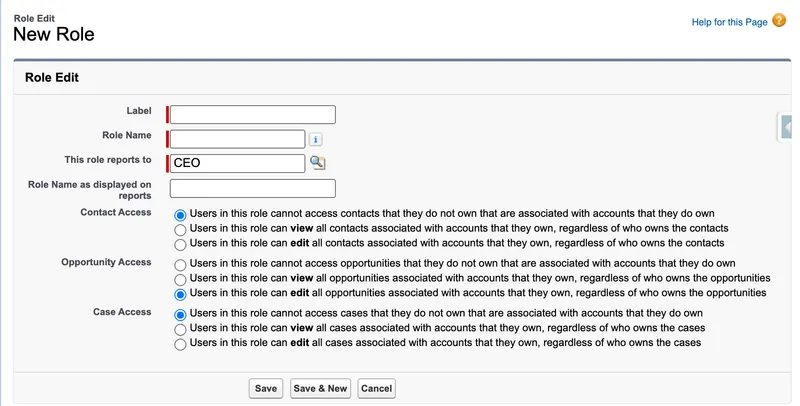
Which fields appear depends on the org’s sharing defaults. Salesforce hides Case Access and Opportunity Access when the corresponding OWD is Public Read/Write, and hides Contact Access when Contact OWD is Public Read/Write or Controlled by Parent.
The second detail is easy to miss because access works differently in the other direction. Reaching a child case, contact, or opportunity normally gives you implicit Read Only access to its parent account, even under Account OWD Private. But not if your only access to that child came from View All Records or Modify All Records on the child object. In that case, the broad object permission reaches the child without producing the usual parent grant.
Two boundaries close this out. Implicit sharing is automatic: you cannot switch the mechanism on or off, which is why it never appears in Sharing Settings as a feature you enable. What the role-level setting above controls is the level of child access it grants, not whether implicit sharing runs, so choosing no additional access narrows what the mechanism gives without disabling it. And implicit sharing does not apply to custom objects at all, which is why a custom object with Private OWD is genuinely more locked down than an Account with the same setting.
🚫 Restriction Rules
Section titled “🚫 Restriction Rules”Restriction rules run in the opposite direction to everything else in this chapter. They don’t grant access; they filter a result the user would otherwise have received. Salesforce calculates read access through OWD and the sharing mechanisms first, then removes any record that doesn’t match the rule’s record criteria for users who match its user criteria.
That direction is the whole distinction, and all three are easiest to keep straight side by side. Scoping rules get their own section below; they’re here because this is where people start mixing the three up.
| Rule type | Effect on access | What the user sees |
|---|---|---|
| Sharing rule | Grants access | More records |
| Restriction rule | Removes access | Fewer records, and cannot reach the rest |
| Scoping rule | No change to access | A narrower default view they can widen |

They’re available in Enterprise, Performance, Unlimited, and Developer editions, on custom objects, quotes (once they’re enabled in Quote Settings), contracts, events, tasks, time sheets, and time sheet entries. External objects are supported only when they use the Salesforce Connect OData 2.0, OData 4.0, or Cross-Org adapter. The limits are the number to know before you propose the approach:
- Two active rules per object in Enterprise and Developer editions.
- Five active rules per object in Performance and Unlimited editions.
Four constraints matter more than the limits:
- Only one active restriction or scoping rule per object may apply to a given user. Salesforce does not validate this. If two rules match the same user, exactly one is observed, and which one is not something you should be relying on.
- A rule on a parent does not restrict its children. Restricting a contract does not restrict its notes. Record criteria also cannot use fields that belong to a parent entity, such as Activity fields in a Task rule. That platform parent-child constraint is different from traversing a lookup relationship, which is supported one level deep as described below.
- Broad permissions and system mode bypass the filter.
View All Records,Modify All Records,View All Data, andModify All Datasee everything, and restriction rules are not applied to code executed in System Mode. - Salesforce Classic is not guaranteed. Salesforce recommends turning Classic off for the org before you create restriction rules, and will not guarantee the rules behave as intended for anyone still working in it.
Test across every supported surface, because the rule applies to all of them and they fail differently: links, list views, lookups, records, related lists, reports, search, SOQL, and SOSL. Cross-Org external objects are the exception: restriction rules do not support search or SOSL on them, so confirm those paths separately before relying on the filter.
🧾 What a Rule Actually Says
Section titled “🧾 What a Rule Actually Says”Every restriction rule is two halves. User criteria decides who the rule applies to. Record criteria decides which records those users keep.
User criteria can be written two ways. Either you match a field on the User record, such as role, profile, department, or whether the user is active, or you match a custom permission, set to True for the users you want filtered and False for the users you don’t. The custom permission route usually survives a reorganisation better, because it doesn’t come apart when somebody changes role.
Record criteria is a field and a value. Those users keep the records where that field matches the value, and lose the rest. The field can traverse one lookup relationship using a single dot, such as Owner.UserRoleId, and the value accepts a comma-separated list.
I got this backwards on my first restriction rule. The name says restriction, so I wrote criteria describing the records I wanted taken away and spent the next few minutes quite confused. The setup screen states it plainly enough, Select which records the specified users are allowed to see, but the word restriction pulls hard in the other direction and I know I’m not the only one who has read straight past it. Record criteria is an allowlist. Write it the wrong way round and the rule doesn’t fail, it inverts: the records you meant to hide become the only ones those users can see.
The expressive limits are tighter than people expect, and they’re the reason some requirements can’t be met this way at all:
EQUALSis the only operator. NoAND, noOR, and no formulas.- Use 15-character IDs, not 18.
- Qualify the owner as
Owner:Userwherever the field could hold a queue, because queues aren’t supported. - Deleting a custom picklist value used by a rule breaks the rule rather than raising an error.
Creating and managing rules requires Manage Sharing. Viewing them requires View Setup & Configuration plus View Restriction and Scoping Rules, which is worth knowing when you want someone to audit access without being able to change it.
🚨 Where the Filter Does Not Hold
Section titled “🚨 Where the Filter Does Not Hold”A restriction rule is a filter, not a seal. Several surfaces still show something after the rule has been applied everywhere else:
- Calendars with Show Details. Users can read the subject of every event regardless of any restriction rule, and they can still see their subordinates’ events.
- Chatter. A task or event created through the Chatter publisher puts the record name into the resulting post, and the rule doesn’t take it back out.
- Global search shortcuts. Records a user could previously reach still appear there. Clicking one returns an error rather than the record, but the name has already been shown.
- Activity related lists. Rules on Task and Event that use fields absent from
OpenActivityandActivityHistorydon’t work in Open Activities or Activity History at all. Use the Activity Timeline instead. UserRecordAccess. It reports the grant and ignores the filter, so a positive result is not proof the user can open the record.
That list matters most when the rule is the thing hiding something sensitive. If the requirement is that nobody outside the group can learn a record exists, the filter is the wrong layer to be asking.
On performance, Salesforce’s guidance is measurable rather than reassuring: take the record criteria to an API client and run it as a query. If it’s fast for a given user the rule will likely run efficiently, and you can budget three to five percent overhead on objects with large data volumes. If it’s slow, isolate the field responsible and ask Salesforce support to index it.
🔭 Scoping Rules
Section titled “🔭 Scoping Rules”Scoping rules are the same metadata type as restriction rules (RestrictionRule, with enforcementType set to Scoping rather than Restrict) doing a different job. They set the records a user sees by default in list views, reports, and SOQL, without changing what that user is allowed to access. The user can switch scope when they need the wider set. If you’ve landed here without reading the previous section, the table there sets all three rule types against each other.

The case they’re built for is a user who works one slice of a large data set and occasionally needs the rest. Someone supporting one agency out of many, say: they want their own agency in front of them without losing the ability to pull up another when a call comes in. A restriction rule would take the other agencies away. A scoping rule just stops leading with them.
You can also hand the boundary to the user. A flow on the Lightning Utility Bar can update their user record, which changes their scope, so moving between divisions or regions becomes a click rather than a request to an admin.
Before designing around one, check your edition. Scoping rules are available in Performance, Unlimited, and Developer editions only. Enterprise Edition is not on that list, which rules them out for a large share of orgs, and it’s the kind of detail that gets repeated incorrectly across the web because restriction rules do include Enterprise. They’re also Lightning Experience only, which is a harder line than the one restriction rules draw: those come with a warning about Classic, these simply don’t apply in it.
If you do have them, the practical shape is:
- Two active rules per object in Developer editions, five in Performance and Unlimited.
- Available on custom objects and the account, case, contact, event, lead, opportunity, and task standard objects.
- Only the
EQUALSoperator is supported, with noANDorOR, unless you create the rule through the API using a SOQL operator. - Record criteria can traverse one lookup relationship using a single dot, but cannot use fields that belong to a parent entity, such as Activity fields in a Task rule. You must also qualify the owner as
Owner:Userwhere the field could hold a queue. - Reports honour the rule when Filter by scope is selected, and a flow can update the user record to switch a user’s scope.
🧭 Where the Scope Applies
Section titled “🧭 Where the Scope Applies”Where the scope actually applies is the part to get straight before you build anything on it:
- List views and reports apply it only when the user selects Filter by scope on that list view or report. It’s an end-user filter choice, so activating the rule on its own changes nothing anyone can see. Recently Viewed offers no filters at all, so the scope never applies there, and that’s the list view people tend to try first.
- SOQL applies it only when the query asks for it with
USING SCOPE scopingRule. A query with no scope clause returns everything the user can access, in Apex as well as through the API. - Related lists ignore scope, with one exception. When a scoping rule is on Contact, the contact role related list on account, opportunity, case, and contract records is scoped, and nothing on screen says so. A sales team can be reading a filtered list of contact roles while believing it’s complete.
- Reports spanning several objects apply every relevant rule. A report on opportunities with account fields is filtered by both objects’ scoping rules.
- Duplicate rules see the scoped set too. Potential duplicates are limited by scope even when Bypass sharing rules is on, so a scoped user can create a record the org already holds.
🧨 What Bites Later
Section titled “🧨 What Bites Later”Two things are much cheaper to know before the rule exists than after.
Disabling a rule leaves its dependants behind. Delete the list views and reports with Filter by scope selected before you disable the rule, so you aren’t hunting for them afterwards. Once the rule is gone they no longer return the set they were built for.
Salesforce can switch your rule off. Salesforce reserves the right to disable a scoping rule that runs inefficiently, or where the data volume makes scoping slow, so this is not a thing you build and forget. Test in a sandbox before production. If a rule using the SOQL operator is slow, run the statement in an API client, isolate the field responsible, and ask support whether it can be indexed.
Two smaller edges are worth the same caution. Deleting a custom field referenced by a scoping rule raises an error, but deleting a custom permission or a custom picklist value used by one does not: the rule simply stops working. Creating and managing rules requires Manage Sharing, and viewing them requires View Setup & Configuration plus View Restriction and Scoping Rules, the same pair that governs restriction rules.
💻 Programmatic Sharing
Section titled “💻 Programmatic Sharing”Two different things get called sharing in Apex, and this section is only about one of them. Writing share records grants access. A class’s with sharing declaration decides whether the code respects the access the running user already has. Apex Fundamentals introduces the three keywords, and SOQL and Security covers what changed in API 67.0 and how a class’s sharing context interacts with a query’s access mode. Read either alongside this one if you’re writing the code rather than designing the model.
Apex sharing writes share records directly. A custom object that is not the detail side of a master-detail relationship has a share table (Project__Share for Project__c), and supported standard objects expose their own, such as AccountShare and ContactShare. A custom detail object has no share table of its own because its access is controlled by the master record.
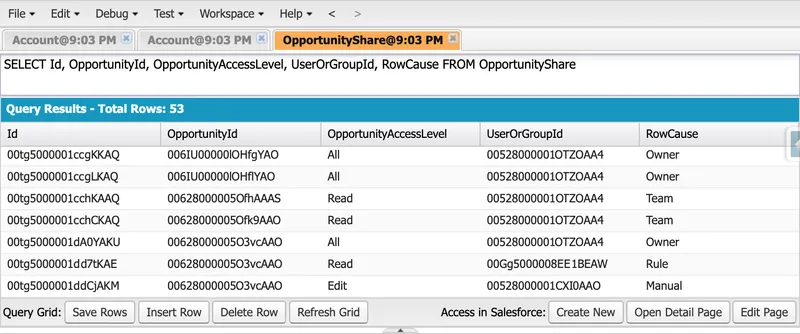
Querying the share table directly is the quickest way to see what the platform has been writing on your behalf. RowCause is the column that matters. The screenshot shows Owner, Team, Rule, and Manual writing to OpportunityShare, but those four values are not an exhaustive list for every standard object, and Apex does not add a separate reason there. A programmatic share on a standard object uses Manual, so the row cannot tell you whether the user interface or code created it. Custom objects are different: each developer-defined Apex sharing reason, such as Project_Team__c, appears as its own RowCause.
Each share record names the record, the recipient user or group, the access level, and a sharing reason in RowCause. The reason is what makes programmatic sharing supportable: a share with a named custom reason explains itself in Sharing Hierarchy and survives an ownership change, while a share written with the Manual reason follows manual-sharing transfer behaviour. Salesforce removes it on transfer by default. Winter ’27 introduces an org-level setting that can retain manual shares, but the setting is disabled by default and the release is currently in preview.
That option is not open to you everywhere. Custom sharing reasons exist only for custom objects. On a standard object the only reason you can write is Manual; entries carrying any other reason come from the org’s sharing configuration and cannot be altered through the user interface, the API, or Apex. RowCause can never be updated on an existing share either, so changing a reason means deleting the row and inserting a new one. A design that depends on a named, self-documenting reason surviving a transfer is a design that only works on custom objects.
Two more constraints come with the mechanism. Salesforce states it flatly: only users with Modify All Data can add or change Apex managed sharing on a record. In API 67.0 and later, SOQL and DML default to user mode, including operations in trigger bodies; earlier API versions default to system mode. Do not let the class’s API version choose the security contract accidentally. The example below uses explicit user mode, so its caller needs Modify All Data. My practical read is that a deliberately elevated service running in explicit system mode is how teams get around that requirement, but the documentation states no such exception, so treat it as a design you prove in a sandbox rather than assume, and keep it behind a tightly controlled entry point.
The second is where the reasons live. They’re still created in Salesforce Classic or through the Metadata API, because the Apex Sharing Reasons related list never arrived in Lightning Experience. You get ten per custom object, and deleting one deletes every share that uses it.
The example below assumes Project__c has an Apex sharing reason labelled Project Team, with the API name Project_Team__c, an organization-wide default of Private or Public Read Only, and that the running user has Modify All Data. Access to the service class is restricted to an authorised administrative path. It grants Edit access in bulk and avoids inserting a duplicate share for the same recipient and reason.
public with sharing class ProjectSharingService {    public class ProjectSharingException extends Exception {}
    public static void grantEditAccess(        Set<Id> projectIds,        Id userOrGroupId    ) {        if (projectIds == null || projectIds.isEmpty() || userOrGroupId == null) {            throw new ProjectSharingException(                'Project IDs and a recipient are required.'            );        }
        String sharingReason = Schema.Project__Share.RowCause.Project_Team__c;
        Set<Id> alreadySharedProjectIds = new Set<Id>();        for (Project__Share existingShare : [            SELECT ParentId            FROM Project__Share            WHERE ParentId IN :projectIds              AND UserOrGroupId = :userOrGroupId              AND RowCause = :sharingReason            WITH USER_MODE        ]) {            alreadySharedProjectIds.add(existingShare.ParentId);        }
        List<Project__Share> sharesToCreate = new List<Project__Share>();        for (Id projectId : projectIds) {            if (!alreadySharedProjectIds.contains(projectId)) {                sharesToCreate.add(new Project__Share(                    ParentId = projectId,                    UserOrGroupId = userOrGroupId,                    AccessLevel = 'Edit',                    RowCause = sharingReason                ));            }        }
        if (sharesToCreate.isEmpty()) {            return;        }
        try {            insert as user sharesToCreate;        } catch (DmlException dmlError) {            throw new ProjectSharingException(                'Unable to grant project team access: '                + dmlError.getDmlMessage(0)            );        }    }}
There are a few important details in this example:
- Bulk-safe input and DML: the method accepts multiple Project records and inserts the new shares together.
- Idempotent behaviour: it checks for an existing share with the same recipient and reason before inserting.
- A named sharing reason:
Project_Team__cexplains why the share exists and lets it survive an ownership change. - Explicit user mode:
WITH USER_MODEandinsert as userkeep the query and DML behaviour stable across API versions and require the running user to holdModify All Data. - The organization-wide default is an assumption, not a detail: a share has to grant more than the baseline already gives, so inserting an Edit share on an object set to Public Read/Write is rejected with a
FIELD_FILTER_VALIDATION_EXCEPTIONonAccessLevel. This version lets that surface as an exception. Salesforce’s own examples take the other route, usingDatabase.insert(shares, false)and treating that specific error as success, on the grounds that a share granting nothing extra was never needed. Either is defensible; pick one deliberately rather than finding out the first time somebody widens the OWD. - Explicit failure: a DML problem is raised to the caller rather than leaving a silent access gap.
What the example deliberately doesn’t show is the half that gets forgotten. A grant without a matching revoke is the most common defect in programmatic sharing, and it fails silently: nobody reports being able to see too much. Before this goes to production, define what removes the share when the person leaves the project team, what happens on ownership change, and what happens when the transaction that should have removed it failed. Then test the grant, retain, revoke, duplicate, ownership-change, and negative-access paths, and give the whole thing a named owner. That list is the real cost of this mechanism, and it’s why the mechanism selector puts it near the bottom.
🌐 External and Guest Access
Section titled “🌐 External and Guest Access”External access means Experience Cloud sites and the legacy portals they replaced, and most of it is site administration rather than sharing design. What belongs here is the boundary, stated precisely enough that you don’t design something the platform will refuse.
Salesforce keeps authenticated external users and unauthenticated guests on separate sharing baselines. Default External Access applies to authenticated external users, including logged-in Experience Cloud and legacy portal users. It does not set the guest baseline.
Secure guest user record access is enforced in every org with an Experience Cloud site and cannot be disabled. Under it, guest users are constrained in ways authenticated users are not:
- Every object’s guest-user OWD is Private and cannot be changed. Master-detail children are Controlled by Parent, so they inherit the parent’s Private baseline and are effectively Private too.
- Guests cannot be added to queues or public groups. Pre-existing memberships are not removed automatically, so an org that predates this needs checking rather than assuming.
- Guests cannot receive access through manual sharing or Apex managed sharing.
- Guests can receive access to existing records only through a guest user sharing rule, granting Read Only. Those rules count toward the limit of 50 criteria-based sharing rules per object.
For authenticated external users, the licence decides which mechanisms exist at all. Customer Community Plus and Partner Community licences support standard sharing, including the mechanisms available to internal users and licence-specific options such as super user access. Customer Community licences use simple sharing, with no roles or role hierarchy, which means several designs that work for one licence type are not expressible in the other.
Two tools for high-volume users are easy to confuse. Sharing sets grant those users access based on their account or contact relationship to a record. Share groups work the other way, sharing records owned by high-volume users with authenticated internal and external users. High-volume users have no roles, so neither is a hierarchy question. Share groups are not available to Customer Community Plus or Partner Community users.
Past this point, Experience Cloud administration takes over: site setup, licence selection, and the audience model are decisions this chapter doesn’t reach. Experience Cloud covers that side, including how the licence tier constrains the sharing model before you get to choose one.
📈 Designing for Scale
Section titled “📈 Designing for Scale”Everything above behaves well in a sandbox with a thousand records. This section is what changes when it isn’t.
📊 Ownership Skew
Section titled “📊 Ownership Skew”Ownership skew is one user owning more than 10,000 records of a single object, and it’s usually created deliberately by an integration user or a data-migration account. The mitigation is about the role, not the records: either don’t give that user a role at all, or put them in a separate role at the top of the hierarchy and never move them. Moving a skewed owner between roles forces a very large recalculation. Keep them out of public groups used as sharing-rule sources for the same reason. The same applies to a partner or customer account that owns a large data set.
🔒 Group Membership Locking
Section titled “🔒 Group Membership Locking”This is the error you’ll actually see: “could not acquire lock”, or a message about a group membership operation already in progress. The sharing system locks group-membership tables while it updates them. Granular locking is on by default and allows genuine concurrency (separate hierarchies, public groups versus territories, parallel user provisioning), but reparenting a role still blocks almost everything. Deployments and Apex tests that touch group membership can trigger it too, which is why this sometimes appears in CI rather than in production.
🪆 Deep Group Nesting
Section titled “🪆 Deep Group Nesting”Nesting costs you on the same axis. Groups can contain other groups, which is genuinely useful, but Salesforce’s guidance is to stay within five levels of nesting, and to keep an org under 100,000 public groups in total. Every level adds work to group membership calculation, which is both the calculation that locks and the one that takes the time. Nesting costs you during an investigation too: a grant that arrives four groups deep is the hardest kind to trace back to the rule that produced it.
🔁 What Triggers a Recalculation
Section titled “🔁 What Triggers a Recalculation”Knowing what actually triggers a recalculation answers most “why did this take forty minutes” questions:
| Change | Triggers sharing recalculation | Triggers group membership recalculation |
|---|---|---|
| Changing the organization-wide sharing model | Yes | No |
| Creating, editing, or deleting a sharing rule | Yes | No |
| Creating or transferring records | Yes | No |
| Updating public group members | Yes | Yes |
| Creating or activating a user | Yes | No |
| Changing a role, or reparenting the hierarchy | Yes | Yes |
| Adding or removing territory members | Yes | Yes |
| Reparenting territories | Yes | No |
| Portal account ownership moving to an owner in a different role | No | Yes |
| Territory realignment | No | No |
| Sharing set updates | No | No |
⏳ Deferred Sharing Calculations
Section titled “⏳ Deferred Sharing Calculations”Deferred sharing calculations are the tool for a large restructure. You suspend sharing-rule and group-membership calculation, make every change inside a negotiated window, then resume and recalculate once. Deferring group membership automatically defers sharing rules. Two limits are worth knowing before you plan around it: some recalculations cannot be suspended, and group membership locking can still occur while deferral is active. Model the whole sequence in a full-copy sandbox refreshed within the last 30 days, because the timing you measure is the only real estimate you’ll get.
🧩 Worked Design: Regional Sales Collaboration
Section titled “🧩 Worked Design: Regional Sales Collaboration”This design needs the baseline, the hierarchy, and sharing rules together, which makes it a good test of whether the model is actually in your head yet.
The requirement:
- Regional representatives collaborate on Accounts within their own region.
- Regular representatives cannot see non-national Accounts from another region.
- Every sales user gets Read Only access to Accounts classified as national.
Assume the org uses a Coverage__c picklist to classify Accounts as Regional or National, and that each persona holds Read and Edit on Account. Record access is the only variable in this design.
Keep Account OWD Private, then create North Region Sales, South Region Sales, and All Sales public groups containing the corresponding users. The role hierarchy still models vertical access:
National Sales Director├── Regional Manager North│ ├── Sales Rep North 1│ └── Sales Rep North 2├── Regional Manager South│ ├── Sales Rep South 1│ └── Sales Rep South 2└── National Accounts Manager ├── National Account Rep 1 └── National Account Rep 2Managers can already reach records owned below them, but peers still receive nothing from one another. Three rules add the missing horizontal access:
- North Region Sharing: share Accounts owned by members of
North Region Saleswith that same group at Read/Write. - South Region Sharing: share Accounts owned by members of
South Region Saleswith that same group at Read/Write. - National Accounts Visibility: share Accounts where
Coverage__c = 'National'withAll Salesat Read Only.
Two design choices in there are worth making explicit, because both are decisions rather than mechanics.
The regional rules use groups rather than roles even though the regions map onto the hierarchy. Roles would work today and break the first time someone is seconded between regions, because you’d have to move them in the org chart to move their access. Groups let coverage and reporting change independently, which is the whole reason this requirement needed more than a hierarchy.
The overlap is deliberate, and it’s where the additive model earns its keep. A national Account owned in the North is Read/Write for North representatives through the ownership-based rule and Read Only for everyone else in Sales through the criteria-based rule. The weaker grant doesn’t reduce the stronger one. A non-national North Account stays unavailable to regular South representatives, and the National Sales Director reaches everything through the hierarchy without a rule of any kind.
Verify one record in each category: national and non-national Accounts owned in both regions. For every record, test a representative from each region and the director, and record which layer produced the expected access. That matrix will expose a misplaced group member or an over-broad rule far faster than testing one record that works.
✅ Checkpoint
Section titled “✅ Checkpoint”The skill this chapter is building is mechanism selection, so the artefact is a decision rather than a configuration.
Take a requirement your own org has, or invent one specific enough to argue about, and write down:
- The requirement, in terms of who needs to reach what, and who must not.
- The mechanism you’d choose, and the cheaper one you seriously considered and rejected. If you rejected nothing, you haven’t chosen yet.
- What it costs to own: who maintains it, what breaks it, and what a new admin would need to be told.
- The escalation trigger: the specific event that would make you revisit this (a record volume, an org change, a release update, a second group with the same need).
That last item is the one people skip, and it’s the difference between a design and a decision. A mechanism chosen with no stated trigger for reviewing it is one nobody will revisit until it fails.
🎯 Final Thoughts
Section titled “🎯 Final Thoughts”The mechanisms in this chapter are the ones that make an org’s sharing model hard to explain, and every one of them is justified in some org somewhere. What separates a good use from a bad one is rarely the mechanism itself. It’s whether the requirement genuinely needed it, and whether anyone wrote down why.
If there’s one thing to carry out of here, it’s that scale is a design input rather than an operational surprise. Ownership skew, group membership locking, and recalculation windows are all predictable from the design, in a sandbox, before they’re incidents in production. The teams that get caught by them are almost never the ones that measured.
🚀 Next steps
Section titled “🚀 Next steps”Access Troubleshooting turns these mechanisms into a documented investigation path for when access is wrong and the first three checks didn’t explain it. Now that you know what each mechanism is meant to do, the next chapter shows you how to identify which one granted, blocked, or outlived the access in front of you.
If your designs keep ending in code, SOQL and Security covers sharing declarations and query execution mode in depth, including the distinction this chapter only flags.