Salesforce Org Setup: Company Settings & Login

You have a brief. The previous chapter ended with a one-page description of the Equipment Request process, and the obvious next move is to open Setup and start building it. Resist that for one more chapter.
Every org carries a layer of settings underneath the objects and fields: what a date looks like, when the financial year starts, what counts as a working hour, and what a person has to prove before they get in. Nobody chooses these settings while building a feature. They were chosen once, often years ago, sometimes by a consultant who left before the first user logged in, and afterwards everything built on top quietly inherits them.
Most are cheap to review and cheap to change. A few cannot be changed at all. The difference between those two groups is the most valuable thing in this chapter, because Setup doesn’t sort them for you. Activate Multiple Currencies is a checkbox on the Company Information edit page, saved alongside the locale and time zone you were reviewing anyway, and it is permanent.
By the end you’ll have reviewed the company settings your org already has, made a deliberate decision about the two one-way doors, and set a login baseline you can defend to someone who asks why. That last part matters more than it did two years ago. Salesforce is in the middle of a run of login and authentication changes: some landed during 2026, others are still ahead, and several reach your users whether or not you were watching.
🧭 Sort the settings by how hard they are to undo
Section titled “🧭 Sort the settings by how hard they are to undo”Before touching anything, it helps to know which category a setting falls into. Salesforce doesn’t group them this way in Setup, so this is the mental model to bring with you.
| Tier | Settings | What changing it costs |
|---|---|---|
| Freely reversible | Default locale, language, time zone, business hours, holidays, session timeout, password policy, login hours | A save, and some user confusion if you don’t tell anyone |
| Reversible with damage | Standard fiscal year start month, My Domain name | Fiscal periods shift across every opportunity and forecast; a domain rename changes URLs people have bookmarked and integrations have hard-coded |
| One-way doors | Enable Custom Fiscal Years (Setup → Fiscal Year), Activate Multiple Currencies (Company Information) | Cannot be switched off. Ever. Plan as if you’re choosing for the life of the org |
The two one-way doors are the reason this chapter exists rather than being a paragraph in an onboarding checklist. Everything else you can fix on a Tuesday afternoon.
🏢 Company Information, the page everything else inherits from
Section titled “🏢 Company Information, the page everything else inherits from”Setup → Company Settings → Company Information is the closest thing an org has to a title page, and it is worth knowing what is on it before you change anything, because the next two sections both start here.
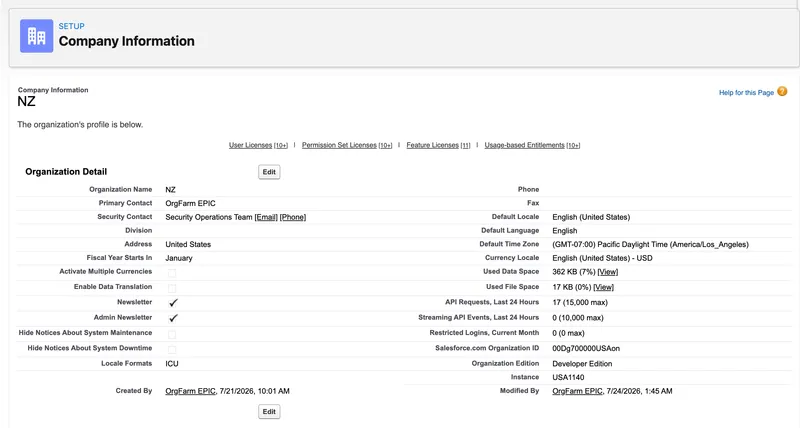
That’s a Developer Edition practice org called NZ, and every default on it still says United States: the address, the locale, the time zone, and the currency. Nobody sat down and chose that. It’s what the org came with, and it is exactly the inherited layer this chapter is about.
Part of the page is record-keeping: Organization Name, Primary Contact, the postal address, phone, and Division. Nothing on the platform behaves differently because of these, but they are how Salesforce and your own colleagues work out whose org this is and who to contact about it, so an org still named after the consultancy that built it is worth ten seconds of your time.
The rest of the page does real work. Default Locale, Default Language, and Default Time Zone seed every new user record. Currency Locale sets the org’s currency and how amounts are displayed, and hides a one-way door behind it. That’s the next section. Fiscal Year Starts In reports what the fiscal year is currently set to, though you change it elsewhere. And the page also reports the org’s edition, its Salesforce Organization ID, and its licence counts, which Read the org before you design for it covers: this chapter is about the settings you can change, not the ones you were sold.
Start with the three defaults.
The practical failure here is quiet. A user who inherited English (United States) sees 3 September as 9/3/2026. A New Zealand reader can easily read that as 9 March and won’t necessarily mention it, because they assume they misread it. The same applies to time zones: an Auckland support team whose user records inherited Pacific Time will see case timestamps shifted into the wrong working day until each user setting is corrected.

That’s the same org on the edit page, corrected. All three sit together in the Locale Settings block, so this is one screen and one save. Check each one and write down what you find:
- Default Locale supplies the date, time, and number formats for new users until they choose their own locale.
- Default Language supplies the Salesforce interface language for new users until they choose their own.
- Default Time Zone supplies the initial time zone for new users. Salesforce stores date-time values in UTC and displays them in the time zone on the viewing user’s record.
Changing these defaults doesn’t rewrite the records already in the org, and it doesn’t update existing users’ personal settings. It changes what future users inherit, which is exactly why the resulting confusion can be so hard to trace back to its cause.
💱 Currency and multiple currencies, the switch with no way back
Section titled “💱 Currency and multiple currencies, the switch with no way back”In a single-currency org, that Currency Locale supplies the org’s default currency and its display format. Once multiple currencies are enabled, Salesforce instead gives the org a Corporate Currency, which becomes the basis for conversion rates. Changing the Currency Locale while an org is young is straightforward. Turning on multiple currencies is not, and it is the first of the two one-way doors.
Once multiple currencies are enabled for an org, the feature cannot be disabled. A few consequences follow that surprise people:
- Existing records are all stamped with one currency: whatever the Currency Locale on Company Information says when you save, which becomes the default for existing and future records alike. If some of your amounts are really EUR and others USD, every record gets that one code anyway, and unpicking it afterwards is a data project. Salesforce’s advice is to convert those amounts to a single currency before you enable, and it offers that conversion as a paid implementation service if you’d rather not do it yourself.
- All currency fields display the ISO code before the amount, so
$100becomesUSD 100. There is a User Interface setting to show symbols instead, but it’s available only while the org has a single currency in use, and it disappears once you activate more. - A currency added to the org’s list can’t be removed, even after it’s deactivated. Deactivated currencies stay visible to admins forever. Test with the currencies you actually intend to use.
- Decimal places set on a custom currency field are ignored; decimal places are managed per currency instead, through Manage Currencies.
The decision rule is simple enough. If the business genuinely transacts in more than one currency and needs to report across them, enable it deliberately, in a sandbox first, with the finance team in the room. If it merely might one day, wait. This is not a setting to turn on speculatively.
📅 Choose the fiscal year once: standard or custom
Section titled “📅 Choose the fiscal year once: standard or custom”Company Information tells you what the fiscal year is; it doesn’t let you set it. That lives on its own page, at Setup → Company Settings → Fiscal Year. It’s a genuine business decision that happens to be configured in Setup, and the second place in this chapter where a new admin can do real damage without meaning to.
Salesforce offers two models. A standard fiscal year follows the Gregorian calendar with a start month you choose, and a naming rule that says whether FY2027 is the year it starts in or the year it ends in. That covers most organisations, including the many whose financial year starts in April or July rather than January.
A custom fiscal year exists for companies whose reporting periods don’t follow calendar months: a 4-4-5 calendar, where each 13-week quarter contains two four-week periods and one five-week period; thirteen periods per year; or three fiscal quarters per year. If your finance team talks about “week 34” rather than “August”, you may need one.
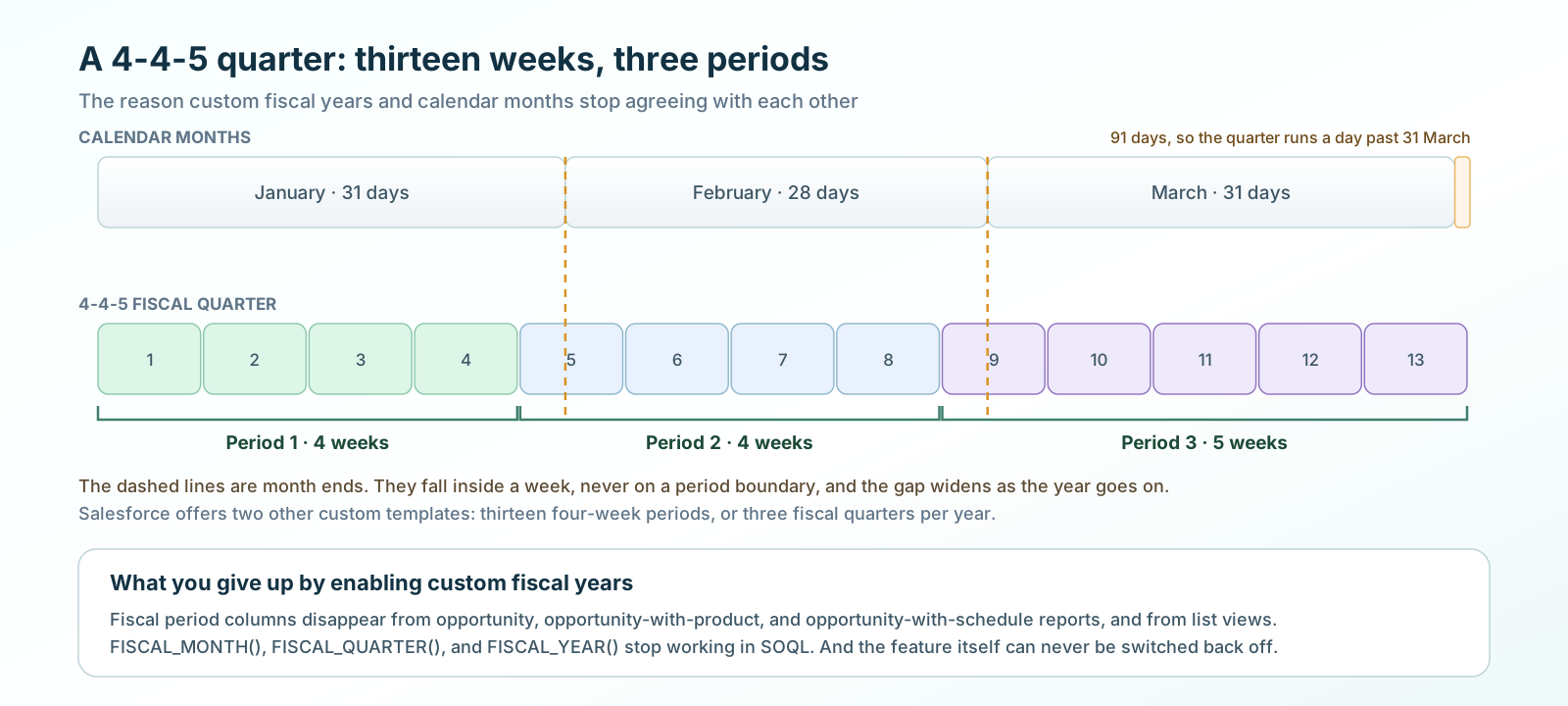
The implications are worth listing, because they reach further than the finance team:
- Defining the first custom fiscal year deletes existing forecasts, forecast history, and forecast adjustments from that year’s first period onwards. Quotas and adjustments for the corresponding standard fiscal years are lost.
- Fiscal period columns become unavailable in opportunity, opportunity-with-product, and opportunity-with-schedule reports, and in opportunity list views.
- The
FISCAL_MONTH(),FISCAL_QUARTER(), andFISCAL_YEAR()date functions stop working in SOQL. If you’ve written queries using those, or you’re planning to after reading SOQL date functions, they will not survive this switch. - Custom fiscal years can’t be deleted once defined, and Salesforce doesn’t create them for you. Somebody has to define each year, every year.
Even the reversible option deserves care. Changing a standard fiscal year’s start month reshuffles the fiscal periods on every opportunity and forecast in the org, which is why Salesforce tells you to export your data before you save the change.
My practical read: if nobody has asked you for a custom fiscal year, you don’t need one. The standard model with the correct start month covers the large majority of orgs, and it stays out of your way.
🕗 Business hours and holidays are a dependency, not a description
Section titled “🕗 Business hours and holidays are a dependency, not a description”Setup → Company Settings → Business Hours looks like documentation of when the office is open. It isn’t. It’s a record that other features read at runtime, and getting it wrong makes those features behave in ways that look like bugs.
Your brief already leans on one, which is easy to miss because it doesn’t mention Salesforce at all. The reporting criterion you wrote for IT asked for requests open more than five working days, and defined working days as Monday to Friday excluding the organisation’s agreed holiday calendar. This page is where a calendar like that would live in an org. Whether anything you build can actually reach it is the next chapter’s problem; entering the holidays is this one’s.
Escalation rules only run during the business hours they’re associated with. Entitlements and milestones count elapsed time against them. Outside those hours, the clock pauses. A public holiday only counts as time off if you’ve created it and associated it with the relevant business hours.
I first learnt this when we missed an NZ public holiday while setting up entitlements and milestones. Salesforce treated the day as ordinary business hours while we were all off enjoying it, and we came back the next working day to a whole heap of missed milestones. The timers had done exactly what we’d configured, just not what we’d intended.
Holidays live on their own Setup page, at Setup → Company Settings → Holidays, and they work in the opposite direction to the one most people expect. You create the holiday first — name, date, and whether it recurs — then associate business hours with it. There’s no Holidays related list waiting on the Business Hours record, which is where people go looking. Business Hours setup does offer Create New Holiday, and if you take that route, don’t be thrown when the Holidays page opens in the old Classic layout and drops you back into Lightning when you close it.
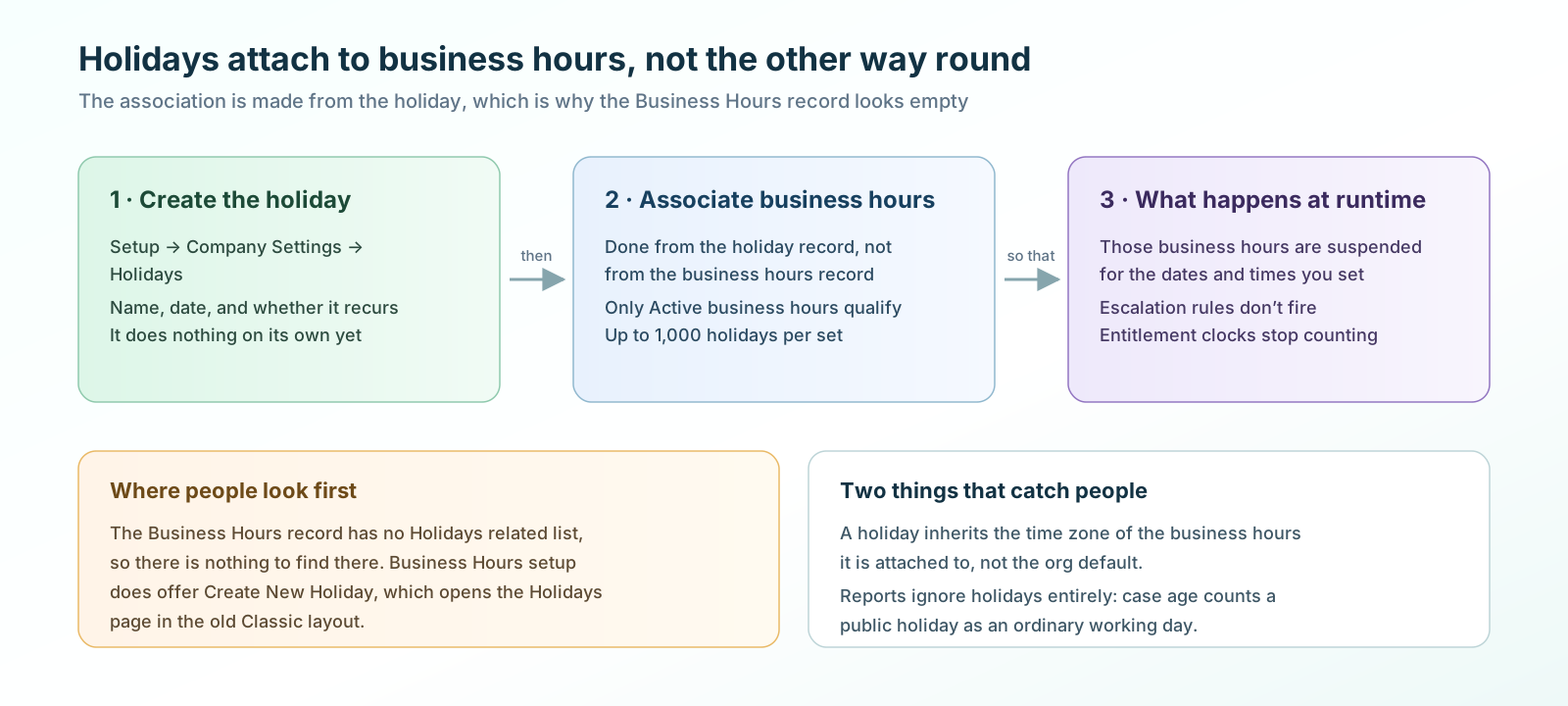
Associating the two is what makes a holiday do anything: it suspends those business hours, and any escalation rules running against them, for the dates and times you set. A few details are worth knowing before you rely on it, and Salesforce’s guidelines for holidays and for business hours are the source for most of them:
- Only business hours marked Active can be added to a holiday.
- You can associate up to 1,000 holidays with each set of business hours.
- Holidays inherit the time zone of the business hours they’re associated with, not the org default.
- Holiday names don’t have to be unique, so several years of “New Year’s Day” can coexist.
- Report results don’t take holidays into account. A report on case age will happily count a public holiday as a working day.
- The
Business Hoursfield can’t be used in list views or reports at all, which limits how you audit this. - Business hours used by an escalation rule can’t be deactivated until you remove them from the rule.
For most orgs, one set of default business hours plus the national holidays is the whole job, and the recommendation in Salesforce’s own guidance is to keep it to one set per support centre rather than modelling every team’s hours separately.
🔐 The login baseline
Section titled “🔐 The login baseline”Everything above is about how the org behaves. This part is about who gets into it, and it’s the section with the most movement underneath it right now.
Two pieces are already decided for you. My Domain is mandatory for all orgs, and enhanced domains were enforced in Winter ’24 and can’t be disabled. That’s why your org’s URLs carry your company name rather than an instance name, and why sandbox URLs contain the word sandbox. You don’t have to enable any of this. You do have to know it’s why URLs look the way they do, and why a My Domain rename is a bigger deal than it appears.
Multi-factor authentication is a contractual and technical requirement for internal users who access active production and sandbox orgs. It applies whether they log in directly with a Salesforce username and password or through single sign-on. Salesforce enforced it at login in staged groups during 2026: preview sandboxes on 10 July, production release groups from 20 July, and every remaining instance by 3 September. In a paid org the org-wide MFA setting is now active and admins can’t switch it off, and the Waive Multi-Factor Authentication for Exempt Users permission no longer exempts anyone unless Salesforce Support has approved the case.
There are two ways to turn it on, and in a practice org the difference matters.
Setup → Identity → Identity Verification carries the setting Require multi-factor authentication (MFA) for all direct UI logins to your Salesforce org. It does exactly what it says: every user, immediately. Salesforce’s own testing guidance recommends against starting there in a test environment, because there’s no gentle way back if enrolment goes wrong for the only administrator in the org.
The safer route for a trial or Developer Edition org is the Multi-Factor Authentication for User Interface Logins user permission, assigned through a permission set to one or two users. This lets you test one account without changing the login requirement for everyone in the org.
-
Create a permission set called something like
MFA Test, and enable the Multi-Factor Authentication for User Interface Logins system permission in it. -
Assign it to yourself, or to your second user if you’d rather keep an un-enrolled admin login available while you experiment.
-
Log out completely rather than opening a new tab, then log back in.
-
Register a verification method. In this Developer Edition exercise, Salesforce Authenticator and TOTP authenticator apps work; a built-in authenticator or physical security key works if you have one.
-
Note how many steps it took, and how clear the prompts were. That number is what you’ll be asked about when you propose MFA to a real user population, and it’s considerably more persuasive when you’ve done it yourself.
Do not carry that list of methods straight into a paid org. In active production and sandbox orgs, a user with the System Administrator profile or a privileged permission such as Modify All Data, View All Data, Customize Application, or Author Apex must use phishing-resistant MFA. For a direct Salesforce login, that means a passkey: a built-in authenticator such as Touch ID or Windows Hello, or a WebAuthn security key. Salesforce Authenticator and TOTP apps count as standard MFA and don’t satisfy the privileged-user requirement.
The prompt has changed as well. Since enforcement, a user registering in a paid org is led straight into creating a passkey rather than being offered a menu of methods, so the screens a colleague describes to you over the phone won’t match the ones in your Developer Edition org. Salesforce also notes that the labels on that passkey-first registration flow are English-only for now, with the other supported languages due in a later patch release.
For orgs using single sign-on, the identity provider can satisfy the MFA requirement only when it sends Salesforce an accepted authentication-strength signal. Otherwise Salesforce prompts for its own MFA after the SSO login. Privileged users need a phishing-resistant signal or a Salesforce passkey either way. Choosing between those approaches, and configuring SSO itself, is identity work that sits outside this chapter.
🧾 Session settings worth a deliberate decision
Section titled “🧾 Session settings worth a deliberate decision”Setup → Security → Session Settings carries a long list of controls. Five of them make up a reasonable baseline, and Salesforce’s Security Health Review guidance recommends all five, across its session timeout and session settings pages. Reviewing them periodically belongs with the rest of your org health checks:
| Setting | What it does | The trade-off to weigh |
|---|---|---|
| Session timeout | Ends an idle session after a set period. The Security Health Review benchmark is 15 minutes or less | Aggressive for a team that works in Salesforce all day; pair a shorter timeout with high-privilege profiles rather than applying one value everywhere |
| Force logout on session timeout | Refreshes the browser and sends the user straight to the login page when the session expires | Very little, although the redirect is abrupt. Without it, the expired page remains visible until the user tries an action that requires a live session |
| Lock sessions to the originating IP address | Invalidates a session ID used from a different IP | Breaks mobile users who move between networks, and breaks some integrations |
| Lock sessions to the domain in which they were first used | Ties a session to the Salesforce domain it started in, so the session ID can’t be reused in another one | Very little, and you probably already have it: Salesforce enables it by default in orgs created from Spring ’15 onwards, so this is a check rather than a change |
| Terminate all sessions when an admin resets a password | Stops a compromised account staying active after remediation | Very little, and it closes an obvious hole |
🌐 The two IP settings that get confused
Section titled “🌐 The two IP settings that get confused”These sit in different places, sound almost identical, and do fundamentally different jobs. Mixing them up is one of the more common ways an admin either locks a colleague out or believes they’ve secured something they haven’t.
| Profile Login IP Ranges | Org-Wide Trusted IP Ranges | |
|---|---|---|
| Where | On each profile | Setup → Security → Network Access |
| Effect | Blocks the login from outside the range, regardless of any other setting | Allows the login, but skips identity verification for addresses inside the range |
| Use it for | Hard network boundaries, especially for high-privilege profiles | Reducing verification friction for the office or VPN |
| Failure mode | People genuinely cannot log in | You believe access is restricted when it is not |
Trusted IP ranges are the weaker control by design: a user outside the range can still log in, they just get challenged. If your intent is “only from the corporate network”, the profile setting is the one you need.
🆕 What’s changing through Winter ’27
Section titled “🆕 What’s changing through Winter ’27”The login layer is moving. Three changes are worth knowing about now, because two of them arrive without any action from you.
The standard login screen is changing. Salesforce completed the username-first rollout to sandboxes on 2 July 2026 and began the production and mobile rollout on 20 July. Email-based login then started becoming the default in sandboxes in August, with production planned from October and mobile tentatively planned for late 2026. Usernames don’t go away: people can choose Login with Username instead. Email-based login affects login.salesforce.com and test.salesforce.com, but not My Domain login pages. Tell your support desk before the screenshots in your internal documentation stop matching reality.
Salesforce may force a password reset on its own initiative. In Winter ’27, if Salesforce detects a security issue with a user’s login information — credential stuffing being the example given — it revokes that user’s active sessions and refresh tokens and initiates a forced password reset, with an automated email to the user. This applies to Enterprise, Performance, Unlimited, and Developer editions. The practical consequence is that “I was logged out and told to reset my password” becomes a support call with a legitimate cause that isn’t your configuration.
A wave of security requirements is enforced from November 2026. Salesforce has grouped several release updates under one banner, covering access controls, email verification, and OAuth flows for connected and external client apps. Some are developer-facing, but two reach admins directly: Enable Profile Filtering and the retirement of older OAuth flows. The banner is a starting date, not a shared deadline: Profile Filtering is enforced with each instance’s Winter ’27 upgrade, while the OAuth username-password, user-agent, and hybrid user-agent flow retirements are currently scheduled for 20 February 2027. Check Setup → Release Updates in your own org rather than working from a list, because the applicable set depends on what your org actually uses.
Legacy authentication is retiring alongside this. If your org has integrations still using the SOAP login() call or the OAuth username-password flow, Retiring SOAP Login and Legacy Auth works through finding and migrating them.
✅ Checkpoint
Section titled “✅ Checkpoint”Produce an org baseline record: a single page describing the org you’re about to build in. It is the setup equivalent of the brief you wrote last chapter, and it takes about twenty minutes.
Work through your practice org and write down:
- Locale, language, time zone, and Currency Locale, plus one sentence on whether each is right for the people who will use this org.
- The currency decision: single currency, and why multiple currencies is not being enabled today.
- The fiscal year model and its start month, and an explicit note that you are not enabling custom fiscal years, with the reason.
- Default business hours and at least three holidays for your country, entered, saved, and associated with those business hours.
- MFA status, including the fact that you enabled it yourself and how many steps enrolment took.
- Your session settings, with the timeout value you chose and one sentence justifying it.
- Which IP control you would use for a system administrator profile in a real org, and why the other one wouldn’t achieve it.
You’re done when you can answer one question without opening Setup: which two settings in this org could I never undo, and what did I decide about each? An admin who can answer that has understood the chapter. An admin who has to look it up is the one who eventually clicks the checkbox to see what it does.
🎯 Final Thoughts
Section titled “🎯 Final Thoughts”Org-level settings get skipped because they don’t look like work. There’s no user story for the default time zone, nobody asks for business hours, and the fiscal year appears to be somebody else’s decision. Once these settings are right, most disappear into the background, which is precisely why a poor initial choice can survive for years.
I’ve never had to change a default locale, language, or time zone in an org that was configured properly at the start, and I don’t expect to. That isn’t because those settings don’t matter. It’s because the first configuration tends to become what the org keeps, quietly, for every user who joins after you. The job isn’t maintaining them. It’s checking them once, on purpose, and understanding which decisions carry more weight than the others.
That distinction is what the checkpoint was designed to expose. Enable Custom Fiscal Years, on the Fiscal Year page, and Activate Multiple Currencies, on Company Information, are the two settings you could never undo. Everything else in this chapter is reversible, most of it in a single save.
The habit worth taking from the chapter is therefore smaller than a checklist: before you change a setting you’ve never changed before, find out whether you can change it back. The question separates the two irreversible switches from the dozens of harmless ones, and it costs you a search.
The login baseline needs the same discipline for a different reason. Locale and fiscal settings tend to stay put; authentication requirements keep moving. Session settings and IP ranges won’t secure the org on their own, but they remove easy paths and give you a known baseline when something goes wrong. That’s the same argument as the change record in Practice Orgs and Safe Learning and the written brief in the last chapter. Decisions you can point at beat decisions you can only remember.
🚀 Next steps
Section titled “🚀 Next steps”Your org now has a documented baseline and a brief describing what to build in it. Declarative Business Rules settles what the platform will have to enforce, still without creating anything: which layer each rule belongs in, formulas that are still true in a year, validation rules people can recover from, and the record type decision that is easy to get wrong in exactly the way this chapter has been warning about. The object itself waits one more chapter, for the same reason the brief waited for this one.
If access questions came up while you were setting the login baseline — who should be able to see what, and how you’d prove it — those belong to Record Access, and the harder cases to Access Troubleshooting.