Salesforce Access Troubleshooting: Diagnose Record Access

Most access complaints are settled by three checks: the object permission, the organization-wide default (OWD), and Sharing Hierarchy on the record. Record Access covers all three, and if you haven’t run them yet, start there. This chapter assumes they came back clean and the access is still wrong.
That’s a different situation and it needs a different approach. When the obvious explanation isn’t there, the temptation is to start changing settings and see what helps. It works often enough to be a habit. What it doesn’t do is tell you what was actually wrong, which means you can’t say afterwards whether you fixed the problem or just moved it somewhere quieter.
The investigation below is for internal Salesforce users. Experience Cloud users have a separate troubleshooting path, because their licence, external OWD, sharing sets, sharing groups, and account relationships can decide access before the mechanisms in this chapter do.
Advanced Sharing and Scale explains the less common mechanisms this investigation may surface: teams, territories, queues, restriction rules, and programmatic sharing. If any of those are unfamiliar, read that chapter first. If you’re here with a live incident, the checks below still tell you where to look.
For internal users, Salesforce publishes a documented investigation path for both directions of failure, and it’s better than anything you’d invent under pressure. What the documentation leaves out is the discipline around it: what to collect before you start, how to prove a fix, and what to write down so the same complaint doesn’t cost you the same hour twice. That’s the part this chapter adds.
🧭 A Complaint Is a Symptom, Not a Diagnosis
Section titled “🧭 A Complaint Is a Symptom, Not a Diagnosis”“I can’t see the record” is a description of a screen. It’s not a statement about the sharing model, and treating it as one is how investigations go wrong in the first minute.
The same sentence covers a record missing from a list view, a record missing from search results, a record that opens with a field blank, a button that isn’t there, an error on save, and a genuine access denial. Only some of those are sharing problems; the others can belong to filtering, search, field-level security, page configuration, validation or no problem at all.
The mirror complaint, “I can see a record I shouldn’t”, needs the same discipline. It points in the opposite direction, but it still describes an outcome rather than the permission or sharing mechanism that caused it. The examples here begin with missing access because that’s the complaint you’re more likely to receive; over-access gets its own investigation path later in the chapter.
So the first job is to turn the complaint into something testable: this user, this record, this action, this expected result. Until you have all four, you’re not investigating, you’re sympathising. Ask them to show you exactly what they did and what should have happened, rather than what they can’t see. The first gives you a reproduction and an expectation to test. The second gives you a summary, and summaries are where the useful detail gets lost.
One more thing to establish early: whether the object throwing the error is the object at fault. A user denied a Case may be blocked by their access to its parent Account. When you manually share a Case, Salesforce requires either that the recipient already has at least Read on the associated Account or that the person sharing the Case can share the Account as well. If the record has a parent, check the parent before you go any further.
📋 Before You Change Anything
Section titled “📋 Before You Change Anything”Collect these first. Every one of them is cheap now and expensive to reconstruct after you’ve started changing configuration:
- The record, as an 18-character Id rather than a name. “The Acme opportunity” is three records in most orgs.
- The user, identified by username rather than name. Record whether you can also reproduce the problem using Login As.
- The action they were attempting: view, edit, delete, transfer, or a specific button.
- The message, verbatim, and where it appeared. A denial in a list view, in a report, and through an API call are three different investigations.
- When it last worked, if it ever did. A change window is the cheapest lead you will get, and nobody volunteers it unless you ask.
- Whether anyone else is affected. One user with the problem points at that user. Everyone in a role or profile points at the model.
Then write down what you expect to find before you look. This is the same habit the foundations chapter asks for, and it matters more here: an investigation with no committed prediction tends to end when you find an explanation rather than the explanation, and those are not the same thing.
🧾 Reading Sharing Hierarchy Properly
Section titled “🧾 Reading Sharing Hierarchy Properly”Sharing Hierarchy is a record-level view in Lightning Experience, and it helps in both directions of an access investigation. Open the record and select Sharing Hierarchy from its action menu. If the action is missing, the cause may be your permissions or the page layout, but the object’s OWD can hide it too. Salesforce notes that Sharing Hierarchy and Sharing may not appear when the OWD is Controlled by Parent or uses a public-read setting. Check the OWD first. If it doesn’t explain the absence, confirm that you have the required permissions and that the action is on the page layout.
The first screen lists users whose access is greater than the OWD, together with their access level. That scope creates two useful branches:
- The affected user is absent. Sharing Hierarchy has no above-OWD grant to show for them. In a missing access investigation, compare them with a user who does have the expected access. That user’s reason can point you towards the group, rule, team, territory, or other mechanism the affected user was meant to inherit.
- The affected user is present. Select View beside their name to see the applicable sharing reasons. In a missing access investigation, look for a restriction rule blocking an otherwise valid grant. In an over access investigation, trace each listed reason, but remember that Salesforce can compress several reasons into one showing the most permissive access level. When grants may overlap, confirm the underlying configurations before deciding that you have found every path.
An absent name does not always mean no access. A user whose access comes only from the OWD won’t appear, which is especially easy to misread when the OWD is Public Read Only or Public Read/Write. They may still have the baseline access that setting gives everyone.
The drill-down may trace access back to ownership, the role hierarchy, a sharing rule, a group, a team, a territory, a manual share, or another supported mechanism. The reason is the part that matters: the other checks tell you a grant is possible; this tells you which grants Salesforce says applied to this record and user.
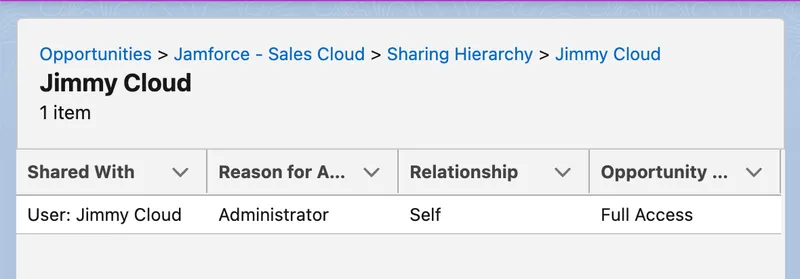
In this example, Administrator is the reason and Full Access is the result. That points to a broad administrative permission rather than a record-level sharing grant.
Even then, appearing in the list is not final proof that the user can open the record. Where restriction rules are supported, a user can appear because a grant exists while a rule still blocks access. The View drill-down identifies that block. That combination makes Sharing Hierarchy the most useful single view in this investigation, and one that’s routinely misread.
🔍 When Someone Cannot Reach a Record
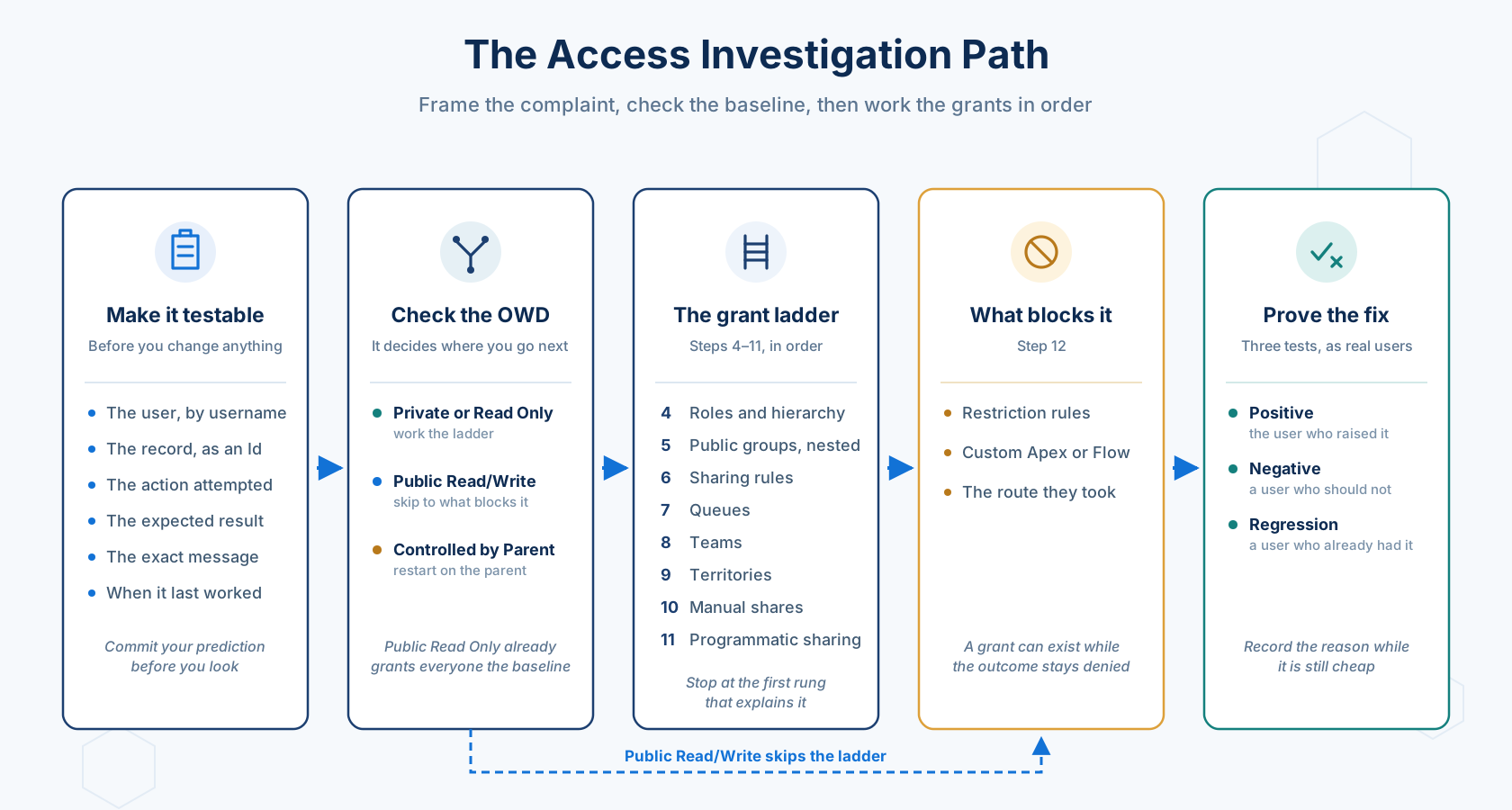
Section titled “🔍 When Someone Cannot Reach a Record”The documented path has twelve steps. The first three are the checks you have already run, so this picks up at step four, works through the remaining grant mechanisms, then checks what might be blocking an otherwise valid grant.
If Sharing Hierarchy has already surfaced a likely mechanism, jump directly to it. Otherwise, work through the remaining steps in order and stop as soon as one explains the result. One shortcut matters: if the object’s OWD is Public Read/Write, skip straight to step 12. The baseline already grants record access, so a missing grant in steps 4–11 cannot be the cause.
-
Compare the roles of the user and the record owner. Automatic hierarchy access travels upward, so it applies only when the user sits above the owner. Do not stop there: roles can also be targets of sharing rules and manual shares, so a user beside or below the owner may still depend on being assigned to the correct role. On a custom object, also check Grant Access Using Hierarchies. When it is off, users above the owner do not receive automatic access through the role hierarchy. Standard objects do not expose this setting: Salesforce enables hierarchy access for most standard objects, but not all of them.
-
Check public group membership, including membership that arrives through another group. A group can contain users, roles, roles-and-subordinates, territories, and other groups, so “they’re in the group” is often true and still not the group the rule targets. Nesting runs one way: if Group A is a member of Group B, A’s members get whatever B is granted, and not the reverse.
-
Inspect the sharing rules that should apply: the qualifying records, the access level, and the target. An ownership-based rule that should cover the record only does so if the owner is in the source group.
-
Check queues. Confirm whether the user is a direct member or receives membership through a role, public group, or territory. Queue access also depends on the object’s OWD, and since Summer ’26 each queue carries its own Grant Access Using Hierarchies setting. Existing queues initially had it enabled and new queues initially had it disabled. The org-level Grant access using hierarchies by default in new queues setting can change that default for queues created later, so inspect the individual queue rather than inferring its value from age.
-
Check teams, on Account, Opportunity, and Case. A record has one team, and membership creates both a team record and a share record.
-
Check territories, if Enterprise Territory Management is active. This is a second hierarchy with its own access levels, and access through it doesn’t appear anywhere in the role hierarchy.
-
Check manual shares, including whether one used to exist. A manual share can disappear when the record owner changes, or when the owner, an administrator, or someone above the owner removes it through the Sharing action. It can also remain in place while a restriction rule blocks the recipient. Use View in Sharing Hierarchy to distinguish a deleted share from a blocked one.
-
Check programmatic sharing. Inspect the object’s share table and the
RowCauseon the relevant row;RowCausetells you why the share exists. On a custom object, Apex can use a named Apex sharing reason, so Salesforce can distinguish the grant from a manual share and won’t delete it just because the record owner changes. Creating an Apex sharing reason in Setup requires Salesforce Classic, but you can inspect an existingRowCausethrough the share table or Sharing Hierarchy in Lightning Experience. Standard objects don’t support custom Apex sharing reasons. A code-created share withRowCause = Manualis vulnerable to the same ownership-change cleanup as a share added through the UI. Trace the whole lifecycle: what creates the share, what should remove or recreate it, and whether either path failed. -
Check restriction rules and custom application logic. A restriction rule can block a record the user would otherwise be able to reach, so the grant may exist while the final result remains denied. If no rule explains the symptom, inspect any Apex behind the exact page, action, automation, or API route the user followed. Custom code can filter a query or reject an action, but that is application behaviour rather than a separate sharing mechanism.
🔓 When Someone Can Reach What They Shouldn’t
Section titled “🔓 When Someone Can Reach What They Shouldn’t”Over-access is quieter than missing access. The person who benefits may never report it, and by the time somebody does, the record may have been visible for months. Treat a credible report as possible data exposure, but don’t start removing assignments until you’ve captured the user, record, action, and route that proved it.
Salesforce’s documented path is only three checks: object permissions, Sharing Hierarchy, and Apex-managed sharing. That’s the right backbone, but the second check contains most of the investigation. Record access is additive, so one user can hold several valid-looking grants at once. Finding one unintended grant is not enough; you need to account for every path that still produces the result.
-
Separate object access from record access. On the user’s User Access Summary, open Object Permissions and find the object. Confirm whether the unexpected capability is Read, Edit, or Delete, then check
View All RecordsandModify All Recordson the same row. Use the row action and Access Granted By to trace an excessive permission to its profile, permission set, or permission set group. Don’t confuseView All Fieldswith record access: it overrides field permissions for records the user can already reach, but still respects sharing. Next, open User Permissions and checkView All DataandModify All Data. The object-level pair bypasses sharing for that object; the user-permission pair does so across the org. All four also bypass restriction rules. -
Check the baseline before looking for an individual grant. If the OWD is Public Read Only or Public Read/Write, it may already explain the access. A user relying only on that baseline won’t appear in Sharing Hierarchy. If the OWD is Controlled by Parent, run the same check on the parent record instead.
-
Drill into the user in Sharing Hierarchy. Select View and read each reason Salesforce shows, not only the most permissive result. Ownership, hierarchy access, sharing rules, nested groups, teams, territories, queues, and manual shares can overlap, and Sharing Hierarchy may compress several reasons into one. Treat the view as the starting point rather than a complete inventory: confirm the underlying configurations and, where useful, the share table before removing anything. Removing one grant will not change the outcome while another still applies. Capture what you found before you change it, by exporting the share rows or saving the drill-down. Once a grant is removed, the evidence of what was there goes with it, and over-access is the finding you are most likely to have to explain to somebody else later.
-
Check an expected restriction rule. Do this only where the object’s design relies on a restriction rule to subtract records from an otherwise valid grant. Confirm that the rule is active, that its user criteria include this user, and that its record criteria exclude this record. Salesforce documents that
View All Records,Modify All Records,View All Data, andModify All Databypass the rule, as does code running in system mode. -
Inspect programmatic sharing and the route that exposed the record. For a custom object, verify Apex-managed shares and their
RowCause; for standard and custom objects, inspect any code that writes to share tables. Trace both the event that creates the grant and the event that should remove it. If the user doesn’t appear in Sharing Hierarchy and no stored share explains the result, compare opening the record directly with the original list, report, Flow, Apex, or API route. System-mode execution can expose data without giving the user direct record access.
Once Sharing Hierarchy gives you a reason, follow it to the configuration that produced it. The labels below are Salesforce’s own, as documented for Lightning Experience, so they should match what’s on your screen word for word:
| Sharing reason | What to inspect |
|---|---|
| Administrator | Use Access Granted By to find the profile, permission set, or permission set group carrying the broad object or system permission. |
| Owner | This covers queue ownership as well: a member of the queue that owns the record, or a user above that member in the role hierarchy, also reads as Owner. Establish which of the three you’re looking at before you change anything. |
| Group Member | Group access, including the internal Managers Group and Manager Subordinates Group that carry role-hierarchy access. Expand direct and nested membership, compare both users’ roles, and check Grant Access Using Hierarchies on a custom object. |
| Object Sharing Rule | Always object-qualified, as in Account Sharing Rule. Check the rule’s source criteria, its target, and the membership of that target. Guest access appears separately as … Guest Sharing Rule. |
| Account Team or Sales Team | Trace team membership and the access level it supplies. An opportunity team reads as Sales Team, so scanning for “Opportunity Team” finds nothing. |
| Account Territory, Manual Territory Sharing, Manager of Territory Member | Trace direct or inherited territory assignment and the access level the territory model grants. |
| Manual Sharing | Confirm who granted the exception, whether it’s still required, and who owns the decision to remove it. |
Two of those rows can be hiding another. Salesforce compresses Owner, Manual Sharing, Associated Portal User or Role, and Associated Record Owner or Sharing into a single reason showing the most permissive access level. That matters most in exactly this investigation: a visible Owner can be concealing a Manual Sharing that is the grant you actually need to remove. Before removing access on the strength of one displayed reason, confirm against the share table.
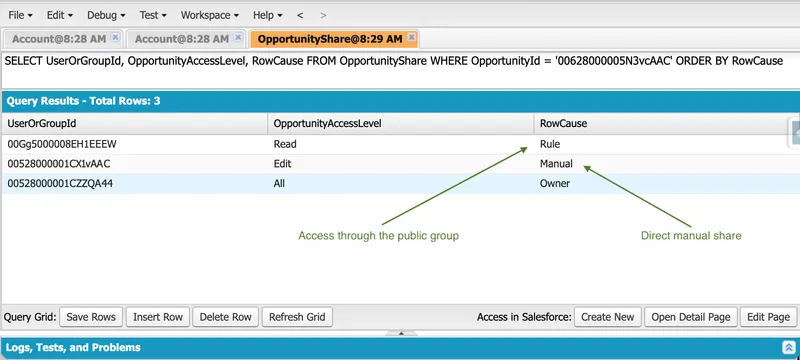
The Rule row grants Read through a public group, while the Manual row grants Edit directly to a user. For a user who belongs to that group and holds the manual share, removing either row still leaves another path to the record. The Owner row belongs to the record owner and is a separate path again.
I hit this in the middle of building sharing logic that wasn’t working, with the end of a sprint closing in and a user group waiting on access. I trusted Sharing Hierarchy, removed the grant it showed me, and passed the work back to testing. The tester still had access, immediately. That’s when I found the second row in the share table.
🧰 The Tools Worth Knowing
Section titled “🧰 The Tools Worth Knowing”Most of an investigation is asking the platform what it already knows. These are the views that answer a question directly, rather than by inference.
Two of them are where an investigation should start, and the shape of the complaint decides which. If it’s one record, open Sharing Hierarchy on that record: it’s the only view that gives you the reason for a grant rather than its possibility. If it’s every record of an object, start at User Access Summary on the user, because a whole-object failure is usually a permission rather than a share.
| Tool | Answers | Where |
|---|---|---|
| User Access Summary | What this user holds, and, through Access Granted By, which profile or permission set granted it | The user record |
| Sharing Hierarchy | Who can reach this record, and why | The record |
| Permission set summary | What a permission set or permission set group actually grants | Setup |
| Public group access summary | Who is in this group, and which rules grant through it | Setup |
| Field Access Summary | Field-level security for one field across every profile, permission set, and permission set group | Object Manager |
| Object Manager | Whether the object has restriction rules at all | Setup |
UserRecordAccess |
The user’s calculated record grant before restriction rules | Any query tool |
| Share table query | The stored grants and their RowCause |
Any query tool |
| Login As | What the user actually sees | The user record |
| Insufficient Access events | Supported record-access failures during an enabled capture window | Event Monitoring |
Four of them have limits worth knowing before you rely on the answer:
- Share table query. Use
AccountShare, orMyObject__Sharefor a custom object without a master-detail parent. It shows the stored share rows and their reasons rather than only the user’s maximum access, which makes it the steadier read when someone holds several overlapping grants. It won’t explain broad permissions or every hierarchy-derived path on its own, so read it alongside Sharing Hierarchy and User Access Summary. UserRecordAccess. It reports the grant side of record access and doesn’t consider whether a restriction rule is blocking that grant. A positive result is therefore not proof that the user can reach the record. The layered access model in Record Access shows where the two part company: the additive grants settle one result, and the restriction filter decides the one the user actually experiences.- Login As. Availability depends on your organisation’s policy. Treat it as a check you may need approval for rather than a default, and record that you used it.
- Insufficient Access events. Narrower than the name suggests. It requires Event Monitoring, is disabled by default, and Salesforce Support enables it for a 24-hour capture window. It records supported insufficient-access scenarios on Account, Case, Contact, and Opportunity rather than every access failure in the org.
The important distinction is between evidence that Salesforce calculated a grant and evidence that the user can reach the record after every access layer has run.
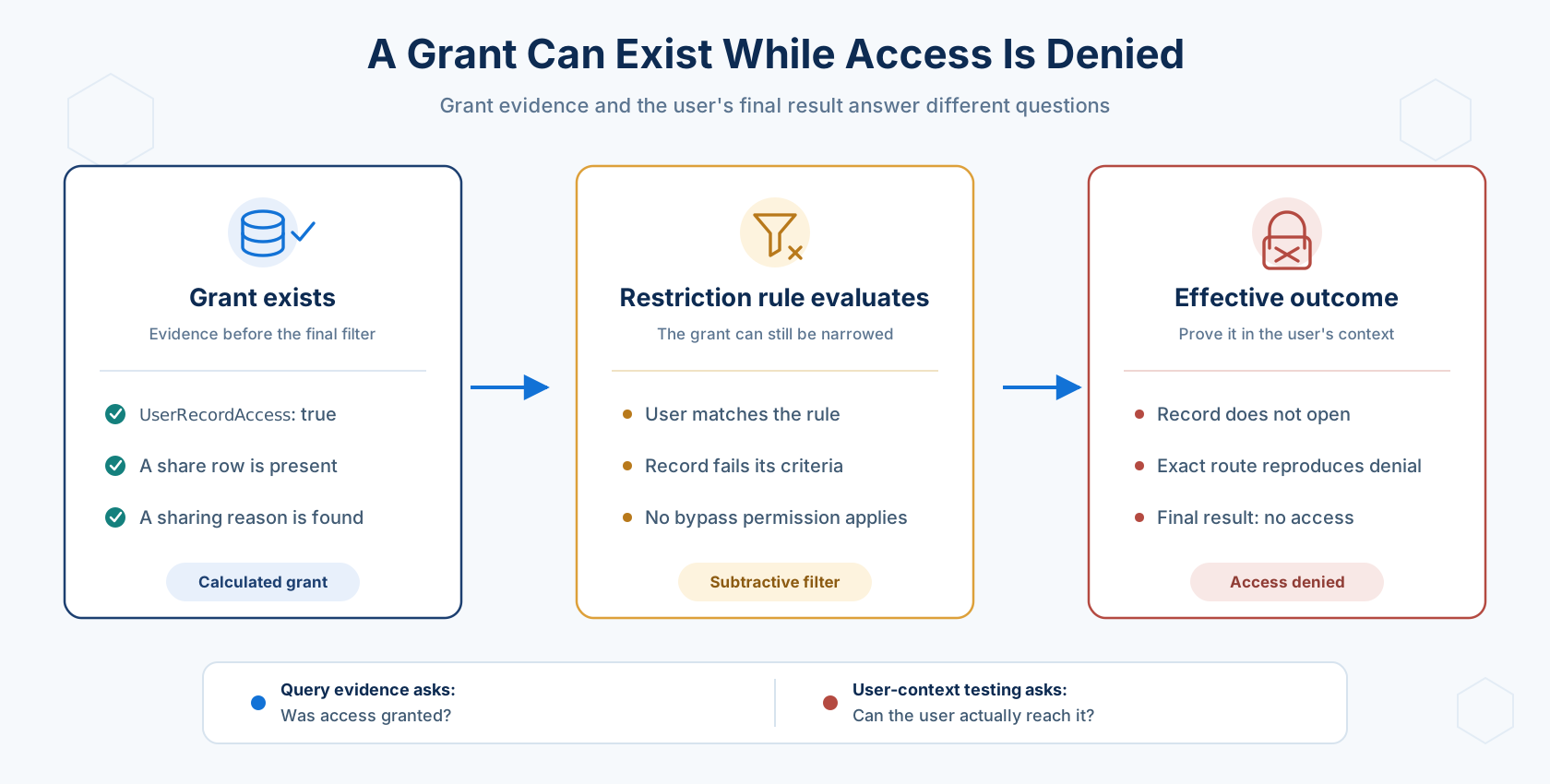
Use query evidence to establish whether access was granted, then reproduce the exact route as the affected user to prove the final outcome. Neither result replaces the other.
🧩 When It Isn’t Sharing at All
Section titled “🧩 When It Isn’t Sharing at All”Some access investigations end outside the sharing model entirely. These are the endings worth recognising early, because each one looks like a sharing problem from the user’s side of the screen:
- Object permissions or field-level security. A record that opens with a blank field is not a record the user can’t reach. Field-level security and record access fail differently and get reported identically.
- The page layout. A missing button is a layout or permission question, not an access one.
- Automation running as someone else. A flow or Apex class operating in system context can create or update a record the requesting user then can’t see: the record exists because the automation had access, not because the user does. Apex sharing declarations and query execution mode own that distinction. Automation can also take access away. If a flow or trigger reassigns record ownership as a side effect, the former owner loses whatever ownership was granting them.
- Profile Filtering. Users without the
View All Profilespermission can’t see profile names other than their own, and that can stop them loading records with fields that reference a profile name. It presents as “I can’t open this record” and has nothing to do with sharing. - Private contacts and private opportunities. A private contact is one that isn’t associated with an account; a private opportunity is one whose Private field is true. Neither is affected by your sharing configuration: only the owner, administrators, and users with the right permissions can see them, and sharing rules don’t apply. No amount of reading the sharing model will explain one.
Profile Filtering is the one on that list carrying a date. It’s a release update, enabled by default, available from Summer ’26 and enforced in Winter ’27. Check where your org stands under Enable Profile Filtering in Setup → Release Updates before you rule it out.
These five share a consequence worth stating plainly: none of them is fixed by changing an OWD, a role, or a rule. Recognising one early is what stops you editing the sharing model to solve a problem it didn’t cause, and it tells you who actually owns the fix.
🧪 Proving the Fix
Section titled “🧪 Proving the Fix”A fix that has only been tested from the complainant’s side is half-tested, and the untested half is the one that creates the next incident. Every access change deserves three tests, run as realistic non-admin users rather than from your own session:
| Test | Who | Expected result |
|---|---|---|
| Positive | The user who raised it | Can now complete the action |
| Negative | A comparable user who should not have access | Still cannot reach the record |
| Regression | A user who already had access | Unchanged |
The negative test is the one that gets skipped, and it catches the most common bad fix in this whole area: widening a rule until the complaint goes away. It solves the visible symptom by granting access to people nobody assessed.
Run the tests through the route the user actually takes. The route can change the symptom without changing row-level access: filters, page configuration, search behaviour, and the execution context behind automation or an API call can make the same record appear differently. Reproduce the exact route, then verify record access separately.
📝 Recording What You Found
Section titled “📝 Recording What You Found”Complete the investigation record you started at the beginning. Keep the original symptom, including the user, record, action and expected result, then add the grant and final outcome you observed, the layer that granted or blocked it, the change you made and the tests that proved it. For any exception, record its owner and review date.
This looks like paperwork and it isn’t. Sharing models don’t usually fail from a bad design; they fail because exceptions accumulate and nobody can later say which ones are still needed. The investigation you just finished is the only moment when the reason is cheap to record. Six months on it costs another investigation to recover.
From experience: I once found a manual share I’d granted myself. I had no recollection of it and no idea why it was there: no documentation, no reason recorded, just an access grant that probably made sense at the time. If I couldn’t reconstruct my own reasoning, the next person had no chance.
📅 The Audit Cadence
Section titled “📅 The Audit Cadence”The same method run deliberately, rather than in response to a complaint, is an access audit. An audit should prove the model still matches the agreed requirement, not simply confirm that the configuration exists. Those two goals sound alike and produce completely different findings: the first can fail, and the second almost never does.
Audit sensitive objects at least every six months. That interval isn’t arbitrary. Setup Audit Trail is where you find out what actually changed, and Salesforce keeps only six months of it, so an annual cadence means auditing against a history that has already rolled over. If you need to keep longer, export it on the same schedule from Setup → View Setup Audit Trail → Download. Org Health & Monitoring covers where that sits in the wider monitoring picture.
Audit again, off-cycle, after the events that quietly change access: a reorganisation, a large data migration, a new business process, a change to roles, groups, permissions, or territories, and any change to an integration or agent user.
Work from the broadest access paths down to the narrowest, because a grant near the top of this list makes everything below it irrelevant:
- Org-wide bypasses:
View All DataandModify All Data. - Object-level bypasses:
View All RecordsandModify All Records. - The baseline and the hierarchy: the OWD, then the role hierarchy.
- The additive mechanisms: sharing rules and nested group membership, then teams, territories, manual shares, and Apex shares.
- Restriction rules last, because they subtract from whatever the layers above produced.
For each persona, trace a representative user against a representative record, and test both sides of every requirement. A regional sales manager, for example, should reach every Opportunity owned by their own team and none owned by another region. Both halves of that sentence are a test, and the second half fails quietly.
✅ Checkpoint
Section titled “✅ Checkpoint”Break something on purpose, then investigate it as though you hadn’t.
In your practice org, use the Equipment Request object you built in Customisation & Automation, the fuller version from Build a Salesforce App if you have worked through Admin Essentials, or any custom object of your own if you came straight to this chapter. Have your test user confirm they can reach a record they should. Then remove a grant without recording which one: delete a sharing rule, change the user’s role, or narrow a group. Wait long enough that you’re working from evidence rather than memory.
Now run the method and produce the artefact:
- The symptom, written as this user, this record, this action, this expected result.
- The grant and final outcome observed, using Sharing Hierarchy and, where useful,
UserRecordAccessfor the grant side. If a restriction rule could apply, confirm the final outcome as the user. - The layer responsible, named specifically. “Sharing” is not an answer.
- The fix, and why you chose that mechanism over the alternatives.
- The three tests, with results.
You’re ready to move on when the artefact would let a colleague who wasn’t there reach the same conclusion. That’s a higher bar than solving it, and it’s the one that matters when the org outlives your memory of it.
🎯 Final Thoughts
Section titled “🎯 Final Thoughts”Access investigations are cheap to run and expensive to run twice. What separates the two is rarely skill. It’s whether anyone wrote down what the answer turned out to be, in a form that outlives the person who found it. A complaint resolved but never documented is a complaint you will resolve again from scratch, next quarter, under a different user’s name.
Salesforce publishes the investigation path and keeps it current. What it can’t publish is why your org grants Read on that object through a nested public group nobody can now justify. Nobody documents that but you. The Summer ’26 queue setting and Profile Filtering make the same point from the other direction: the mechanisms move between releases, so your own notes are the part of this work that ages best.
🚀 Next steps
Section titled “🚀 Next steps”Keep Advanced Sharing and Scale nearby as the design reference for teams, territories, restriction and scoping rules, programmatic sharing, and what happens to all of it at volume. This chapter helps you identify the responsible mechanism; that one helps you decide whether it was the right mechanism in the first place.
If instead they keep ending in code, move to Salesforce Object Query Language (SOQL) in SOQL and Security. That chapter owns the boundary between sharing declarations and query execution mode, which is the distinction behind a surprising number of “the class works for me” reports.