How the Salesforce Platform Works

What is Salesforce? introduced the platform as a shared place for data, processes, security, automation, and code. Before you change any of those things, you need to know which Salesforce org you are standing in and what its boundaries are.
That sounds basic until you have two browser tabs that look almost identical: one is a sandbox, one is production, and after a refresh both carry the same company name. Or a feature works in your Trailhead Playground but is not included in the customer’s edition. The configuration can be correct and still be wrong for the org where it has to live.
This chapter gives admins and developers the same habit: identify the org, work out what it can do and who is licensed to use it, tell one kind of environment from another, and find your way around Setup. By the end you will have a short org context record for the org you are working in, and you will not have changed anything in it.
🧭 Read the Org Before You Design for It
Section titled “🧭 Read the Org Before You Design for It”An org is an organisation’s Salesforce environment. It holds users, data, configuration, automation, code, installed packages, and feature settings. Salesforce operates the underlying cloud service; your organisation is responsible for what has been enabled, who can access it, and how changes are governed.
A request that sounds isolated rarely stays that way. Moving even a small paper process into Salesforce can touch user licences, record access, reports, automation, storage, integrations, and the way the change reaches production. Reading the org first lets you find those dependencies while they are still questions rather than defects.
A reliable first read of any org answers four questions:
| Question | What to establish | Evidence to check |
|---|---|---|
| Where am I? | Org, environment, and purpose | Organisation ID, My Domain URL, owner, and the kind of data it contains |
| Can this org do what is being asked? | Edition, add-ons, and feature access | Company Information, current feature documentation, and the organisation’s contract owner |
| Can the intended users use it? | Their licences and permissions | Available licence counts, representative user records, and assigned access |
| Where are its controls? | Setup areas and the team’s change process | Object Manager, Users, Sharing Settings, App Manager, and automation |
Do not treat any one answer as a substitute for the others. Seeing a feature in Setup does not prove every intended user is licensed to use it. Having a licence does not grant a permission. Knowing that an org is a sandbox does not prove its data or integrations are safe for an experiment.
🏢 Identify the Org in Front of You
Section titled “🏢 Identify the Org in Front of You”Start with an identifier you can record, not a colour scheme or a familiar company name. In Lightning Experience, open Setup, enter Company Information in Quick Find, and select Company Information. Salesforce documents the Company Information fields as the place to find the Organization Name, Salesforce Organization ID, Organization Edition, storage use, and the org’s licence allocations.
Record at least these details:
- Organisation name and ID. The organisation ID identifies this exact org to Salesforce. Keep it with the work item or change record so someone else can confirm the target later. A sandbox receives a new organisation ID when it is refreshed, so update the record afterwards.
- Organisation edition. This tells you the org’s base edition, not every product, add-on, or contractual entitlement layered on top of it.
- My Domain or login URL. My Domain is the org’s own name at the front of its login URL, and the rest of that URL tells you what kind of org you are in. A sandbox My Domain login URL includes the sandbox name and
.sandbox.my.salesforce.com; a production My Domain login URL uses.my.salesforce.com. Developer Edition, scratch, demo, and other org types have their own URL patterns, so record what the org is rather than labelling every non-sandbox URL as production. - Purpose and owner. Write down whether the org is used for production, development, testing, training, or personal learning, who can approve changes there, and what kind of data it contains.
The purpose matters as much as the technical type. A Full sandbox can contain production records, and any sandbox can have outbound email or integration paths that need reviewing. A personal Developer Edition org should contain invented data, even though you control it. “Not production” is a useful first boundary, not a complete safety assessment.
🔑 Separate Edition, Licence, and Permission
Section titled “🔑 Separate Edition, Licence, and Permission”Salesforce uses several licence layers to decide whether a capability can be used. They are easy to collapse into “licensing”, but each one answers a different question.
An edition is the org’s base commercial package. Add-ons can provision more products, features, limits, or user-level entitlements. Salesforce changes its product packaging over time, so a memorised list of edition names is a poor design tool. For any feature you intend to use, check the current Salesforce Help page’s Required Editions section and confirm the entitlement in the target org.
The names you will meet most often in established organisations are Enterprise, Unlimited, and Professional. At the entry level, current small-business offerings include Free Suite, Starter Suite, and Pro Suite. Developer Edition is the free org you will use to learn. Salesforce’s editions overview has the current line-up.
You will also meet older editions, including Performance and Group, that Salesforce no longer sells but existing customers can keep using. Treat any list, including this one, as a snapshot because the packaging changes over time.
A user licence sets the maximum baseline functionality for one user. Every user has one. The two you will meet most are the Salesforce licence, which includes the standard CRM objects, and the Salesforce Platform licence, which covers custom apps and objects but not standard CRM features such as Leads and Opportunities. A permission set licence can entitle that user to additional functionality outside the user licence, and a user can hold several of them. A feature licence adds specific functionality beyond the user licence and is switched on directly on the user record. The Knowledge User feature licence, for example, gives a user access to Salesforce Knowledge. The permission set licence is still not the final grant: the user also needs the relevant permission through a permission set.
| Layer | Question it answers | Where to verify it |
|---|---|---|
| Edition and add-on | Can this org contain the capability? | Company Information, the feature’s Required Editions section, and the contract or licence owner |
| User licence | Could this user ever be granted the capability? | The user record and the User Licenses allocation in Company Information |
| Permission set or feature licence | Is the additional user entitlement available and assigned? | Company Information and the user’s licence assignments |
| Profile and permission sets | Has the user actually been granted the required access? | The user record, permission sets, permission set groups, and the feature’s permission requirements |
Check this for representative people rather than only your administrator account. The people who will use a change rarely share the admin’s user licence or product access, and an admin session can make a feature look available while hiding the exact entitlement gap a real user will meet.
The detailed permission model comes later in Users and Record Access. At this point, the useful outcome is knowing which assumptions still need an owner to confirm before you design around them.
🌐 Choose an Environment That Matches the Risk
Section titled “🌐 Choose an Environment That Matches the Risk”An environment is an org used for a particular kind of work. Choosing one is not a question of which type is “best”; it is a question of what has to be represented, what could go wrong, and where the source of truth will live.
| Environment | Best fit | What to confirm before changing it |
|---|---|---|
| Production org | The live org used by people and integrations | The approved change, release window, rollback path, and why the first build cannot happen elsewhere |
| Sandbox | A copy of a production org for development, testing, training, or staging | Sandbox type, refresh age, copied data, email and integration controls, access, and how the change returns to the release path |
| Scratch org | A disposable org for a short development task or automated testing | Who created it, when it expires, and that anything worth keeping has been saved outside it |
| Trailhead Playground or Developer Edition | A free learning org, independent of a production org, for guided exercises and prototypes | Invented data, free-org limits, saved credentials, and the fact that customer licensing and production behaviour still need separate validation |
Salesforce offers Developer, Developer Pro, Partial Copy, and Full sandboxes. They differ in storage capacity, the production data they copy, and how often they can be refreshed, so each suits different testing jobs. Sandbox Strategy & Change Management owns the detailed choice, refresh, and release process. Here, the boundary is simpler: find out which type you have before assuming it is empty, current, or safe.
Scratch orgs are different from sandboxes. They are short-lived orgs that developers build from a definition file, usually from the command line, for one piece of work and throw away afterwards, so nothing in one should ever be the only copy of a change. Developer Mindset & Toolkit covers how they are created and how long they last; for now, recognise one when you see it and treat it as disposable.
Salesforce Practice Orgs and Safe Learning covers the choice between a Playground and Developer Edition, safe data, credentials, multi-factor authentication (MFA), and recovery. Current Developer Edition orgs include Agentforce and Data Cloud, while Developer Edition (Legacy) orgs do not, so confirm which generation you have before choosing a free org for work that needs either product. Use either kind of practice org to learn the platform, not to prove that a customer’s edition, security model, data volumes, or integrations will behave the same way.
💻 Use Setup as a Map
Section titled “💻 Use Setup as a Map”Lightning Experience has two working contexts. The app interface is where people open records, reports, lists, and day-to-day tools. Setup is where authorised admins and developers configure the org behind that experience.
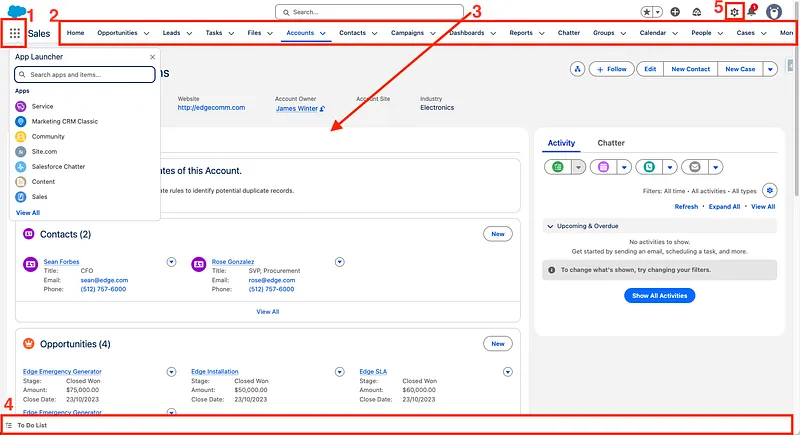
The numbered areas are: 1 the App Launcher, which opens any app or item you have access to; 2 the current app’s name and its navigation bar of tabs; 3 the main workspace, here an Account record page; 4 the utility bar, docked along the bottom; and 5 the gear icon that opens Setup.
Use the App Launcher and navigation bar to see the work from a user’s side. Use the gear icon to open Setup, then use Quick Find rather than trying to memorise Salesforce’s menu tree. The important skill is not remembering where every control lives. It is recognising which platform layer owns the behaviour you are investigating.
The screenshot shows one Lightning app layout. An administrator can change the navigation and page, and the utility bar is optional, so use the numbered areas as landmarks rather than expecting every org to look identical.
These are the Setup areas this series keeps returning to. Open each one now, so the name means something when a later chapter sends you there:
- Company Information and Company Settings hold the org’s identity, edition, and licences, plus its locale, time zone, currencies, fiscal year, business hours, and holidays.
- Object Manager is where objects, fields, relationships, validation rules, record types, page layouts, and Lightning record pages live. Data Model starts here.
- Users, Profiles, and Permission Sets control who can log in and what each person can do. Users covers them.
- Sharing Settings set the record-access baseline for every object, with roles and sharing rules granting more. Record Access covers them.
- App Manager defines the apps and navigation people see. Customisation & Automation builds one, and gives you a first look at Flows, where automation lives.
- Setup Audit Trail records who changed what in Setup, which is the evidence you will want the first time something stops working.
- Monitoring and developer areas live here too: debug logs, scheduled jobs, API settings, sandboxes, and deployment tools. Org Health & Monitoring and Developer Mindset & Toolkit pick those up.
Opening each area is enough for now. You are learning where the controls live and noticing what the org already contains, not changing anything.
Salesforce Classic still exists in some orgs, but Salesforce states that new product innovation is available in Lightning Experience. Learn to recognise Classic when supporting an established implementation; design new internal user experiences for Lightning unless a verified requirement says otherwise.
✅ Checkpoint: Read Your Org
Section titled “✅ Checkpoint: Read Your Org”This checkpoint needs an org to look at, and it works in two modes.
- Learning on your own? Read on to Salesforce Practice Orgs and Safe Learning, set up the org it gives you, then come back and work through the steps against it. Several answers will be short, such as “me” for the owner and “Developer Edition” for the environment, and that is fine. The point is to practise reading an org before you change one.
- Working in a real org? Do it for the org you administer, and keep the result in the wiki or change record where your team will look for it.
Either way, change nothing while you do it.
-
Identify the org. Record the organisation name, organisation ID, edition, My Domain or login URL, purpose, and owner, and whether it is an operational org or a personal learning org.
-
Classify the environment. Record the type: production, a named sandbox type, a scratch org, a Developer Edition, or a Playground. For a sandbox, add its refresh age and whether it holds copied production data. For anything but production, check whether outbound email and integrations are switched off.
-
Record what it can do. From Company Information, note the edition, any add-ons you can see, the user licence types and how many of each remain, and any permission set or feature licences already assigned. Link the Required Editions section of the Help page for any feature you expect to rely on.
-
Walk the Setup map. Open each area from the list above and note what the org already contains: custom objects, apps, flows, and anything a previous admin left behind. This is an inventory, not a to-do list.
-
Name the unknowns. For anything you could not tell, record who can answer it: who approves changes, who owns licensing, and what data the org holds. In a practice org that is usually a note that a customer’s org would need checking. An assumption with no owner is a future blocker disguised as a note.
A compact result can look like this:
| Context | What to record |
|---|---|
| Org | Organisation name and ID; production or “personal learning only” |
| Environment | Production, sandbox type, scratch org, Developer Edition, or Playground, with email and integration state |
| Capability | Edition, visible add-ons, licence types and counts, and links to feature requirements |
| Setup inventory | What already exists in Object Manager, App Manager, Flows, and Sharing Settings |
| Constraints | Test-user limit, copied data, disabled email, integration risk, or a missing entitlement |
| Owners | Person responsible for the org, changes, licensing, security, and deployment |
You are ready to move on when you can answer four questions without guessing: Which org am I in? What kind of environment is it? What can it do, and who is licensed to use it? Where do its controls live? If one answer is missing, resolve it or write down who owns it. In a practice org the honest answers are short; the habit is what you are keeping.
🎯 Final Thoughts
Section titled “🎯 Final Thoughts”The platform mental model is not a list of clouds or menu items. It is the habit of locating any change inside a specific org, environment, entitlement boundary, and set of controls before you make it. That habit catches the awkward mistakes early: the right feature in the wrong org, the right licence for the wrong user, or a harmless-looking test connected to a live system.
From experience: the admins and developers who struggle most in early projects are the ones who jumped straight to Flow or Apex without this grounding. When a feature is missing for one user, or a sandbox behaves differently from production, they lose real time because they do not know where to look. This chapter will not teach you every corner of the platform, but it gives you the map.
Next is Salesforce Practice Orgs and Safe Learning, which gets you an org of your own and the habits that keep experiments cheap. After that, Users picks up the licence and permission layers this chapter only sketched. Keep the org context record. You will not need it again in Fundamentals, but if you follow the Admin path, Requirements & Solution Design asks for it as the first attachment to a real brief, and the design questions there, which licences the people involved will need and which Setup areas the change will touch, start from what you recorded here.