Salesforce Admin Capstone Project: Change a Live Approval

This is the capstone project of the Salesforce Admin path. It asks you to change a live Flow approval process and deliver that change with the tests, release record, and evidence pack a reviewer would expect.
The Equipment Request app that sits in your practice org has now been live for a quarter. You’re still its only user, so treat it as if a team depends on it. Changing something people rely on is what this chapter is about. Two things have changed since you built it:
- IT reorganised, and the
Equipment_Request_ITgroup that catches requests from people with no manager is now the wrong team, so those requests are landing with people who can’t approve them. - Finance, having seen the first quarter’s totals, wants anything over an agreed cost to get a second approval from their team before IT orders it.
The fallback group is hard-coded into the approver formula of the approval process you built in Admin Essentials. To change it you have to edit the approval itself, and nobody can see the rule without opening Flow Builder. The Finance threshold and its second approval are new.
This capstone asks you to deliver that change the way you would on a live org. You’ll agree what is changing and what isn’t, move the routing rules into custom metadata, add the escalation stage, and prove the existing behaviour still holds. Then you’ll release it through a sandbox with a runbook and a rollback trigger, and hand it over with the evidence another admin would need. You’re combining the app from Admin Essentials with the working method from Salesforce Administration. The Service Cloud support process only contributes its checkpoint to the evidence pack. It stays separate, and there’s no requirement to connect Cases to equipment requests.
You’ll finish with an app whose routing rules are data rather than formula, a release record for a real change, and an evidence pack: the decisions, test results, and support notes that let someone else review and maintain it. The checks below define the outcome. Your implementation can differ from what is described here if you explain the choice and meet the same criteria.
Budget several sittings. The build stops cleanly after any piece, and the tests, the release, and the review each stand on their own.
🚧 Prepare a safe place to work
Section titled “🚧 Prepare a safe place to work”Carry on in the practice org or private sandbox where your Equipment Request app already lives. Keep using synthetic records and mailboxes you control, and if the org is shared, agree who can approve changes before you start.
You need the finished object, app, approval process, reports, and imported practice records from that section. If anything is missing, work through Admin Essentials in order as far as Data Import and Reconciliation before continuing. Carry forward useful evidence from those chapters and re-run the checks affected by this change.
If you’re moving to another org, confirm that it supports the Flow Approval Processes features used by your build. If you built the approval a different way, write down how you’ll adapt the change. You’ll also need separate test users, because swapping permission sets on one user can’t prove that one employee is kept out of another’s records. If licences or environments stop you running a check, mark it Not run and say what you’d need to finish it.
Configure as your administrator, but run the user checks in each person’s own session, or through Log In As where the org allows it. If someone can review your work, name them; if not, call it a self-review. And only record approvals and user tests that actually happened.
📋 Agree the change before touching the build
Section titled “📋 Agree the change before touching the build”The original problem hasn’t gone away: staff request equipment, managers approve it, IT checks stock and fulfils, and Finance needs to see committed spend before invoices arrive. Everything the app does today is in scope for regression and out of scope for redesign. Purchasing integration and asset lifecycle management stay out, as they did in the first build.
Write a one-page change brief with the process owner, what you can decide, and what needs escalation. Name the two requests it answers: the fallback approver is wrong since IT reorganised, and Finance wants a second approval above an agreed cost. Add an acceptance criterion for each, plus one for every behaviour the change could break, and give each criterion an ID so you can link it to a test.
Write down what must still be true when you’re done. This is the table the first build was tested against, with the two additions this change makes in bold. Everything unbolded becomes a regression test; the bold parts become change tests.
| Person | What the process must let them do |
|---|---|
| Staff | Submit a request, follow its progress, and read a rejection reason. They cannot read another staff member’s request or approve their own. A request from someone with no manager reaches their team’s fallback approver. |
| Manager | Review their team’s requests and approve or reject with a reason. Their own request goes to their manager, not back to themselves. |
| IT | Work approved requests across teams, record an expected delivery date when stock is unavailable, and fulfil the request with an accurate fulfilment date. |
| Finance | Read the agreed financial fields and approved, unfulfilled totals without changing requests or reading private justification and rejection text. Approve or reject over-threshold requests routed to their team, without gaining access to that private text. |
Keep two separate staff teams for the access tests. The existing model treats the record owner as the requester and the owner’s role as their team, and the routing records are looked up by that role. Requests on someone else’s behalf, queue ownership, or several teams per person are model changes, and a model change is a different brief. Write them down as out of scope; don’t absorb them.
📅 Carry the ageing gap forward, visibly
Section titled “📅 Carry the ageing gap forward, visibly”The original brief asked for requests open more than five working days, excluding holidays, and Weekdays_Open__c still counts weekdays only. This change doesn’t touch it. Record it in the decision log as a known limitation carried forward, with an owner and a next action, so the reviewer sees that you know. Fixing it here would be a change nobody agreed to. Leave it for its own brief.
📥 Prepare the practice data
Section titled “📥 Prepare the practice data”The change doesn’t alter the five historical records, so there’s no data to build this time; they are the fixture you test against. Download the Equipment Request practice pack and start with its README. It holds the five historical requests, the routing records to create, the live scenarios for the change tests, a test-results sheet, a decision log, an evidence checklist, and the completion rubric. The pack gives you the expected results. The observed ones are yours to record.
The five legacy keys are the ones from Data Import and Reconciliation. If those records exist and reconcile, reuse them and the import evidence. If they are missing, load them by that chapter’s pilot, mapping, bypass, and retry procedure before starting the change, and keep the source, mapping, success and error files together. Don’t import a second set.
| Legacy request | Owner | Status | Estimated cost |
|---|---|---|---|
| LEGACY-ER-001 | Staff A | Approved | 1,200 |
| LEGACY-ER-002 | Staff A | Awaiting Stock | 250 |
| LEGACY-ER-003 | Staff B | Approved | 90 |
| LEGACY-ER-004 | Staff B | Awaiting Stock | 180 |
| LEGACY-ER-005 | Staff A | Rejected | 0 |
Before you change anything, record the baseline: the four approved or awaiting-stock requests total 1,720, 1,450 for Staff A and 270 for Staff B. That number comes from the copy of Approved, Unfulfilled Cost that Data Import and Reconciliation had you save with a filter on the five legacy IDs. If you didn’t name it then, name it now, for example Approved, Unfulfilled Cost (Legacy Baseline), because you’re about to rely on telling it apart from the original. That number has to be the same after the change. Activating the new approval version must not start approvals for these historical records, and since imported records carry no approval history, none of them can stand as evidence that escalation works.
You’ll also need a Finance dashboard built from that report, which Admin Essentials left for later. Before changing the approval, follow the dashboard setup and comparison checks below, refresh the dashboard, and capture its baseline total and team breakdown as Finance.
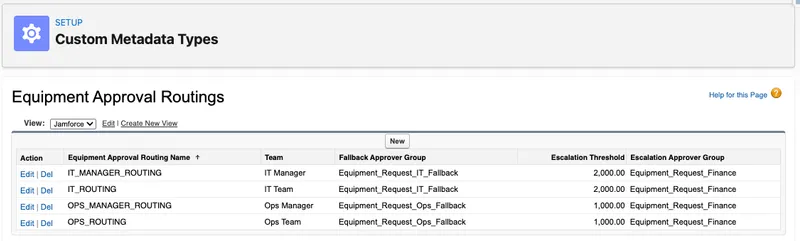
The pack’s routing sheet lists the records to create in Equipment_Approval_Routing__mdt: one per team, with the fallback group, escalation group, and threshold. Because the key is the owner’s role, managers need records for their own roles too; their staff’s records don’t cover them. Map the example role names to your org. Keep a separate test role deliberately without a record. Create the public groups it names before the flow can resolve them, and record their membership; the fallback group must not contain the test requester who will use it.
Live requests for the change tests carry [CAP-TEST] in their justification and sit outside the five-key baseline. The scenario sheet gives each one a cost relative to the threshold and a date offset from your test day. Keep their IDs in the test sheet.
🔀 The change: move approval routing into custom metadata and add a Finance escalation stage
Section titled “🔀 The change: move approval routing into custom metadata and add a Finance escalation stage”The first build resolved the approver with a BLANKVALUE formula: the requester’s manager, or a hard-coded group when there’s no manager. When IT moves, that fallback is wrong until someone changes the formula. This change moves the fallback into custom metadata and adds a per-team Finance threshold alongside it.
| Piece | Before | After |
|---|---|---|
| Fallback approver | "Equipment_Request_IT" written into the approver formula |
Read from an Equipment_Approval_Routing__mdt record for the requester’s team |
| Escalation | None | A second approval stage, run only when Estimated Cost exceeds the team’s threshold |
| Who can change the rule | Whoever can edit and activate the approval process | An authorised metadata editor or deployer, under the agreed change policy |

Custom metadata is configuration, not a permission boundary. Anyone with Customize Application can create and edit records through Setup. If you want changes to go through a reviewed deployment, that’s a policy you set and enforce; moving the rule into metadata doesn’t do it for you.
🧭 Decide these first
Section titled “🧭 Decide these first”Four decisions shape everything you build below, and the build assumes a particular answer to each. Log them in the decision log before you open Setup, so a reviewer can tell a choice from an accident.
- What “team” means. The first build treats the record owner’s role as their team, and each routing record below is looked up by that role. Carry that forward, or record why you changed it and what else the change touches (the reports group by role too).
- What happens when no routing record matches. Fail closed: hold the request, notify a named support group, and make that a test. A silently approved request because a team was missing from metadata is the failure this change exists to prevent, and the build below assumes this answer.
- Whether a rejected request can reach Finance. It shouldn’t. A manager’s rejection ends the process, and the escalation stage only sees approvals.
- One threshold or one per team. The metadata supports either. Pick one, justify it, and note who owns the number.
- What happens when a requester has no role. The routing flow reads the role name through the owner’s User record, so every requester needs a role; the Essentials personas all have one. A user without a role is outside this exercise. Record it as a known limit, and if your org has such users, add a null-role check before
Get_Routingthat sends them to the hold.
🔧 Build it in this order
Section titled “🔧 Build it in this order”Each piece depends on the one before it, and the order you build in is the order you’ll deploy in later. Record each as you finish it.
1. The routing type and its records
Section titled “1. The routing type and its records”Build Equipment_Approval_Routing__mdt with the four fields in the Custom Metadata Types & Custom Settings worked example: Team, Fallback Approver Group, Escalation Approver Group, and Escalation Threshold. The group fields are Text holding public group API names, and the threshold is a Number, because custom metadata has no Currency type. That works because this exercise assumes a single-currency org, so the flow compares the number with Estimated Cost directly. In a multi-currency org the threshold would need a currency code and a conversion rule of its own, which is out of scope here and worth a line in the known limits if it applies to you. Use the practice pack you prepared above, leaving the designated test role without a record.
2. The public groups
Section titled “2. The public groups”The routing flow returns group API names, and an approval step resolves a group name at run time, so a group that doesn’t exist fails when a request arrives rather than when you save. The four routing records name three groups, and Build a Salesforce App already created one of them. In Setup, enter Public Groups in the Quick Find box:
| Label | Group Name | Members | Status |
|---|---|---|---|
| Equipment Request — Ops Fallback | Equipment_Request_Ops_Fallback |
The IT persona | Create |
| Equipment Request — IT Fallback | Equipment_Request_IT_Fallback |
The IT persona | Create |
| Equipment Request — Finance | Equipment_Request_Finance |
The Finance persona | Exists; confirm |
The two fallback groups catch requests from someone with no manager, and their members have to pass two tests. They need access to every request, because an approver has to open the record they are approving. They also must not be anyone who can submit a request themselves, because the first group member to act completes a group work item. Managers fail the second test, since a manager with no manager of their own would land in their team’s fallback group and approve their own request. In this exercise the IT persona passes both: it holds Read/Write on all requests from the Essentials sharing rule and never submits one. A real org would more likely name a senior manager. Write the rule in the decision log with the membership.
The existing Finance group becomes the escalation group, which is the one new capability Finance gains; open it and confirm its Group Name is exactly Equipment_Request_Finance, because Essentials set that value explicitly only for the IT group and Setup may have generated something else from the label. Edit it if so, since the routing records hold that exact text.
Leave Equipment_Request_IT alone: the current approval version still references it and the rollback rehearsal needs it. Record each group’s membership in the evidence pack, since membership doesn’t deploy with the group.
3. The routing flow
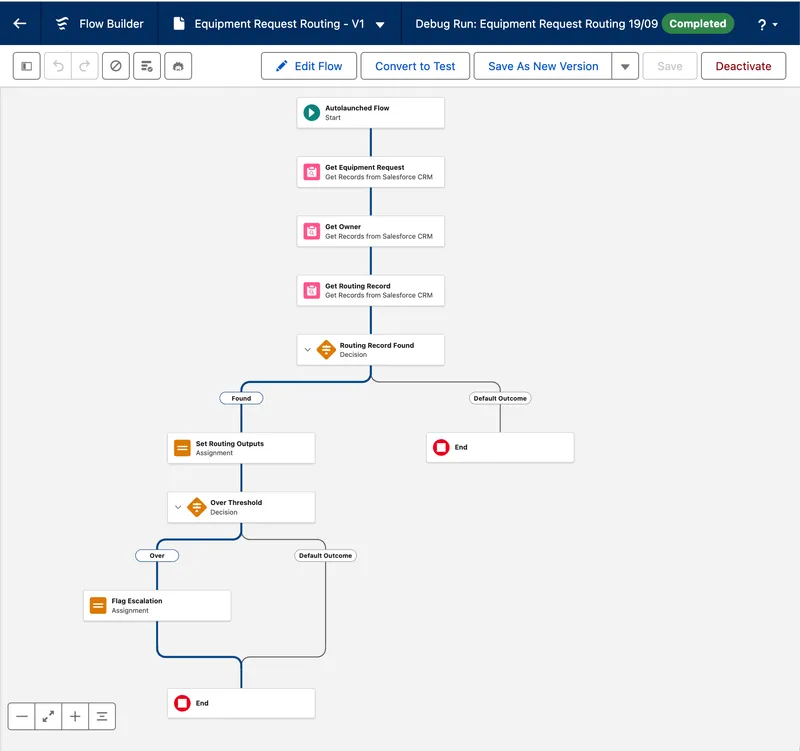
Section titled “3. The routing flow”This runs as a background step before anyone is asked to approve, so it is an autolaunched flow, and everything it learns comes back to the approval process as output variables. Build it in this order:
-
Open Setup → Flows → New Flow and choose Autolaunched Flow (No Trigger). Flow Builder won’t save an empty canvas, so create the variables first, then save it as
Equipment Request Routingbefore adding any elements. -
Create the variables. One Text input,
recordId, with Available for input ticked; the background step passes$Record.Idinto it. Four outputs, each with Available for output ticked: TextfallbackGroup, TextescalationGroup, BooleanrequiresEscalation, and BooleanroutingReady. Give both Booleans a default of{!$GlobalConstant.False}, so a path that never reaches an Assignment still hands back a definite answer rather than nothing. -
Get the request. A Get Records on the Equipment Request object, labelled
Get Equipment Requestwith the API NameGet_Request, filtered where Id equals{!recordId}, storing all fields from only the first record. You need Owner ID and Estimated Cost from it. -
Get the owner. A second Get Records on User, labelled
Get Ownerwith the API NameGet_Owner, filtered where Id equals{!Get_Request.OwnerId}, storing all fields. The team is the owner’s role name, and the next element reads it as{!Get_Owner.UserRole.Name}; that is a cross-object reference through the stored User record, which Flow allows on a lookup, so there’s no separate Get Records on User Role. -
Get the routing record. A third and final Get Records, this time on Equipment Approval Routing, which appears in the object list like any other object. Label it
Get Routing Recordwith the API NameGet_Routing, filter where Team equals{!Get_Owner.UserRole.Name}, store all fields, and keep Only the first record. The match is exact, so a role renamed in Setup silently stops matching; that’s the failure the next element exists to catch. -
Decide whether a record was found. A Decision labelled
Routing Record Foundwith the API NameRouting_Found, with one outcome,Found, where{!Get_Routing}Is Null{!$GlobalConstant.False}. An empty Get Records result isn’t a fault; the variable is simply null, and reading a field from it later is what faults. Connect the Default Outcome straight to End. On that path every output keeps its default, androutingReadyfalse is what the approval process will branch on. -
On the Found path, set the routing outputs. An Assignment labelled
Set Routing Outputswith the API NameSet_Routing_Outputs, with three rows:{!fallbackGroup}Equals{!Get_Routing.Fallback_Approver__c},{!escalationGroup}Equals{!Get_Routing.Escalation_Approver__c}, and{!routingReady}Equals{!$GlobalConstant.True}. -
Decide whether the cost crosses the threshold. A Decision labelled
Over Thresholdwith the API NameOver_Threshold, with one outcome,Over, where{!Get_Request.Estimated_Cost__c}Greater Than{!Get_Routing.Escalation_Threshold__c}. -
On the
Overpath add an Assignment labelledFlag Escalationwith the API NameFlag_Escalation, setting{!requiresEscalation}Equals{!$GlobalConstant.True}. Connect both paths to End. A request with no Estimated Cost compares as not greater and stays under threshold; decide whether that is acceptable and write the answer in the decision log, because it is the kind of gap Finance will ask about. -
Save, debug, and activate. Debug it three times with real record IDs: a request from each team, and one owned by the role with no routing record. Check the output variables in the debug details each time; the missing-role run must show
routingReadyfalse and both group outputs empty. Activate it, because the approval process can’t reference an inactive flow.
4. The Finance review screen
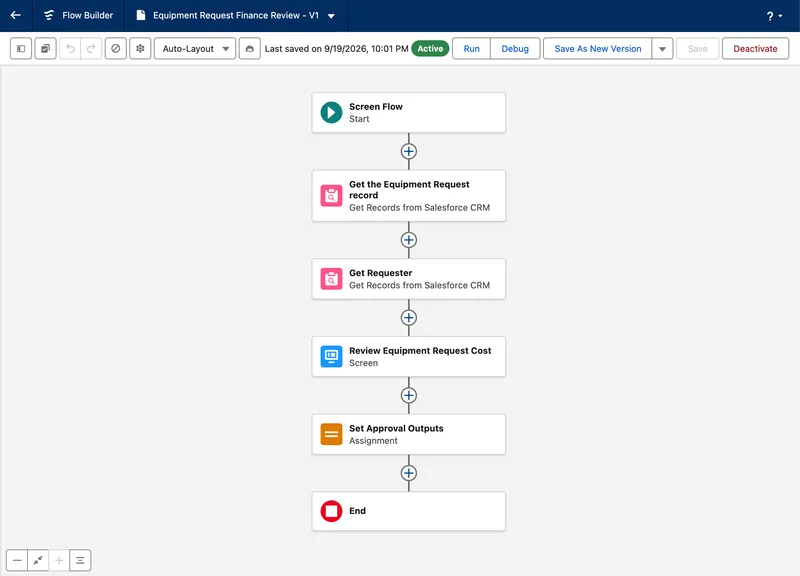
Section titled “4. The Finance review screen”Finance’s approver needs a screen of its own. The manager screen from Essentials shows the business justification, which Finance’s permission set doesn’t grant, and its summary talks to a manager judging a request rather than someone approving a spend. The build is the same shape as the manager review screen, so the traps are the same too; they are repeated briefly here rather than explained again.
-
Open Setup → Flows → New Flow and choose Screen Flow. Create the input variable first, then save the flow as
Equipment Request Finance Review. -
Create the input variable. In the Toolbox, choose New Resource → Variable, name it
recordIdwith a Data Type of Text, tick Available for input, and give it a Description (“The ID of the Equipment Request the Finance approval step is asking about”). The approval step supplies the value. -
Get the request. Add a Get Records on Equipment Request, labelled
Get the Equipment Request recordwith the API NameGet_Request, filtered where Id equals{!recordId}. Store only the first record, choose Choose fields and let Salesforce do the rest, and select Equipment Request Number, Equipment Type, Estimated Cost, and Owner ID only. Business Justification and Needed By stay out, so nothing on this screen can show a field Finance can’t read. Finance gains one capability in this change, acting on an escalated work item, and nothing else. -
Get the requester’s name. A second Get Records on User, labelled
Get Requesterwith the API NameGet_Requester, filtered where Id equals{!Get_Request.OwnerId}, storing Name. -
Add the Screen element, labelled
Review Equipment Request Cost. Under Configure Footer → Navigation, set Hide Pause, as before: a paused screen leaves the work item looking assigned while the interview sits paused until someone finds and resumes it, and nobody will be looking for it. -
Show the request as Display Text. Add a Display Text component named
Cost_Summarywith the merge fields below. The last line is the one that differs from the manager’s screen, and it is there so Finance knows the request has already passed its first review and why it is on their desk.Request: {!Get_Request.Name}Requester: {!Get_Requester.Name}Equipment: {!Get_Request.Equipment_Type__c}Estimated cost: {!Get_Request.Estimated_Cost__c}This request is over your team's approval threshold and has been approved by the requester's manager. Approve the spend, or reject it with a reason the requester will read. -
Create the two choices. New Resource → Choice twice:
Choice_ApproveandChoice_Reject, Data Type Text, with Choice Values of exactlyApproveandReject. The labels can read however you like; the values can’t. -
Add the decision component to the screen. Drag a Radio Buttons component onto the screen below the summary, labelled
Decision, API NameDecision, Data Type Text, Require ticked, both choices added with Approve first, and no Default Value. -
Add the rejection reason below it. Drag a Text component onto the screen under the radio buttons, labelled
Rejection Reason, API NameRejection_Reason, Require ticked, with Set Component Visibility showing it only when{!Decision}equals theChoice_Rejectresource, picked from the resource list rather than typed. Text rather than Long Text Area, becauseRejection_Reason__cis Text(255) and the Text component enforces that limit. -
Create the two output variables.
approvalDecisionandapprovalComments, both Text, both with Available for output ticked and Available for input clear. The approval step reads exactly those names from this flow, as it does from the manager’s. -
Copy the screen’s answers into them. An Assignment between the screen and End, labelled
Set Approval Outputsand API NameSet_Approval_Outputs, with two rows:{!approvalDecision}Equals{!Decision}and{!approvalComments}Equals{!Rejection_Reason}. Skip this and the screen looks finished in Flow Builder and the submission fails at run time on a missingapprovalDecision. -
Test both branches as Finance. The point is to confirm the screen opens for Finance and shows nothing it shouldn’t, and Finance cannot do that from Flow Builder: debugging needs Manage Flow, and Finance must not be given that or View All Data to make a test easier. In a sandbox, turn on Let admins debug flows as other users under Setup → Process Automation Settings, then as the administrator click Debug, tick Run flow as another user, and choose the Finance persona; that option exists only in sandboxes. In any other practice org, test it the way Finance will meet it, through a real escalated work item once the approval version is active in piece 7.
-
Activate the flow. An approval step can only call an active screen flow, so activate it now whichever route you took. If the work item later appears but the screen doesn’t open, the Finance permission set is missing Run Flows, which Essentials granted to the Manager set for the same reason.
5. The hold notice flow
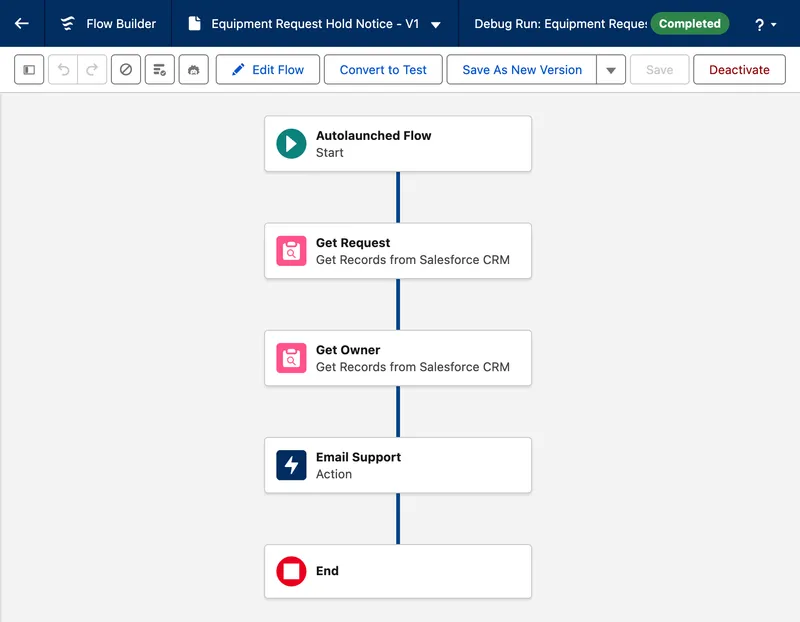
Section titled “5. The hold notice flow”The missing-record path needs to tell someone. A background step can only run an autolaunched flow, so the notice is a small flow of its own, built and activated here so the approval version can reference it in the next piece.
-
Open Setup → Flows → New Flow and choose Autolaunched Flow (No Trigger). Create the input variable, then save the flow as
Equipment Request Hold Notice. -
Create the input variable. A Text
recordIdwith Available for input ticked and a Description. The background step supplies it. -
Get the Equipment Request. A Get Records on Equipment Request,
Get_Request, filtered where Id equals{!recordId}, storing all fields. -
Get the Owner. Add a Get Records on User,
Get_Owner, filtered where Id equals{!Get_Request.OwnerId}, storing all fields. This flow only runs when the routing flow found no record for the requester’s role, so the email must name that role for support to act on;{!Get_Owner.UserRole.Name}is where the next step gets it. -
Decide where the notice goes, and store it once. The recipient is whichever mailbox will act on a stuck request. In this exercise that’s the private test support mailbox you set up for Email-to-Case, or any other mailbox you control; never a real team’s address from a practice org. Write the choice in the decision log as the support route for routing failures, then create a Text constant in the Toolbox, New Resource → Constant, named
supportMailbox, holding that address. Referencing the constant rather than typing the address into the action means the mailbox is one edit to change and shows up in the flow’s resource list for anyone auditing it. -
Send the notice. Add the Send Email action, labelled
Email Supportwith the API NameEmail_Support. Set Recipient Address List to{!supportMailbox}, the subject toEquipment Request {!Get_Request.Name} is on hold: no routing record for role {!Get_Owner.UserRole.Name}, and the body to:Equipment Request {!Get_Request.Name} cannot be routed for approval.Requester: {!Get_Owner.Name}Role: {!Get_Owner.UserRole.Name}Estimated cost: {!Get_Request.Estimated_Cost__c}No Equipment Approval Routing record exists for this role, so the request has no approver and is on hold. It will stay on hold until a routing record is created for the role and the request is closed and resubmitted under the recovery procedure. Nothing has been approved.The last sentence is there for the person who reads the email without reading the process. Their first question is whether anything has gone through, and the answer is no.
-
Save, debug with a real request ID, and activate. Check the email arrives with the right role in the subject and the body reads correctly with the merge fields filled. The approval version can’t reference this flow until it is active.
6. The new approval version
Section titled “6. The new approval version”Everything so far has been new pieces sitting beside the running app. This step changes the approval process itself, so you do it as a new version, which stays inactive until you choose to test it. Work down the canvas from the top; each element references outputs of the ones above it, and a step’s outputs are addressed by the step’s API name alone, as {!Step_API_Name.Outputs.variable}, because step names are unique across the whole process.
-
Open the approval process and save a new version. In Setup → Flows, open Equipment Request Approval, then choose Save As New Version before touching anything. The active version keeps running; you’re editing a copy.
-
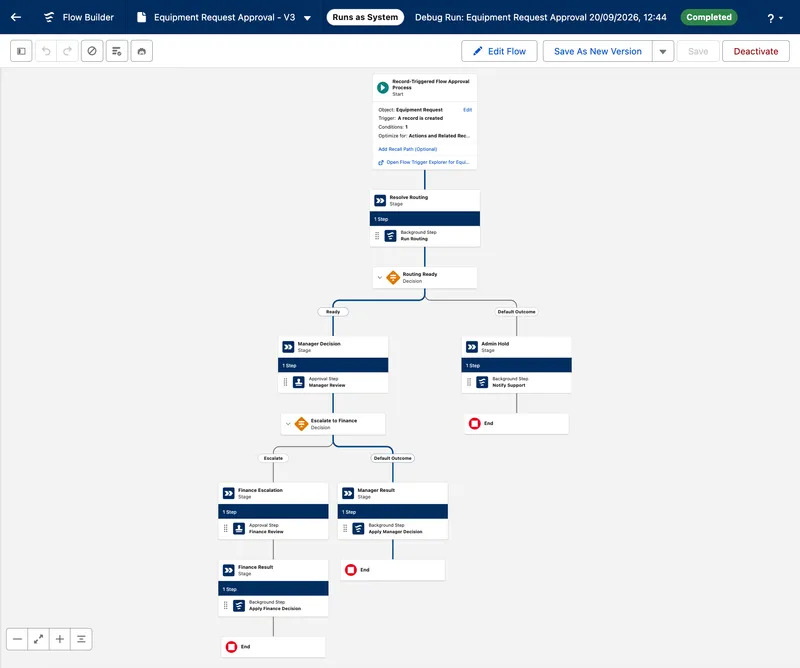
Add the routing stage at the top. Click the connector between Start and
Manager_Decisionand add a Stage labelledResolve Routingwith the API NameResolve_Routing. Inside it, + Add Step → Background Step, labelledRun Routingwith the API NameRun_Routing, set to start when the stage starts. Under Select an Action to Run, choose Equipment Request Routing and pass{!$Record.Id}into itsrecordIdinput. Leave the stage’s exit condition at When all steps have been marked Completed. -
Add the routing-ready Decision below it. Label it
Routing Readywith the API NameRouting_Ready, with one outcome,Ready, where{!Run_Routing.Outputs.routingReady}equals{!$GlobalConstant.True}. ConnectReadytoManager_Decision. The Default Outcome is the missing-record path, and it needs somewhere to go, which is the next step. -
Build the Admin Hold stage on the Default Outcome. A Stage labelled
Admin Holdwith the API NameAdmin_Hold. Its job is to notify support and then stay open, so give it one Background Step,Notify Supportwith the API NameNotify_Support, set to start when the stage starts, running Equipment Request Hold Notice from piece 5 with{!$Record.Id}passed into itsrecordIdinput. Then set the stage’s exit condition to When the specified requirements are met, with the single requirement{!Run_Routing.Outputs.routingReady}equals{!$GlobalConstant.True}. On this path that value is false, so the stage can never complete, which is the point: the failure section explains what a support admin does with it. Auto-layout draws an End after the stage as it does after every branch; leave it, because a stage that never completes never reaches it. -
Change the manager’s approver formula. The approver is the
approverNameformula resource you created in the Toolbox during the first build, not a setting on the step. Open the Toolbox, switch to the Manager tab, findapproverNameunder Formulas, and edit it. Replace the group literal with the step output:BLANKVALUE({!$Record.Owner:User.Manager.Username},{!Run_Routing.Outputs.fallbackGroup})Run Check Syntax, then open
Manager_ReviewinsideManager_Decisionand confirm its approver is still theapproverNameresource; the step needs no change, because it reads the formula by name. The manager still comes first; only the fallback has moved. -
Remove
Apply_the_DecisionfromManager_Decision. Delete the background step. Leaving it there would approve the request and notify the requester the moment the manager acted, before Finance had seen it. The stage now contains onlyManager_Review. You will recreate that step in its own stage in step 9. -
Add the escalation Decision after
Manager_Decision. Label itEscalate to Financewith the API NameEscalate_to_Finance, with one outcome,Escalate, where both conditions are true:{!Manager_Review.Outputs.approvalDecision}equalsApprove, and{!Run_Routing.Outputs.requiresEscalation}equals{!$GlobalConstant.True}. The two values are different kinds of thing. The first is the textApprove, typed into the value box exactly as the screen flow returns it; the second is the Boolean global constant. Pick{!$GlobalConstant.True}for both and the first condition compares the word Approve with a Boolean, is never met, and every request takes the default path. The debug details show it plainly:approvalDecision (Approve) Equals true. Everything else, which means every rejection and every under-threshold approval, takes the Default Outcome. -
Add the Finance stage on the
Escalatepath. A Stage labelledFinance Escalationwith the API NameFinance_Escalation, holding one Approval Step labelledFinance Reviewwith the API NameFinance_Review, set to start when the stage starts. Under Select an Action to Run, choose Equipment Request Finance Review and pass{!$Record.Id}into itsrecordIdinput. Set Approver Type to Resource and select{!Run_Routing.Outputs.escalationGroup}. Under Select the Record to Approve, set Record ID to{!$Record.Id}. Keep the completion condition at When the assigned user has completed the action. This is where the metadata-selected Finance group meets the screen and the request. -
Add the two result stages. Each holds one Background Step that runs the existing Equipment Request Decision flow, passing
{!$Record.Id}asrecordId. They differ only in whose decision they carry.- Manager Result, API Name
Manager_Result, on theEscalate to FinanceDefault Outcome. Its step isApply Manager Decisionwith the API NameApply_Manager_Decision, passing{!Manager_Review.Outputs.approvalDecision}and{!Manager_Review.Outputs.approvalComments}. - Finance Result, API Name
Finance_Result, afterFinance_Escalation. Its step isApply Finance Decisionwith the API NameApply_Finance_Decision, passing{!Finance_Review.Outputs.approvalDecision}and{!Finance_Review.Outputs.approvalComments}.
Manager_Resultis the step you deleted in step 6, moved to where it can only run after the escalation Decision has said Finance isn’t needed.Finance_Resultmust take Finance’s comments, because the manager’s comment on that request was an approval and would make no sense as a rejection reason. Only one of the two ever runs for a given request, and Status stays at Awaiting Approval until it does. - Manager Result, API Name
-
Save. Don’t activate yet; piece 7 below covers activating for the change tests, and the sequence matters because the approval version can only reference flows that are already active.
The finished canvas has five stages and two Decisions, and every request takes one of the paths in the summary table:
| Completed review and condition | Next stage | Final-result inputs |
|---|---|---|
| Manager rejects | Manager_Result |
approvalDecision and approvalComments from Manager_Review |
Manager approves and requiresEscalation is false |
Manager_Result |
Both outputs from Manager_Review |
Manager approves and requiresEscalation is true |
Finance_Escalation, containing Finance_Review |
Wait for Finance; do not run a result step yet |
| Finance approves or rejects | Finance_Result |
Both outputs from Finance_Review |
7. Activate the new version for testing
Section titled “7. Activate the new version for testing”Once the debug runs look right, activate the called flows, then the new approval version, in your test org. If you have a separate release destination, leave its previous version active until the release checks pass. If your practice org is your only org, note that activating the new version deactivates the previous one; the rollback rehearsal brings it back. From here on, every request your personas create should run on the new version.
✅ Prove the change
Section titled “✅ Prove the change”Test the change on its own before you run regression. Every row needs a test user, the routing record in play, the request ID, expected and actual results, and an evidence reference.
| Check | Expected result |
|---|---|
| Under-threshold request with a manager | Routes to the manager exactly as before. No Finance work item is created; Finance retains its existing record and report visibility. |
| Request exactly at the team’s threshold, manager approves | No Finance work item is created. Status becomes Approved after the manager’s decision; escalation requires a cost strictly greater than the threshold. |
| Over-threshold request, manager and Finance approve | Routes to the manager, then to the team’s Finance escalation group. Status stays Awaiting Approval until Finance approves, then becomes Approved. Both decisions are in the approval history; one outcome notification is sent. |
| Over-threshold request, manager approves and Finance rejects | Status becomes Rejected with Finance’s reason, the requester is notified once, and IT cannot fulfil it. |
| Over-threshold request, manager rejects | Ends at the manager with the reason recorded. No Finance work item is created. |
| Requester with no manager | Routes to the fallback group named in their team’s routing record, not to Equipment_Request_IT. |
| Requester whose team has no routing record | Enters the Admin Hold and notifies support. The Approval Submission (the record Salesforce keeps for each run of the approval process, explained in the failure section) stays In Progress; Equipment Request stays Awaiting Approval. No manager or Finance work item is created. |
| Threshold changed in metadata, nothing else touched | The next over-threshold request escalates at the new number without editing or reactivating the approval. |

Mark every row with one of three marks, kept apart: Pass against the agreed scope, Gap against the original brief, and Not run. The holiday-aware ageing requirement remains a Gap unless separately delivered; any check you can’t repeat is Not run with a reason. The Gap mark is there so an accepted limitation is recorded as unmet rather than counted as a pass.
🔐 Regression tests: what the approval change must not have broken
Section titled “🔐 Regression tests: what the approval change must not have broken”Regression is where you prove the old behaviour survived: everything users could do before, and everything they were stopped from doing, still holds. Run the whole acceptance table from the evidence run and record each check as you did for the change tests. In the pack’s test sheet, row T-21 stands for that whole table; attach the table’s results to it rather than looking for a row per criterion.
The seven rows below aren’t a substitute for the table. They are the criteria this change is most likely to have touched, so examine them first and be ready to explain each one to a reviewer:
| Check | Expected result |
|---|---|
| Staff A tries Staff B’s direct record link | Access is still denied. A new public group or permission set for Finance approvers must not have widened this. |
| Manager A opens one request from each team | They can still open their own team’s request and cannot open the other team’s. Nothing in the routing records grants record access. |
| Staff A attempts to approve or edit protected Status | Still denied, and the status is unchanged. |
| Finance opens records, reports, and the dashboard | Totals visible, editing denied, justification and rejection text unavailable, including in reports. Finance can now also open and act on an escalated work item, and only that. |
| An authorised editor tries to bypass approval by setting Status directly to Approved | Still blocked under the agreed process control, or the documented exception still records who may do it and how it is audited. |
| Manager submits their own request | With a routing record for their own role and their Manager field populated, it routes to that manager. With Manager blank, it goes to the team’s fallback group, whose members do not include any manager. Neither path lets them approve their own request; check the fallback group’s actual membership when you record this. A missing routing record enters the Admin Hold, as covered by the change tests. |
| IT fulfils an approved request | Fulfilled Date is set once, when IT sets Status to Fulfilled, and neither the approval’s own Status updates nor a later unrelated edit moves it. The stamp flow’s entry condition, Status equals Fulfilled and Fulfilled Date is null, is what keeps it that way. |
If an access test fails, check the user’s licence, profile, permission sets, ownership, hierarchy, and sharing. The rows above cover four personas, but Finance is the only one whose access this change touched, so it is where a failure will show, and it can fail in either direction.
If Finance can’t open its work item, confirm its record and field access from Essentials is still in place, then check membership of the Finance group and the Run Flows permission. If the Finance review flow has Override default behavior and restrict access set, Finance’s permission set needs access to that flow as well.
If Finance can read more than before, look for a permission or sharing change made during this build in place of those two. Field-level security is what keeps private fields out of records and reports; hiding a field on a page layout doesn’t secure it.
📊 Prove Finance’s dashboard did not move
Section titled “📊 Prove Finance’s dashboard did not move”The Finance dashboard shows the cost of approved equipment still waiting and each team’s share. For the baseline, build it from the legacy-baseline copy of Approved, Unfulfilled Cost you named in Prepare the practice data, with a total metric and a breakdown by owner role, following Reports and Dashboards.
Refresh the dashboard and wait for the refresh to complete before recording each result. The total metric must read 1,720 before the change and 1,720 after it, with the same team breakdown. The escalation stage creates approval work-item records but no new Equipment Request records, so the five historical requests should still contribute the same total.
If the total or team breakdown changes, compare the source report’s rows and summed Estimated Cost with the baseline. Check its filters, the dashboard’s running user and that user’s access, and any changes to the requests’ costs, statuses, owners, or owner roles. The usual culprits are a test request that slipped past the baseline filter, or a status someone changed by hand. Record what changed, correct the cause, then refresh and repeat the comparison.
You’re working with two versions of the same report, and they must stay separate. The original Approved, Unfulfilled Cost report from Test Permissions and Reports is the operational view: every current request that is Approved or Awaiting Stock, which is what Finance actually uses. The copy you saved in Data Import and Reconciliation, filtered to the five legacy IDs, is the baseline view, and it only holds at 1,720 because that filter excludes everything you create during testing. Don’t put the legacy-ID filter on the original, and give the copy a name that says what it is.
The two diverge as soon as the change tests start. Each [CAP-TEST] request that a manager approves under threshold, or that Finance approves after escalation, becomes Approved and joins the operational total, while the baseline doesn’t move. After the tests, open the operational view as Finance. Every [CAP-TEST] request that was approved, by the manager alone or by Finance after escalation, should be in the total. Every one that was rejected, or that never reached an approver, shouldn’t. If each row is where you expect, the routing change hasn’t changed what the report means.
Document the dashboard’s running user and audience, and re-check it as Finance after the change. A static dashboard uses its running user’s access, while a dynamic dashboard uses the viewer’s, so a viewer can see more through a static dashboard than through their own report. Check the dashboard visibility considerations and feature availability in your org. Finance gained the ability to act on escalated work items; confirm it didn’t also gain access to justification or rejection text.
🧪 Make one failure safe and observable
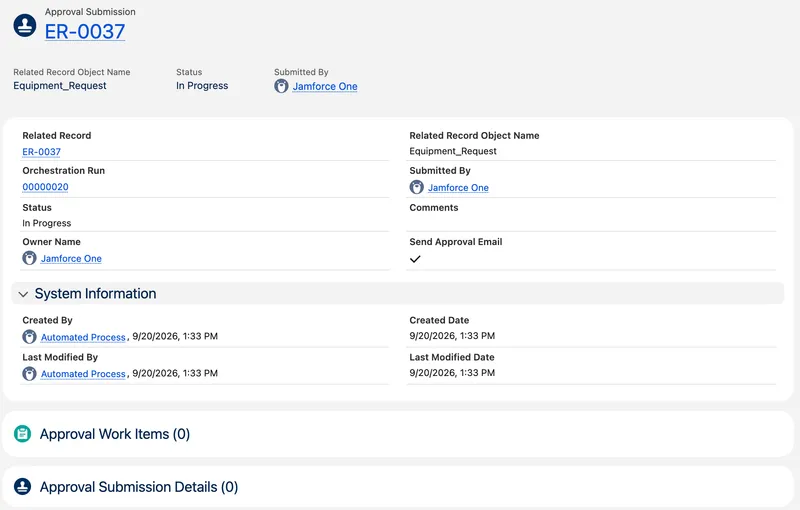
Section titled “🧪 Make one failure safe and observable”A missing routing record and a runtime error need different tests, and both are read from a record the first build never made you look at. Each time the approval process starts for a request, Salesforce creates an Approval Submission: one record per submission, with its own status, a link to the orchestration run that carries the process version, and a related list of Approval Work Items, one for each approval step that has been assigned. Its status is one of In Progress, Approved, Rejected, Canceled, Recalled, or Error. Open it from the Approval Submissions list view in the App Launcher. The Approval Processes guide explains how these records differ from Classic’s ProcessInstance.
It isn’t the request. The Equipment Request’s Status is whatever your result flow last wrote; the Approval Submission’s status is what the process itself reached, and the two can disagree. A request can sit at Awaiting Approval while its submission is in Error, which is exactly the state these tests produce. Support needs both: the request ID, the Approval Submission ID, the process version from its orchestration run, what completed, and a safe next action.
🔁 The missing-record hold
Section titled “🔁 The missing-record hold”The missing-record branch is the Admin Hold stage from step 4 of piece 6. It stays In Progress because routingReady is false and the stage requires it to be true to complete. It creates no approval work item.
Adding the missing metadata record doesn’t release this hold. The routing step has already run, and its saved output stays false. Follow the recovery steps below to close the submission and raise a replacement.
Keep the hold in place after the support notification. Sending an email doesn’t resolve the routing failure, and a process that ends with no completed approval work item can finish as Approved. The submission needs an administrator, not an End element.
Submit the missing-role request and confirm four things:
- The Approval Submission is In Progress at Admin Hold.
- The Equipment Request is still Awaiting Approval.
- Support has the email.
- There is no manager or Finance work item, and no success notification.
If you’re in a sandbox and the email never arrives, check Setup → Deliverability before debugging the flow: new and refreshed sandboxes default to System email only, and the hold notice is not a system email.
🧨 A genuine runtime error
Section titled “🧨 A genuine runtime error”Leave the routing stage without a fault path, and don’t catch errors inside the routing flow and hand back a tidy-looking success. Salesforce’s error-handling guidance says exactly this for an initial stage that holds only background work: an unhandled error puts the orchestration and the Approval Submission into Error, whereas a fault path that completes can mark the submission Approved when no approval work item has completed.
Before you test, check Send Process or Flow Email to under Setup → Process Automation Settings and confirm that the selected recipients include someone who can read the emails during the test. A failure in a called flow produces two error emails: one for the approval process and one for the called flow.
-
Make a test version of the routing flow fail. Open Equipment Request Routing and save it as a new version. Between
Get_RequestandGet_Owner, add an Update Records element labelledForce Failurewith the API NameForce_Failure. Choose Specify conditions to identify records and set fields individually, object Equipment Request, condition Id equals{!recordId}, and set Status toBroken. Status is a restricted picklist, so Salesforce rejects the update, the flow faults, and nothing is written. Activate that version in your test org. A Get Records that finds nothing wouldn’t do here: an empty result isn’t an error, and the flow already handles it throughRouting_Found, so a bad Team filter only sends the request to the hold. -
Submit a request and capture the evidence. Save both error emails and record the Approval Submission’s status and the Equipment Request’s status. Confirm that the called flow failed at
Force_Failure; the flow error email names the element, the record ID, and the errorINVALID_OR_NULL_FOR_RESTRICTED_PICKLIST: Status: bad value for restricted picklist field: Broken. Expected: the submission is in Error, the request is still Awaiting Approval, and no success notification was sent. -
Reactivate the working version of the routing flow, and record that you did, with the version numbers.
🩹 Recover with a replacement request
Section titled “🩹 Recover with a replacement request”Editing the original request doesn’t start a new submission, because the approval process only triggers when a record is created, and an errored orchestration can’t resume. So recovery means closing the original submission and raising a replacement:
- Repair the configuration. Add the missing role record or fix the runtime error, then verify the intended active versions and group membership.
- Close the original submission. If its status is In Progress, a user with the Approval Admin permission opens the Approval Submissions list view from the App Launcher and cancels it. If its status is Error, it is already closed; keep the record as evidence. Then, under the documented administrator exception to direct Status changes, set the original Equipment Request’s Status to Rejected and fill in Rejection Reason in the same save so the validation rule passes. Explain the routing failure and planned replacement. Record this as an administrative closure, not a manager’s rejection.
- Create one replacement as the requester. A new Equipment Request, so the created-only trigger runs. Link the original and replacement request and submission IDs in the incident note, verify that one new approval reaches the intended approver, and confirm the closed original can’t be fulfilled. Don’t claim the original was resumed.
Close the incident note with the symptom, cause, IDs, action, and prevention. The release checklist must cover every role allowed to request equipment, including manager roles, before activation. Keep the deliberately missing role confined to the controlled test.
🧱 Review each stage before release
Section titled “🧱 Review each stage before release”Before you release, look back over the evidence from the design, the build, and the tests, and close any gaps while the change is still in the test org. What survives that review is what goes into the release and the handover.
-
Review the design evidence. Use the decisions recorded above, routing records, and group memberships to explain who approves each request. Check the persona-to-permission matrix, including Finance’s work-item access. Resolve any mismatch before release.
-
Review the new version. Confirm the build and activation steps are complete. Record the active version in the test org and the version still active in any separate release destination. Keep the component list as the basis of your deployment order.
-
Review the change-test evidence. Check the results from Prove the change, including Finance rejection and the exact-threshold boundary. Each routing outcome needs the persona and actual assignee. Include the missing-record hold and runtime-error tests, checking both Equipment Request and Approval Submission statuses. Fix, then re-run, rather than annotating a failed result.
-
Review regression. Check the completed evidence-run acceptance criteria results for the same four personas, confirm the baseline total and the dashboard comparison, and check the evidence for the record page, notifications, and fulfilment stamping. Anything you can’t re-run is Not run with a reason.
-
Carry the reviewed change into release. Follow Release the change and hand it over for deployment, destination checks, and the rollback rehearsal. Then complete Review the evidence pack, including the reviewer trace. Record corrections and re-run affected tests before closing.
📦 Release the change and hand it over
Section titled “📦 Release the change and hand it over”Passing the tests answers one question: does the change work. It says nothing about how the change reaches the org people use, or what happens if it goes wrong there. Use the release runbook to answer them for this change: the pieces that move, their dependencies, the destination, the deployment method, the checks that prove it landed, who is told, the rollback trigger, and what you watch afterwards.
The pieces that move together are the custom metadata type and its records, the public groups, the routing flow, the Finance screen, the hold notice flow, and the new version of the approval process, plus any permission change the fallback and Finance groups need. That list is the start of your release runbook. It is also the reason this is a capstone rather than another build: these pieces have to arrive in the right order in an org where people are mid-approval.
🚚 Deploy in order
Section titled “🚚 Deploy in order”Rehearse the deployment to a second non-production org with a supported method for your environments. With change sets, confirm which components the set offers you and which you have to add by hand. If you have only one org, finish the runbook and all local checks, and mark cross-org deployment and destination verification Not run, so the pack shows a planned release and is honest about which parts of it never ran.
The deployment order is the build order, and it matters more than it did for the first build because each piece references the one before it:
- The custom metadata type and its records.
- The two fallback public groups. The Group component travels in a change set; its members don’t, so add them by hand in the destination. A routing record that names a group missing from the destination fails at run time, not at deployment.
- The routing flow, the hold notice flow, and the Finance review screen. The hold notice flow carries the
supportMailboxconstant with it, so open it in the destination and set the address that org should use. By default a change set deploys an active flow as inactive; a production org can change that with Deploy processes and flows as active, so check each flow’s status after the deployment and activate any that arrived inactive before moving on. Equipment Request Decision already exists there from the first build. - The Run Flows change to the Finance permission set.
- The new approval version, last, because it can only reference flows that are already active. It too arrives inactive; activate it, and confirm the previous version is now inactive.
The check that proves it landed is a persona test, not a green deployment. Because the destination is non-production, the check can be thorough. Create one under-threshold and one over-threshold request as Staff A, and complete the escalated one as Finance so the newly deployed permission is exercised, not just the routing. Then create one request from each team with the requester’s Manager field temporarily blank, and confirm each work item lands in that team’s fallback group and a member of it can act. Finally, submit one request from a role with no routing record and confirm the hold email arrives at the destination’s support mailbox, which proves the constant was set. Record what actually moved, any validation failure, every manual step the change set could not carry, and those results.
When the destination is production, run that full check in the last non-production org before it, such as a staging or UAT sandbox, and not in production itself. Production gets a narrower smoke test agreed in the runbook: one test request from an agreed test user, cleaned up afterwards, and no edits to real users’ Manager fields or roles. The fallback and escalation paths were proven before the release, and what production needs afterwards is the monitoring set out in the handover below.
🔃 Activate, then rehearse the rollback
Section titled “🔃 Activate, then rehearse the rollback”Activating the new version doesn’t move approvals already in flight; they finish on the version they started on. Before you activate, leave one under-threshold request awaiting its manager, then activate and follow scenario LIVE-16 in the pack: the waiting request finishes on the previous version, a new request uses the new one, and you record both IDs and versions.
Agree the rollback trigger before you activate, so it is a decision rather than a reaction: an over-threshold request approved without reaching Finance, or a no-manager request landing anywhere other than its team’s fallback group. Then rehearse the rollback as a round trip with a clear start and finish:
- Leave one submission pending on the new version.
- Reactivate the previous version. From that moment new submissions use it; the pending submission stays on the new version and still needs its routing records and called flows, so leave those in place. Reactivation doesn’t undo completed decisions or move work in progress.
- Verify one new submission on the previous version and the pending submission on the new version. List every affected submission and record whether each can safely finish or must be cancelled and replaced under the recovery procedure.
- Reactivate the new version and verify one more new submission on it. The rehearsal isn’t finished until the tested version is active again; otherwise you hand over the wrong one.
The round trip is safe because of how Salesforce versions a flow approval process: each submission keeps the version that was active when it started, and switching the active version affects only submissions that start afterwards.
🤝 Hand over
Section titled “🤝 Hand over”For handover, update the one-page solution overview from the first build rather than writing a new one, and add what the next admin needs to operate the change:
- Ownership and monitoring: who watches the Approval Submissions list for the two states the failure tests produced, In Progress at Admin Hold and Error, and follows the recovery procedure for each; who owns the threshold numbers; and how often the routing records are reviewed against the org’s actual teams.
- Support and adoption: a line for managers on what changes for them (nothing, unless a request is over threshold), a line for Finance approvers on where their work items appear, and where either asks for help. Define how you’ll tell whether escalations are being actioned; don’t invent an adoption result from synthetic records.
- Recovery and change: the release record, the rollback trigger and rehearsal, and how a threshold or fallback is changed from now on without touching the approval.
- Known limits: the ageing gap carried forward, teams without routing records, requesters without a role, the requests you scoped out in the brief (on behalf of another employee, and a per-request threshold override), unsupported devices, outstanding tests, and any licence or feature restriction, each with an owner and next action.
Keep sensitive org details and test-user mappings in the private evidence pack. The redacted pack is a portfolio project in its own right, so decide what goes public deliberately: credentials, access tokens, and identifying screenshots stay out.
🧾 Review the evidence pack
Section titled “🧾 Review the evidence pack”This review covers the whole Admin path, not only the change you just delivered. The capstone is where that evidence is assembled, so the rubric has rows for work done in earlier chapters, including the Service Cloud build, alongside the rows this change fills. The checklist in the download organises it by capability. Each entry should point to a decision or observed result, with enough context for someone else to repeat the check. Carry forward evidence from earlier chapters where it still matches this configuration.
| Capability | Minimum evidence |
|---|---|
| Discovery and role judgement | Responsibility and escalation boundary, change brief, the two requests it answers, what stays out of scope, owner, and acceptance criteria |
| Security and access | Persona matrix updated for Finance approvers, licence and permission decisions, sharing model unchanged and proven, and positive and negative access tests after the change |
| Data, configuration, and analytics | Routing records and their rationale, baseline total unchanged before and after, import evidence reused or reconciled, data-quality plan, report, and dashboard |
| User experience and adoption | Record page and work-item experience for managers and Finance approvers, representative-user checks, rollout note, and a defined adoption signal |
| Automation and approvals | Routing design and decision log, custom metadata records, routing flow with a missing-record hold and verified runtime-error handling, new approval version with escalation stage, change tests, and support/audit notes |
| Operations and controlled change | Regression results against the original acceptance criteria, incident record, release runbook, deployment record, version activation and in-flight decision, rollback trigger and rehearsal, communication, and post-release check |
| Product administration | One working Sales Cloud or Service Cloud configuration with access, process, and reporting evidence |
| Integrated delivery | Working change, updated solution overview, decision log, known limitations including the ageing gap, handover, and retrospective |
For the product row, attach the Service Cloud checkpoint: Cases, routing, escalation, email exchange, persona access, and reconciled backlog. An Equipment Request app alone doesn’t demonstrate a standard product process.
Mark each criterion Pass, Gap, or Not run, as defined in Prove the change, and write a review decision for each capability. Then apply three rules:
- The capstone is complete only when the agreed scope passes across all eight capabilities and every required check has run.
- Every scope change names who accepted it.
- An unresolved access failure, missing product evidence, or a deployment that has never run keeps the review open.
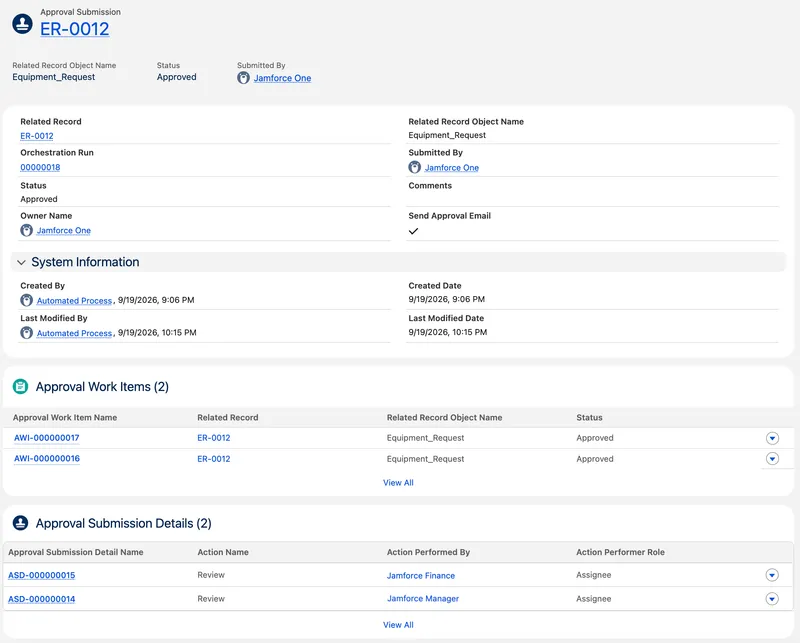
For the automation row, the single best exhibit is the Approval Submission of an escalated request. Its two related lists show that two approvers acted and who they were, which is the escalation stage proven in one record.
Ask your reviewer to trace one under-threshold request and one escalated request using the pack, and then the request whose team had no routing record. Have them explain who could read each, why its report total is correct, and how they would support it. Wherever they have to guess, improve the handover. If the review is a self-review, do the trace a day later from the pack alone, without opening the org first. Anywhere you had to open the org to answer is a place a reviewer would have had to guess, so improve the handover there too. Finish with the retrospective at the end of the pack’s evidence index. Its five prompts are short; the useful one is which decision changed during testing, because that’s the one you would make earlier next time.
🚀 Extend the brief after the review
Section titled “🚀 Extend the brief after the review”Choose the next change from the known-limits list in your handover, and deliver it the same way. Holiday-aware ageing is the obvious one, since you carried it forward. Requests on behalf of another employee challenge the owner-as-requester model and touch access, routing, and reports at once, which makes it a good second exercise in scoping. A per-request override of the threshold is a small change with a large control question attached.
Treat each as a new change with its own brief, acceptance criteria, change tests, and regression run. Keep its evidence separate enough that this delivery remains understandable on its own, and give each new feature its own tests before it goes in.
🏅 Cement the skills with superbadges
Section titled “🏅 Cement the skills with superbadges”You have used each of these skills once, on a build you know well. Trailhead superbadges make you use them again on a scenario you haven’t seen, with automated grading, which shows whether you can do it without the chapter beside you. They are also independent evidence alongside the pack. Salesforce renamed superbadge units to superbadges during 2025 and no longer classifies them as credentials. Several map directly onto rows of the rubric above.
| Rubric row | Superbadge |
|---|---|
| Security and access | User Access Fundamentals and User Access Troubleshooting |
| Data, configuration, and analytics | Data Quality and Validation and Report Administration for Agentforce Readiness |
| Automation and approvals | Record-Triggered Flow, Approval Process Management, and Flow Error Handling |
| Operations and controlled change | Flow Debugging |
Do them after the review rather than instead of it: they show you can meet a brief, while the pack shows you can write one, deliver it, and explain the decisions to another admin. Record any you complete in the pack’s integrated-delivery row as supporting evidence. The three below are the ones that cover what this change built: the approval, the access, and the flow.
🎯 Final Thoughts
Section titled “🎯 Final Thoughts”The first build proved you could turn a request into a working app. This proved something different: that you can change an app people depend on without breaking it, and hand over the evidence. The routing rules are now data someone can read and deploy. The escalation exists because Finance asked for it. The baseline total is the same number it was, and you know why.
One decision from this build applies to every automation you make from now on. When a process can’t find the configuration it needs, it can either stop or carry on. The Admin Hold stops, holds the request, and emails someone. The alternative, letting the process run to the end with no approver, ends with a request approved by nobody. Build the stop every time, and make sure it tells someone.
Any missing proof has a named gap and an owner. Take the reviewed pack back to the Salesforce Admin Journey, where it started. Its stage list shows where each shared skill is taught, so a gap in the rubric points you to the chapter to revisit.