Test a Salesforce App: Permissions & Reports

The application works. You have watched it work, several times, from your own session.
That is the least informative test available to you. An administrator can see every field regardless of the permission sets, open every record regardless of the sharing rules, and reach every report regardless of who the folder was shared with. Almost everything you built in the last two chapters is a restriction of one kind or another, and your own login is exempt from nearly all of it.
This chapter is where that changes. You will build the two reports the brief asked for, create four users, seed fixtures whose answers you already know, and then work through the acceptance criteria from four different seats. What comes out is not a feeling that it works. It is a table with one row per criterion, naming who ran it and what actually happened, including the one row that cannot honestly say pass.
Where you are: the object is Deployed, the four persona permission sets exist but are assigned to nobody, both sharing rules are in place, and the approval automation is active and debugged from your own session. If the approval chapter is not finished, the run below has nothing to test.
Budget elapsed time, not just working time. Two of the fixtures have to age past five weekdays before the first report means anything, and the final clock check needs one further weekday after that. Changing Needed By does not make a newly created request older, because the formulas count from CreatedDate. Create the fixtures early, then come back.
📊 Build the reports before testing them
Section titled “📊 Build the reports before testing them”Two of the brief’s acceptance criteria are reports, almost word for word:
- IT can list every request open for more than five working days, grouped by team.
- Finance can total the expected cost of approved requests that have not yet been fulfilled, grouped by team.
They come before the evidence run for two reasons. The run tests them directly, and a report is the cheapest way to find out whether your access model actually behaves. Opening records one at a time tells you about one record; a report shows you, in a single list, exactly which rows a person can reach.
Both criteria say team, and this build has no team field. It has a role hierarchy, which is what the manager’s record access already depends on, so grouping by the owner’s role is the closest honest match. Note that substitution in the report description rather than letting it pass silently. If the organisation’s idea of a team ever stops matching its role hierarchy, these two reports are where it will show up first.
📁 Create the folder and decide who can open it
Section titled “📁 Create the folder and decide who can open it”Report folders and record sharing answer different questions. Folder access decides who can open the report definition at all. The sharing rules you built earlier decide which requests appear inside it once they do. Someone can hold both and still see an empty report, which is the correct result rather than a fault.
-
Open the Reports tab from the App Launcher, select All Folders, and click New Folder. Name it
Equipment Request Operations, let the Folder Unique Name default and press Save. Creating one needs the Create Report Folders permission, and sharing it needs Manage Reports in Public Folders; as the administrator building this you should already hold both. -
Share it from the folder’s row menu → Share. Add the Equipment Request — IT and Equipment Request — Finance public groups, each with View access, and press Done. View runs and reads; Edit also changes the report definition, and Manage changes the sharing as well. Neither group needs to edit a report that is meeting an agreed criterion, so start at View and grant upward only when someone asks.
-
Grant the two report permissions. In Setup → Permission Sets, open Equipment Request — IT, choose System Permissions → Edit, and enable Run Reports and View Reports in Public Folders. Repeat on Equipment Request — Finance.
📈 Build the two reports: grouping and summarising
Section titled “📈 Build the two reports: grouping and summarising”Reports are built against a report type, and choosing it is the first real decision. A custom object gets a standard report type named after its plural label, so Equipment Requests is the one that returns requests and nothing else.
From the Reports tab, click New Report, search for Equipment Requests, and start. Build these two:
| Report | Filters | Grouping and summary |
|---|---|---|
| Open Requests Over Five Weekdays | Status not equal to Rejected or Fulfilled; Weekdays Open greater than 5 |
Group Rows by Equipment Request: Owner Role. Columns: Equipment Request Number, Owner Name, Status, Needed By, Weekdays Open |
| Approved, Unfulfilled Cost | Status equals Approved or Awaiting Stock |
Group Rows by Equipment Request: Owner Role, then summarise Estimated Cost as a Sum |
Those two instructions live in different parts of the builder. Group Rows is in the Outline panel, and the field is Equipment Request: Owner Role, which comes from the owner’s user record rather than from the request itself. Grouping rows is also what turns a flat list into a summary report, and it is the whole of what the brief meant by grouped by team. The total on the second report is set somewhere else again: add Estimated Cost as a column, open its column menu, and choose Summarize then Sum. That produces a subtotal against each role and a grand total at the foot, which is the number Finance actually came for.
Both reports arrive with Show Me set to My Equipment Requests, and neither of them wants it. Change it to All Equipment Requests in the Filters panel, the same decision you made for the list views. Left alone, IT’s report lists only IT’s own requests and Finance totals only their own spending, which reads exactly like a sharing rule that has not worked and is nothing of the kind.
In each report’s Filters panel, also set the standard date filter to Created Date, with its range set to All Time, then click Apply. These reports need the full backlog, regardless of when a request was created. Changing Show Me does not remove a date restriction; Salesforce’s overdue-record report example likewise sets Created Date to All Time before applying its overdue condition.
Save each one into Equipment Request Operations. The Save dialog asks for a folder and does not offer the one you just made by default, so a report saved on autopilot lands somewhere private and the folder work you did above achieves nothing. That failure surfaces in the evidence run as Finance cannot see the report, which sends you looking at sharing rules instead of at a folder name.
The status filter on the first report looks redundant beside the weekday filter, and is not. While Status is Fulfilled, Weekdays Open uses the stamped Fulfilled Date rather than today’s date. A request that took nine weekdays therefore continues to read 9 while those values stay unchanged. Without the status filter, historical requests that ran long would sit in a list of things needing attention.
Describe the first report as Monday-to-Friday weekdays, not holiday-adjusted working days, matching the wording you put on the field itself. That sentence is doing real work: it protects the distinction the brief made. Either obtain the owner’s agreement to the narrower measure or carry the holiday-aware criterion forward as unresolved.
This is the part of a first build I would defend hardest. A gap you have written down is a decision somebody can revisit. A gap you closed quietly, by redefining the requirement until the thing you built satisfies it, is indistinguishable from working software right up until the day it matters, and by then nobody remembers there was a choice.
I have watched a requirement disappear exactly like this. A validation rule was meant to stop a record saving with a key field empty unless its status was Approved, which is what the business had asked for. By the time I met the rule, its formula had been narrowed to check a named list of statuses, and Draft was not among them, so incomplete records saved without complaint. Nothing recorded that the scope had changed, or why. We found out from a downstream integration failing on records that should never have existed.
Putting the logic back took minutes. The part I would say was almost as important was to write the business reason into the rule’s description, so the next person who finds it inconvenient can see what it is protecting before deciding it is too broad.
The Dashboards item sitting in your app navigation stays empty in this build. A dashboard needs source reports, which only exist as of now, and the two criteria in the brief asked for reports rather than a dashboard. Building one is the obvious next thing to do with this app, not an omission from it.
Salesforce Platform licences cover custom apps and custom objects along with accounts, contacts, documents, custom tabs, reports, and dashboards. What they exclude is the standard customer relationship management (CRM) set: leads, opportunities, campaigns, and forecasts. That matters here because the brief put finance on Platform licences. Nothing about the licence stops Finance opening a report on a custom object, but nothing about it grants that access either. Object permissions, sharing, app access, folder access, and the two report permissions above all have to be right.
You will run both reports during the evidence run as IT and as Finance, rather than as yourself. Grouping is the quick thing to confirm. Row counts are the part worth slowing down for, because they are where the sharing rules first show their work: each persona should be seeing requests they do not own, from teams they are not in. If either report comes back holding only that person’s own requests, the owner-based sharing rules from the first chapter are not doing what you think they are.
What the row counts will not show you is the difference between the two personas. Both hold all-record access by design, IT at Read/Write and Finance at Read Only, so both reports reach every request matching their filters. That distinction only becomes visible when Finance opens a request from the report and cannot change it, which is where the evidence run checks for it rather than here.
If you want more report-building practice on a different data set before the evidence run, the Trailhead project below builds a set of reports and dashboards for sales and marketing managers. The row-count and grouping checks you just did apply there too.
🧪 Prove it works for someone who is not you
Section titled “🧪 Prove it works for someone who is not you”An administrator session is the worst place to test access because it can see almost everything. Every check below is worth exactly as much as the seat you run it from.
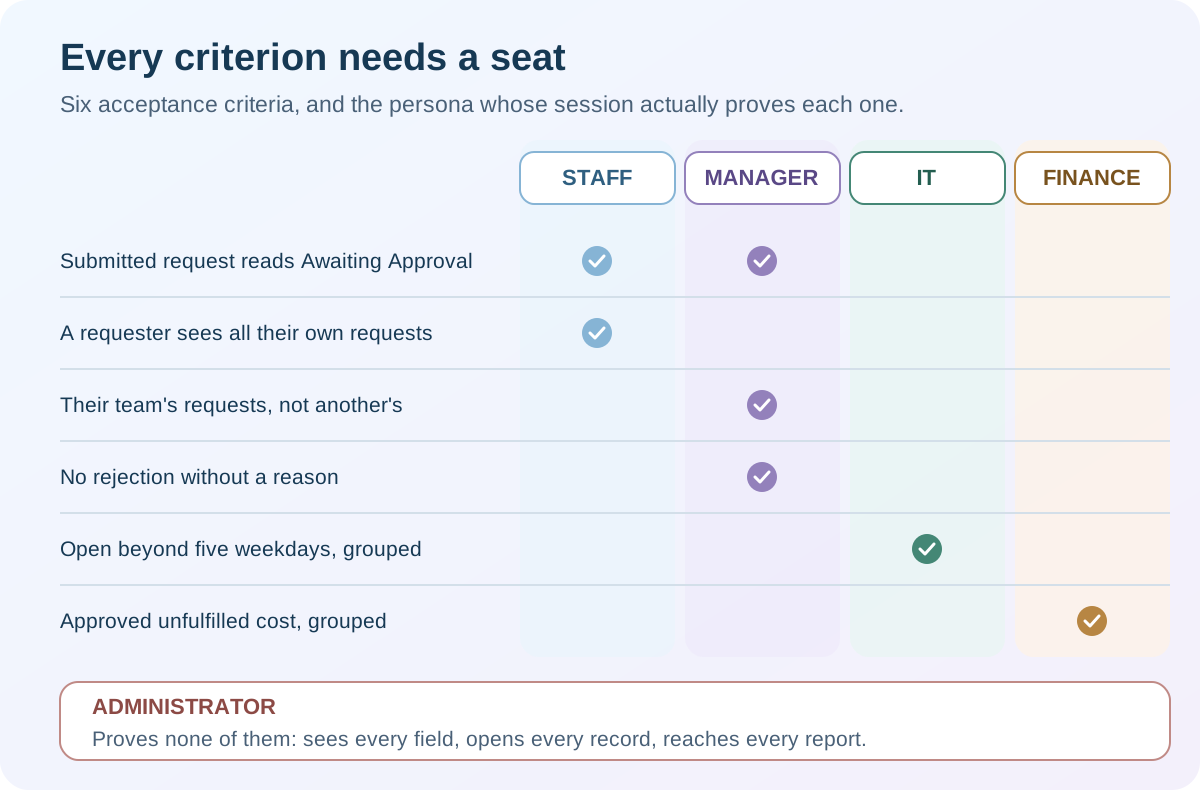
Six criteria, four seats, and no row that your own login can answer. Keep that mapping beside you through the run: when a check fails, the first question is whether you were in the right seat for it.
🔑 Turn on Log In as Another User
Section titled “🔑 Turn on Log In as Another User”Before anything else, make sure you can take those seats. Logging in as another user needs Modify All Data, and it also needs Administrators Can Log in as Any User enabled in Setup → Login Access Policies. Without that setting, each user has to grant you access individually, and the Login link simply is not there. Turn it on now rather than discovering it halfway through step 1.
📌 Set up the four people
Section titled “📌 Set up the four people”Check Setup → Company Information → User Licenses first, because it decides what the rest of this is possible with. You need four users besides yourself. This application is entirely custom, so Salesforce Platform licences suit all four, and keeping a Salesforce licence for yourself costs nothing.
If four Platform seats are not free, spend them where the licence is actually part of the test. The brief puts finance on Platform, so that is the combination worth proving; the others can hold whatever you have. Check rather than assume: a Developer sandbox inherits the production org’s licence counts, while a standalone Developer Edition org comes with its own much smaller allocation.
Build them to match the access model you already designed:
| Persona | Role | Permission set | Public group |
|---|---|---|---|
| Staff member | Ops Team |
Equipment Request — Staff | — |
| Manager | Ops Manager, and named in the staff member’s Manager field |
Equipment Request — Manager | — |
| IT | The second team’s role, outside the manager’s branch | Equipment Request — IT | Equipment Request — IT |
| Finance | A role outside the manager’s branch | Equipment Request — Finance | Equipment Request — Finance |
Four personas is few enough that four permission sets, assigned one at a time, is the clearest arrangement you can have while you are still proving the model works. When a check fails, exactly one set is responsible. Permission set groups earn their indirection later, once people need several sets at once and you notice yourself assigning the same combination by hand; a group bundles them under one job-function name, and a single muting permission set inside it switches off individual permissions for that group’s members without altering the underlying sets. That is a second build’s problem, not this one’s.
Finance’s position matters because its sharing rule grants access to every request. With hierarchy access enabled, users above Finance can inherit that access. Keep Finance outside the Ops Manager branch so the manager’s access test measures their team’s requests without also inheriting Finance’s wider view.
Give each of them app access to Equipment Requests. Before creating the evidence records, close out both disposable debug requests as the administrator: set Status to Rejected and Rejection Reason to Debug complete together. Check that their debug runs have finished. Those requests should not contribute to either operational report.
🧬 Prepare records with known answers
Section titled “🧬 Prepare records with known answers”An empty report proves little. You need requests that should appear, a request that should be excluded, and costs whose total you already know. As the administrator, create the two records below with Status set directly to Approved at creation. The approval process starts only for new records at Awaiting Approval, so these fixtures remain unlocked and have no approval work items. They test access and reporting; the fresh submissions in the run test the approval itself.
| Business Justification | Owner | Status | Estimated Cost |
|---|---|---|---|
TEST — Ops backlog |
Staff persona in Ops Team |
Approved |
100 |
TEST — IT backlog |
IT persona in the second team’s role | Approved |
200 |
For each record, select an Equipment Type from the picklist, set Needed By to the day you create it, and leave Rejection Reason, Expected Delivery Date, and Fulfilled Date blank. If New does not offer Owner, save as the administrator and then change the owner to the named persona. Use the same currency for both records. Record their IDs, owners, Created Dates, and costs in your evidence notes; the IT record is the one the manager must be unable to open.
Keep both fixtures at Approved throughout the run. Wait until Weekdays Open is greater than 5 on both before starting the steps below, checking the count against the Monday-to-Friday dates since creation. The formulas use CreatedDate, so setting Needed By into the past would not substitute for that wait. Until the fixtures are old enough, mark the ageing test not yet run. On the test day, create the fresh requests in the steps below; their Weekdays Open should be 0.
The preserved fixtures give Finance an expected subtotal of 100 for Ops, 200 for IT, and a grand total of 300 in their shared currency once the separately approved request has been fulfilled. If other practice data matches the report, record its contribution separately rather than treating an unexplained total as a pass.
Move between people with Setup → Users → Login rather than signing in and out.
🐞 Work through the run
Section titled “🐞 Work through the run”-
As the staff member, create a request with Equipment Type, Business Justification, and Needed By. Notice that the form never asks you for a status. Confirm the number is generated, that the picklist default has set Status to
Awaiting Approval, and that the request appears in My Requests. Tab through the fields before you save and check the order matches the way the page reads. -
As the manager, open your team member’s request. You should be able to. Then paste the URL of the IT persona’s seeded request; access should be refused. Open My Team’s Open Requests and confirm it lists the first request and not the second. That is the whole of the third acceptance criterion, and both halves have to hold.
-
As the manager, open the work item in the Orchestration Work Guide. Choose Reject and leave the reason blank; the screen should stop you. Add a reason and submit. Confirm the request becomes
Rejected, that Rejection Reason now appears on the page because the status makes it visible, and that the requester receives a notification containing the reason. -
Confirm the validation rule covers a direct edit. Still as the manager, edit
TEST — Ops backlog, set Status toRejected, leave Rejection Reason empty, and save. The rule should stop you with its message against the Rejection Reason field. Cancel the edit and confirm the stored Status remainsApproved. This fixture is unlocked, so a record-lock error would not be evidence that the validation rule worked. -
As the staff member, submit a second request. As the manager, approve it. Confirm Status becomes
Approvedand the requester is notified. -
Test the fallback approver, then check the two structures agree. Clear the staff member’s Manager field, submit a third request as them, and confirm the work item goes to the IT approval group rather than erroring. Restore the Manager field. Then confirm the person who approved in step 5 is both the staff member’s Manager and above them in the role hierarchy. The approval used one structure and the record access used the other, and nothing forces them to match.
-
As IT, open Awaiting Fulfilment and confirm both backlog fixtures and the request approved in step 5 appear. Move only the step 5 request to
Awaiting Stock; Expected Delivery Date should appear as the status changes, in the same edit. Add a date, then move that request toFulfilled. Confirm Fulfilled Date is stamped automatically. Attach a file to it and check that Equipment Request History lists the status changes you just made; both come from the page layout rather than the Lightning page, so this is where a missed layout assignment shows up. Write down its Weekdays Open and the Ops backlog fixture’s value. On the next weekday, check that the fulfilled request’s value is unchanged while the open fixture’s value has increased. An unchanged count over a weekend would not prove that fulfilment stopped the clock. -
As the staff member, open My Requests again. All three requests submitted during this run should be listed with their current status, including the rejected one. The staff-owned Ops backlog fixture should also appear, making four records in an otherwise clean test. The IT fixture should not appear. A requester seeing every request they submitted is its own acceptance criterion, and a status filter added later is what would quietly break it.
-
Test both directions of the Needed By rule. As the staff member, try creating a new request with Needed By set to yesterday; it should fail. Cancel it, then edit only the Business Justification on
TEST — Ops backlog, appending a short test note. Its Needed By date has passed, but the edit should save. Return to the administrator session, assign yourself Equipment Request — Bypass Rules, and createTEST — fresh date bypasswith Needed By yesterday, a valid Equipment Type, StatusApproved, and Estimated Cost0. Confirm it saves, then remove the permission-set assignment. Keep this new administrator-owned record for the ageing report’s exclusion check; its old Needed By date should not make its Weekdays Open exceed0. -
As IT, run Open Requests Over Five Weekdays. Both preserved backlog fixtures should appear under their respective owner roles;
TEST — fresh date bypassand today’s submissions should not. In a clean test these are exactly two rows, one per team. Compare the record IDs as well as the count. Record the holiday-calendar gap beside the result instead of marking the original criterion fully passed.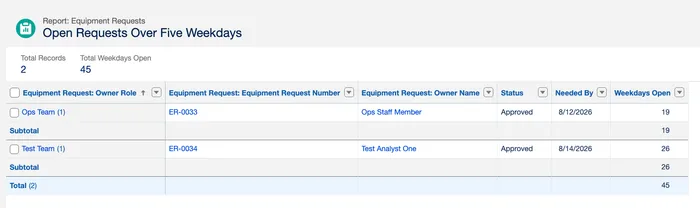
The owner names, roles, and statuses will not match yours; those are the practice users behind this build’s personas. What should match is the shape. One row per team, every value above five, nothing created today, and a request from a team IT is not in — which is the sharing rule doing its work, visible in a single list rather than one record at a time.
-
As Finance, run Approved, Unfulfilled Cost. Confirm the Ops subtotal is
100, the IT subtotal is200, and the grand total is300. The fresh administrator-owned bypass fixture also qualifies, but contributes0; the fulfilled step 5 request should be absent. Open a backlog request from the report and confirm Finance has read-only access. -
Repeat the essentials on a phone. Create a request, edit one, and complete an approval work item in the Salesforce mobile app. Dynamic Forms behave differently on mobile, and a layout that reads well on a laptop can put Business Justification below the fold.
📝 Record the evidence
Section titled “📝 Record the evidence”The checkpoint asks for an evidence record, and this is it. One row per acceptance criterion, filled in as you go:
| Acceptance criterion | Actor | Steps | Result |
|---|---|---|---|
| Submitted request shows as Awaiting Approval and the manager can open it | Staff, Manager | 1, 2 | |
| A requester can see the status of every request they submitted | Staff | 1, 8 | |
| A manager can open their team’s requests but not another team’s | Manager | 2 | |
| A manager cannot reject without a reason, and the requester receives it | Manager | 3, 4 | |
| IT can list requests open more than five working days, grouped by team | IT | 10 | |
| Finance can total approved, unfulfilled cost, grouped by team | Finance | 11 |
The fifth row is the one that cannot honestly say pass. Weekdays are Monday to Friday, not the organisation’s agreed working calendar, and the criterion asked for the second. Record it as a partial result with the gap named, which is a different thing from a failure and a very different thing from a tick.
That table is the account you wrote. The org keeps one you didn’t. Setup → Login History records login attempts with the user, the time, the source IP, and the application, holds up to 20,000 records from the past six months, and downloads to CSV or GZIP; reading it needs Monitor Login History or Manage Users. Open it against the window you have just been testing in and see what the org recorded of the run.
That is also the argument for four named test users rather than one shared account passed between tabs. Login History can only name the user a session belonged to. Four seats leave four separate trails; one shared login leaves a story with nobody’s name on it.
👤 Decide what happens to the test users
Section titled “👤 Decide what happens to the test users”The run is finished and four accounts are still live, still holding the persona permission sets, and still owning the fixtures. Salesforce does not let you delete a user, so the choice is between two things that sound similar and do different jobs.
Freezing blocks the login immediately and does not release the licence. Deactivating is what returns a seat to the pool, and some situations stop you doing it at all — a user selected in a custom hierarchy field, for instance. The documented order in that case is to freeze first, clear whatever still refers to them, and deactivate afterwards.
In a sandbox, keep them. These are the seats you re-test from the next time the access model changes, and rebuilding four personas with the right roles, permission sets, and group memberships costs more of your afternoon than four licences cost the organisation. In production, deactivate the accounts you created only to test with, and do it deliberately: an owner you deactivate leaves their records behind, so the TEST fixtures stay owned by somebody who can no longer log in.
The persona run you just did is the skill the User Access Fundamentals superbadge checks, on a scenario you have not seen. Do it after this chapter rather than before: the point is to find out whether you can reason about access without the persona matrix in front of you. The User Management module is the Trailhead version of the same ground if you want a second explanation of profiles, permission sets, and roles first.
✅ Checkpoint
Section titled “✅ Checkpoint”Produce the evidence that the application works for somebody who is not you.
Run it, then write down:
- Two reports saved in the shared folder, with folder access and both report permissions granted to the groups expected to run them.
- Four users, each holding the role, permission set, and group membership the access model called for.
- Fixtures with known answers: two aged backlog requests, the costs they should total, and the one record the manager must not be able to open.
- An evidence record: one row per acceptance criterion, naming the actor, the steps that tested it, and what actually happened.
- One honest partial result, with the holiday-calendar gap named rather than absorbed into a tick.
You’re finished when you can answer this without opening Setup: how do I know a real user can finish their task? An admin who can answer that has a table with names and observed results in it. An admin who can’t is the one who demonstrated the app from their own session and found out on launch day.
🎯 Final Thoughts
Section titled “🎯 Final Thoughts”None of the individual pieces here are the difficult part. Fields, pages, and Flow automation each have a documented path, even on the days when finding it costs you an afternoon. The difficulty in a first application sits somewhere else. Much of what you just built is a restriction of one kind or another, and your own login is exempt from nearly all of it.
You can see every field because you are an administrator. You can open every record because your permissions ignore most barriers. The approval routes correctly because the users you happened to choose are configured correctly. None of that is evidence.
I have learned to distrust the sentence “it works” until it ends with “as whom?” Logging in as somebody else is where a permission model stops being a diagram and starts being true. That is why the first chapter settled access before interface, and why this checkpoint asks for observed results rather than screenshots of Setup.
You now have an application with one known limitation (weekdays are Monday to Friday, not your organisation’s agreed working calendar) and no historical data. That is a much healthier place to be than an application with an unspoken limitation and two years of records already inside it.
🚀 Next steps
Section titled “🚀 Next steps”Data Import & Reconciliation is next. It is where your required field and validation rules meet a spreadsheet somebody else maintained, and where matching, error handling, and record counts stop being theoretical. The bypass permission set gets a longer outing there than the few minutes you just gave it, and this time it goes on somebody who is not you.
When an access question outlasts the checks in this chapter, Access Troubleshooting turns this user cannot see the record into a method rather than a guess. For the reporting criteria, Reports & Dashboards explains folder access and subscriptions in more depth than a first build needs.