Salesforce Declarative Business Rules: Fields & Validation

One line in your brief reads like an ordinary requirement: a manager cannot reject a request without entering a reason. It isn’t ordinary. It’s an instruction to the platform, and until something in the org enforces it, it’s a sentence everybody agreed with and nobody is bound by.
This chapter is about the layer that turns those sentences into behaviour. A declarative business rule is a constraint you configure rather than code: a field that only accepts certain values, a number the org works out for itself, a save the platform refuses. Salesforce gives you several places to put a rule, and the interesting question is almost never can it do this? It’s which layer should hold it? That choice decides who the rule applies to, when it fires, and how hard it is to unpick when the business changes its mind.
By the end of this chapter we’ll have worked through choosing the layer a rule belongs in, writing a formula that’s still true in a year, designing validation rules that stop bad data without trapping the people trying to fix it, and answering the record type question with a reason instead of a habit.
One boundary before we start. This is the rules layer, not the build. Assembling the object, the app, and the automation into something people can use is the next chapter’s job. Here we’re working out what has to be true before any of that is worth building.
🧭 Every declarative business rule has a layer, and the layer is the real decision
Section titled “🧭 Every declarative business rule has a layer, and the layer is the real decision”Ask three admins to enforce “a rejection needs a reason” and you may get three answers: make the field required on the layout, write a validation rule, or handle it in a flow. All three appear to work when you test them by clicking through a record. They stop agreeing the first time data arrives some other way: the layout requirement doesn’t apply at all, the validation rule still does, and the flow depends on how it was built.
That’s the thing to internalise before you configure anything. A rule isn’t just a statement about your data, it’s a statement about which saves it applies to, and the layers don’t all answer that the same way.
| Where the rule lives | Which saves it applies to | Best for | The catch |
|---|---|---|---|
| Field definition (data type, restricted picklist, required, unique) | Every save, including the application programming interface (API), a flow, and a data import | Facts true of every record, for the life of the object | Required at field level blocks imports and legacy records too |
| Page layout or Lightning page | Only saves made through that page | Guiding a person through a form | It isn’t enforcement. An import walks straight past it |
| Validation rule | Every save, with a handful of documented exceptions | Conditional rules: if X, then Y is required | Blocks the save outright, and a badly scoped rule traps records nobody was trying to change |
| Before-save flow | Creates and updates that meet the flow’s Start conditions; it runs before Apex before triggers and custom validation rules |
Deriving or tidying a value, or validating something that needs flow logic or queried data | More moving parts than a validation rule; silent changes need clear documentation |
| Approval process, sharing model | On submission, and on access | Who decides, and who can see | Different mechanisms, later chapters |
I’d encourage you to enforce a requirement as early in that list as it genuinely allows, because the earlier layers are the ones a future admin can understand without reading anything. A restricted picklist explains itself. A validation rule needs to be found. A rule buried in the sixth decision element of a flow gets rediscovered by accident, usually by someone who has spent an hour wondering why a record won’t save.
🧱 What the field itself can enforce
Section titled “🧱 What the field itself can enforce”Data Model covered choosing a field type as a modelling decision: picklists over text, lookups over copied IDs. Read it that way and field creation feels like plumbing. It isn’t. Several of the settings on that creation screen are business rules that apply everywhere, forever, without anyone having to maintain them.
Four are worth choosing deliberately.
Restricted picklists stop the value set drifting. Nobody working in the UI will ever see the difference: restricted or not, the dropdown offers the same values and a person can only choose from them. The gap opens when a value arrives some other way. On an ordinary picklist, an integration or a data load can write values that aren’t in the picklist’s options, and you find out months later when a report groups by Status and returns eleven rows for five statuses. Mark it restricted and only an admin can change the list, and Salesforce enforces that through the API as well. Global picklist value sets are always restricted, which is a good reason to use one when the same list belongs on more than one object.
Required in the field definition is the strongest and least forgiving option on the page. It applies to every save from every source, which is exactly what you want for a value that’s always required, and exactly what you don’t want for anything conditional. If a field is only mandatory once a request reaches a particular status, requiring it in the definition means nobody can ever create a draft.
Unique and External ID matter more than they look. External ID marks a field as the key another system already uses for the same record, so an import can match a row to a record you have instead of creating a second one. Unique stops two records claiming the same key, and the Data Import Wizard will only match on an External ID field that’s unique as well. Deciding both when you create the field costs nothing; adding them once there are records costs a data cleanup.
Default values remove a decision from someone who didn’t want to make it. A status that defaults to the first real state, a date that defaults to a sensible offset, and a checkbox that defaults to the safe answer all start the record somewhere reasonable. Don’t mistake that for enforcement, though: the value is inserted once, at creation, and the user can change or clear it before they save. Salesforce skips defaults altogether for Web-to-Lead, Web-to-Case, and lead conversion.
Here’s the Equipment Request brief translated into that vocabulary. The interesting column is the last one.
| Requirement from the brief | Field | Rule the field itself carries |
|---|---|---|
| One visible status from submission to fulfilment | Status__c picklist |
Restricted, with a default of Awaiting Approval. The status list is closed by design |
| What the person needs and why | Equipment_Type__c picklist, Business_Justification__c text area |
Restricted picklist for reporting; free text for the part no list can capture |
| When the person needs it by | Needed_By__c date |
Required in the field definition. Every request has one, however the record arrives |
| A rejection carries a reason | Rejection_Reason__c |
Text (255 characters). Not required at field level, because it only applies to rejections |
| Out-of-stock requests wait for a date | Expected_Delivery_Date__c date |
Optional. It has no meaning until IT sets a status that needs it |
| Finance can see committed spend | Estimated_Cost__c currency |
One currency, because your org baseline said single currency |
Three of those rows deserve a second look.
Needed_By__c is the only field in that table required in the field definition, and it’s worth being sure before you tick the box. A request with no date the equipment is needed by isn’t a draft, it’s incomplete, as true of one typed into a form as of four hundred loaded overnight, which is exactly what makes the field definition the right place to say it. Requiring it doesn’t rule out a validation rule on the same field either. The two answer different questions: required says a value has to exist, a rule says which values are acceptable. You’ll write the second half of that pair later in this chapter.
Rejection_Reason__c is Text rather than a long text area on purpose. The brief needs a concise, user-facing reason, and a 255-character Text field remains available to formula fields and report filters. Salesforce’s formula-field documentation is explicit that formula fields can’t reference long text area, encrypted, or Description fields. Validation rules can inspect long text areas, although their function support is more limited, so validation alone isn’t a reason to choose the shorter field. Make that decision at field-creation time, because changing a field’s type once it holds data is the kind of task that turns into an afternoon.
Estimated_Cost__c connects straight back to the org baseline you wrote last chapter. In a single-currency org, a Currency field means one thing and the finance report you promised works. Enabling multiple currencies is one of the one-way doors from Org Setup: Company Settings & Login, and if someone walks through it, every amount in the org gains a currency code and that field’s meaning changes underneath the report.
Expected_Delivery_Date__c is the row where a rule is being deliberately withheld, and that deserves recording too. Your brief said out-of-stock requests wait for an expected delivery date, which reads like a third validation rule waiting to be written. It isn’t one worth writing. IT moves a request to Awaiting Stock at the moment they know the item isn’t there and usually before the supplier has given them a date, so a rule demanding one would block the status change that exists to say “we are chasing this”. The field stays optional, the page shows it as soon as the status calls for it, and the process carries the expectation instead of the platform. Put that in the decision record with the reason: a rule you considered and rejected is a very different thing from one nobody thought of, and only one of the two survives a handover.
🧮 Formula fields hold derived truth, not remembered truth
Section titled “🧮 Formula fields hold derived truth, not remembered truth”A formula field is a field with no stored value. Salesforce calculates it when the record is read, from other fields on that record or from parent records it can reach through lookup or master-detail relationships, and nobody can type into it. It can’t reach down into a collection of child records; that direction needs something like a roll-up summary field or automation. Having nothing stored is what makes it trustworthy and what makes it forgetful.
The trustworthy half: a derived value can’t drift. If Days_Open__c is a formula, it’s correct on every record, including the ones created before you wrote it, including the ones nobody has touched since. Compare that with storing the same number in a Number field and maintaining it with automation, where correctness lasts exactly as long as the automation keeps working.
The forgetful half is the same sentence read backwards. A formula tells you what’s true now, so it can’t tell you what was true then. TODAY() - DATEVALUE(CreatedDate) gives you the age of a request, and it keeps counting after the request is fulfilled, because the formula has no idea the story ended. That’s usually not what a report about resolution time wants.
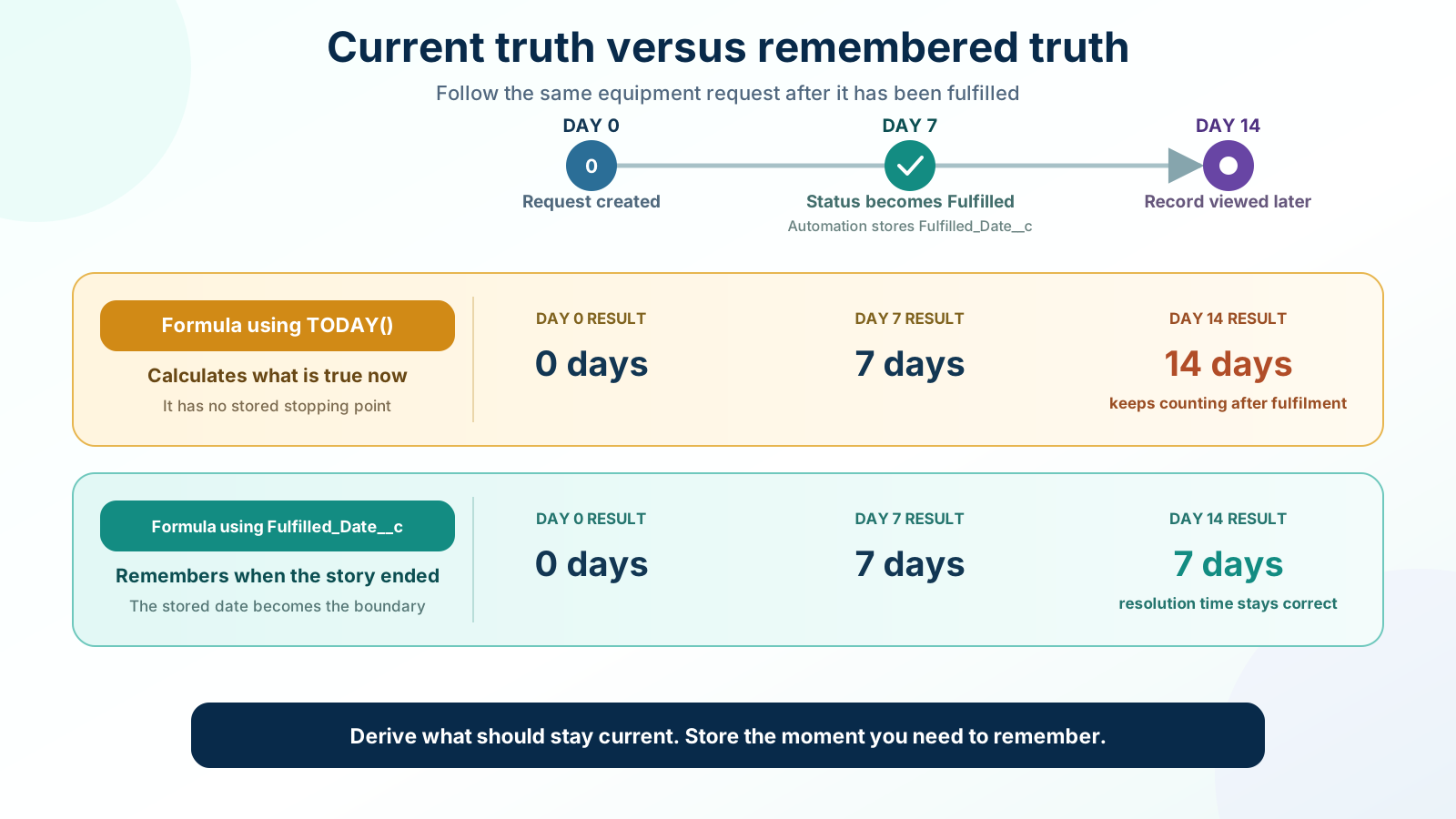
You can scope it:
IF( ISPICKVAL(Status__c, "Fulfilled"), Fulfilled_Date__c - DATEVALUE(CreatedDate), TODAY() - DATEVALUE(CreatedDate))There are two things worth noticing here. It needs a Fulfilled_Date__c field that something stamps when the status changes, which is automation’s job rather than the formula’s. A formula can’t remember a moment for you, so if a point in time matters, some process has to write it down. And the branch means the same field answers two different questions depending on status, which is fine as long as the field’s help text says so.
The decision underneath is short enough to keep in your head: derive what can safely stay current; store what has to be remembered or operationally surfaced. A stored result can also be justified when an integration needs a detectable change, a query needs an index, a historical snapshot matters, or somebody has to be able to override the value on one record. Those are deliberate exceptions, not reasons to maintain every calculation with automation.
🚫 When the platform can’t do what the criterion says
Section titled “🚫 When the platform can’t do what the criterion says”One of the acceptance criteria was deliberately precise:
IT can list open requests older than five working days, grouped by team. Working days are Monday to Friday in the org’s time zone, excluding dates in the organisation’s agreed holiday calendar.
The Monday-to-Friday part is achievable. Salesforce publishes a sample date formula for counting weekdays between two dates, and it’s a well-worn piece of formula arithmetic rather than anything you need to invent.
The holiday part isn’t, at least not here. The holidays you entered last chapter belong to a Business Hours record, and your Equipment Request object has no relationship to them. A formula can only travel along relationships the object actually has, so it can’t reach that calendar. The org-setup chapter already flagged the other half of the problem: report results don’t take holidays into account either.
So the criterion as written can’t be met by a formula field, which leaves you with a decision rather than a defeat:
- Redefine it. Go back to the owner with “Monday to Friday, holidays included” and find out whether the difference actually matters to the decision they’re making. Often it doesn’t, and one sentence in the brief changes.
- Move it to automation. A scheduled process can compare each open request against the holiday calendar and stamp a field. That’s real work, and it should be justified by someone actually needing it.
- Park it. Ship the weekday version, note the gap in the brief, and revisit it if anyone complains.
None of those is a failure. Finding out that a written requirement doesn’t survive contact with the platform is exactly what this stage of the work is for, and it’s much cheaper to discover now than after the report is in a dashboard someone reviews weekly.
This build takes the third route, and it’s worth knowing that before you write your decision record. The next chapter creates a weekday-counting formula field from Salesforce’s own sample, says plainly in the field’s description that it does not adjust for public holidays, and carries the holiday-aware criterion forward unresolved rather than quietly redefining it. So design that formula now: it’s the second one your record needs, alongside days open.
🚧 Validation rules people can recover from
Section titled “🚧 Validation rules people can recover from”A validation rule is a formula that describes the error, not the requirement. When it evaluates to true, the save is refused and your message is shown. Almost everyone writes their first one backwards, so it’s worth saying plainly: you are describing the state you want to prevent.
Here’s the rejection criterion from the brief:
AND( ISPICKVAL(Status__c, "Rejected"), ISBLANK(Rejection_Reason__c))Read it back and the inversion is visible: the formula is true exactly when the status is Rejected and the reason is empty, which is the state you’re refusing. A raw picklist field can’t be compared directly with =, and ISPICKVAL() is the clearest way to express this test. CASE() or converting the value with TEXT() can also work in other formulas. Whichever approach you use, the text it matches is the picklist value’s API name, not the label on screen. Get that wrong and you have a rule that saves cleanly and never fires. ISBLANK() is the emptiness test to reach for on a Text field; Salesforce’s guidance is to use it rather than ISNULL() in new formulas, because ISNULL() doesn’t handle text.
Set the error location to the Rejection_Reason__c field rather than the top of the page, and write the message as an instruction:
Please enter a rejection reason. The requester will see this text, so say what they need to change.
Salesforce’s own guidance is to tell the user what a valid entry looks like and to include the field label, particularly when the error lands at the top of the page. One caution on error location: if the field you chose is later deleted, made read-only, or taken off the page layout, Salesforce silently moves the error back to the top of the page.
🧯 Scope the rule, or it will trap the wrong people
Section titled “🧯 Scope the rule, or it will trap the wrong people”This is where new validation rules go wrong, and it goes wrong quietly.
Say you add the second half of that pair: Needed_By__c can’t be in the past.
Needed_By__c < TODAY()That’s correct today and wrong tomorrow. A validation rule doesn’t ask what you changed; it looks at the record as it will be once saved. This one finds a past date sitting in Needed_By__c whether anybody touched that field or not. So from now on, nobody can edit any request whose needed-by date has passed. Not to fix a typo in the justification, not to move it to Fulfilled, not to correct the equipment type. Someone opens a six-month-old request to change one word, the save is refused, and the message is about a date they never went near. That’s every historical record in the object, frozen by a rule you wrote about new ones.
The fix is to scope the rule to the moment it’s actually about:
AND( OR(ISNEW(), ISCHANGED(Needed_By__c)), Needed_By__c < TODAY())Now it fires on creation and when somebody moves the date, and stays out of the way otherwise.
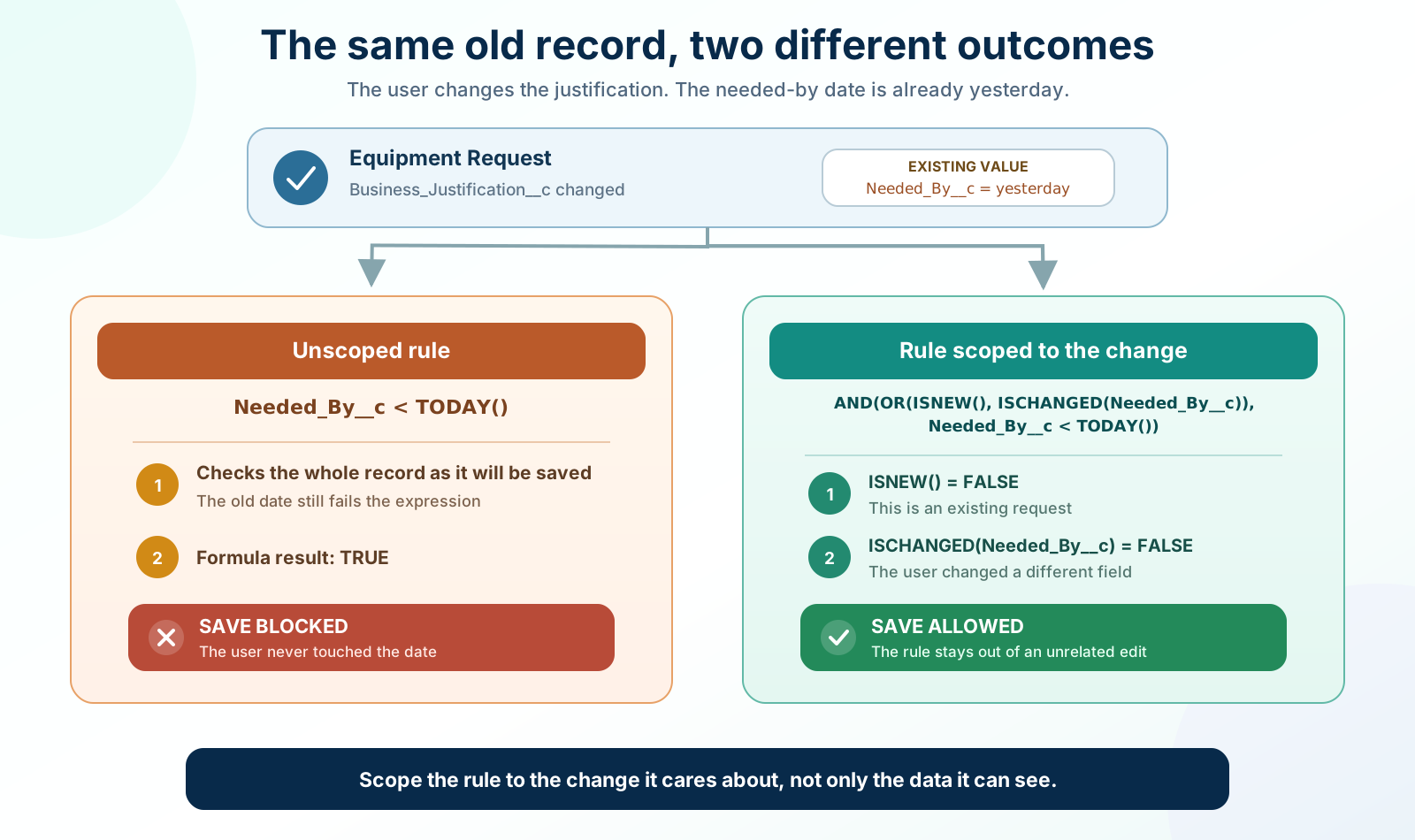
Both halves of that OR() are there for a reason. It’s tempting to think ISCHANGED() covers creation too, since a blank field getting a date looks like a change. It doesn’t. On a record being created, ISCHANGED() is false for every field on it, including the one you just filled in, so take ISNEW() out and the rule stops watching new requests altogether. PRIORVALUE() catches people the same way from the other side: on a new record it hands back the field’s current value rather than nothing, so a rule looking for an empty before finds a matching pair instead.
ISNEW(), ISCHANGED(), and PRIORVALUE() are the three functions that turn a statement about data into a statement about a change, and most validation rules that annoy users are missing one of them. None of the three works in a formula field, which is the forgetfulness from earlier stated as a hard limit: a formula field sees the record as it stands, never a before and after.
🔑 Build the escape hatch before you need it
Section titled “🔑 Build the escape hatch before you need it”Some saves are legitimate and still hit your rule. Importing two years of historical requests will trip the date rule on nearly every row, and you don’t want the answer to be “deactivate the rule for the afternoon and hope nothing else saves while it’s off”.
The documented pattern is a custom permission the rule checks for:
AND( NOT($Permission.Bypass_Equipment_Rules), OR(ISNEW(), ISCHANGED(Needed_By__c)), Needed_By__c < TODAY())Create the custom permission, put it in a permission set of its own, and assign it only for the load. The rule now evaluates to true only for users who lack the permission, so the bypass stays limited to named users while the rule keeps protecting everyone else. Setup Audit Trail records both permission-set assignments and validation-rule changes, but a scoped bypass makes the operational intent much clearer than switching the rule off for the whole org.
Be selective about which rules get one. I’m comfortable giving a data-hygiene rule a controlled bypass. I’m much less comfortable bypassing a rule that represents a genuine human decision (a rejection needs a reason), because that mostly means the rule applies to people who don’t know the trick. If a rule shouldn’t be bypassable, leave it without a hatch and say so in its description.
A few related behaviours are worth knowing before you rely on any of this:
- All failing rules report at once. A user who sees five errors on one save is looking at a design problem, not being careless.
- The Mass Transfer tool doesn’t run validation rules. Changing ownership one record at a time does; changing it in bulk with that tool doesn’t.
- Lead conversion only enforces them if that setting is enabled, and campaign hierarchies ignore them entirely.
- Legacy workflow field updates can leave a record invalid, because updates made that way don’t re-run custom validation rules.
🔀 Block the save, or fix the value?
Section titled “🔀 Block the save, or fix the value?”A validation rule is one reasonable response to bad data. Another is to correct the value before it’s saved. A third is to use Flow Builder’s Custom Error element when the decision to block the save needs branching or data that a validation-rule formula can’t reach. Where each mechanism sits in the save sequence is what makes those choices possible.
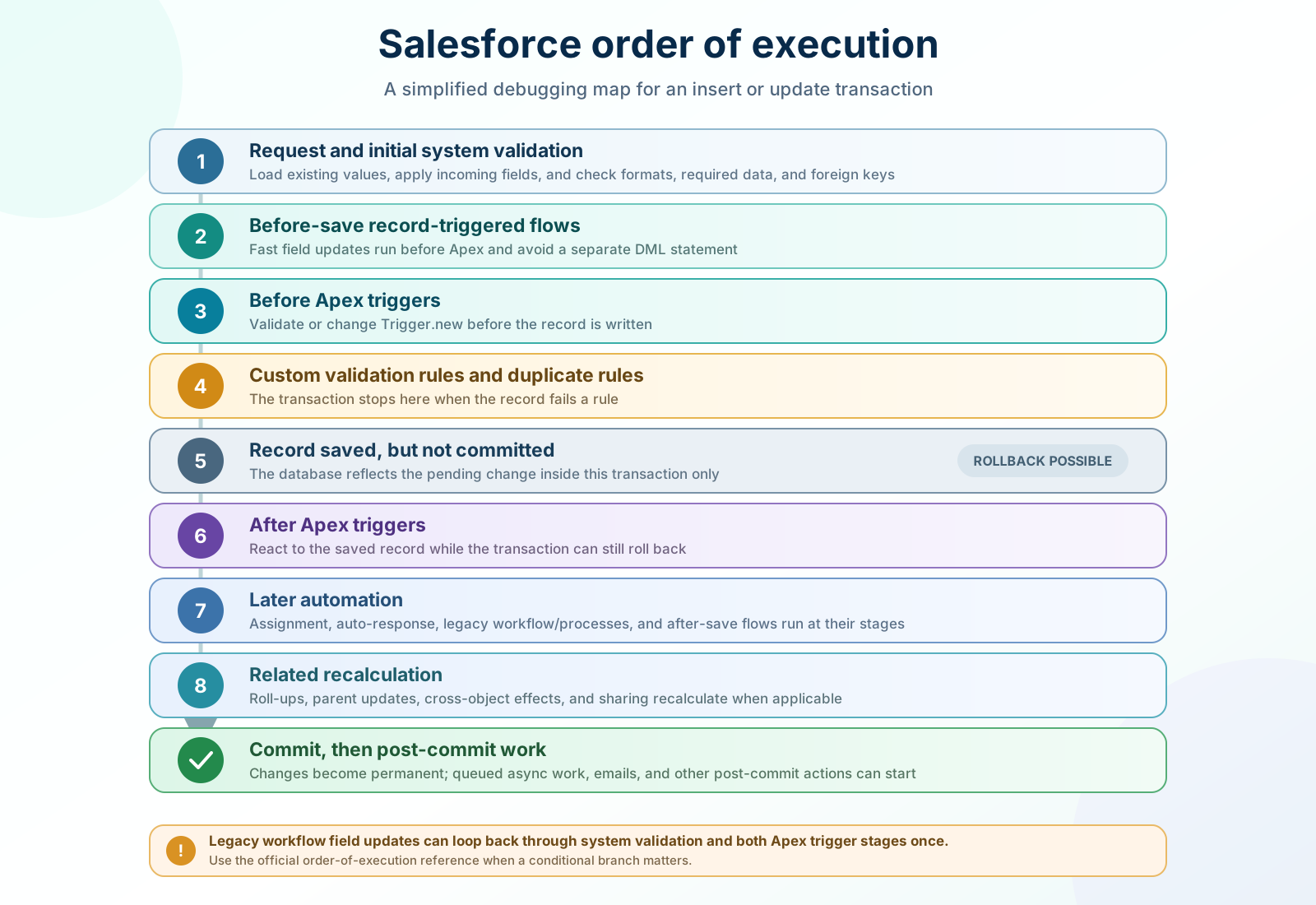
The stages that matter to this chapter are the early ones. Before-save flows run before Apex before triggers and custom validation rules, which means a before-save flow can populate or tidy a field and your validation rule then sees the corrected value. The Apex stages are on the diagram for context rather than because you need them yet: the useful takeaway is that validation happens early, and that nothing is committed until well after it.
That diagram is deliberately simplified. Salesforce’s own sequence runs to twenty numbered steps, and several of them branch on where the save came from, so read the full order of execution whenever a specific branch matters. That page is the authoritative one, and Salesforce notes that its own order-of-execution flowchart can fall out of sync with it.
A before-save record-triggered flow can also use a Custom Error element to block and roll back the change, either at the record level or beside a field. Prefer a validation rule when one visible formula on the object expresses the rule cleanly. Reach for Custom Error when the decision genuinely needs flow branching, Get Records, or logic that is clearer on the canvas.
That ordering gives you a straightforward decision:
| The situation | Reach for |
|---|---|
| A human has to make a choice you can’t infer, and a formula can express the rule | A validation rule. Stop the save and explain |
| The correct value is derivable from what’s already on the record | A before-save flow. Fix it and let the save proceed |
| Blocking the save needs flow branching or queried data | A before-save flow with Custom Error. Stop the save and explain |
| The record duplicates one the org already holds | A duplicate rule, which fires just after your validation rules and before anything is saved |
| You’re limiting which records a lookup offers | A lookup filter, which guides the user rather than failing them at the end |
| The rule is about who decides, not what’s valid | An approval process, covered later in the journey |
Salesforce makes the lookup-filter comparison itself: use a filter to narrow the options in a search dialog, and a validation rule when the logic needs a formula, references fields a filter can’t reach, or has to apply only on creation or on change.
🧰 Create the rule, then prove it works
Section titled “🧰 Create the rule, then prove it works”-
Create the rule from Object Manager → your object → Validation Rules → New, and give it a name that reads as the thing it enforces rather than
VR_Date_Check_2. -
Write the description before the formula. Nothing breaks if you skip it, which is exactly why it gets skipped. It is the only place that records which line of the brief this rule came from, and why it lives here rather than in the field definition or a flow. The formula tells the next admin what the rule does; only the description tells them why.
-
Paste the error condition formula and check it with Check Syntax before saving. That catches the missing bracket, not the missing scope.
-
Set the error location to the field the user has to fix, and write the message as an instruction they could act on without asking you.
-
Save it inactive first if the object already holds records. In a sandbox or your practice org, reopen the rule, select Active, save it, and test there rather than straight in production.
-
Run both tests. One new record that should fail, to confirm the rule reaches the create path and the message lands where you expected. One save that should succeed, on a record you didn’t create today, to confirm you haven’t frozen the back catalogue.
🧩 Record types, and the question to ask before you create one
Section titled “🧩 Record types, and the question to ask before you create one”Record types are the most over-used feature in this chapter, and the reason is understandable: they’re the first thing that looks like it can make one object behave like two.
Record types are available in Professional, Enterprise, Performance, Unlimited, and Developer Editions. Salesforce notes that a Professional Edition org may require the Record Types add-on.
What a record type actually controls falls short of making one object behave like two. It narrows a picklist to a subset of its values. It picks the page layout, from the combination of the user’s profile and the record’s type. On Lead, Opportunity, Case, and Solution it also selects a business process, which is the same idea applied to Status or Stage. And because a record type is itself a field, you can filter and report on it, and assign Lightning pages and quick actions by it.
All of that is genuinely useful. None of it is about who can see the record.
I treat every new record type as a cost that has to earn its place, and the cost is easy to underestimate. Record types multiply with profiles: every record type needs a page layout assignment for every profile, and that grid is where orgs quietly accumulate layouts nobody can account for. Automation acquires branches. Reports acquire a filter that people forget to set. And removing a record type once records reference it means deciding what happens to those records.
There’s also a newer reason to pause. Dynamic Forms lets you show and hide fields and sections with visibility rules on a Lightning page, and Salesforce’s own description of the feature says it reduces the number of page layouts and record types you need. If your justification is “these two kinds of request need to look different on screen”, that argument is much weaker than it was a few years ago. Dynamic Forms is supported for most, but not all, standard Lightning web component (LWC)-enabled objects. The reliable test is to open the record page in Lightning App Builder: if the component panel has no Fields tab, the object isn’t supported. Campaigns, Products, Events, and Tasks are non-LWC examples that still use the page layout; Note is another unsupported example because its layout is fixed.
Three questions settle most cases:
| Ask | If yes | If no |
|---|---|---|
| Do different processes or audiences need different subsets of the same master picklist values? | A record type is doing real work | One picklist and a visibility rule probably cover the presentation difference |
| Do different groups of users need different layouts and different defaults for the same object? | A record type earns its place | Dynamic Forms is the lighter answer |
| Is this a standard object with a business process (Lead, Opportunity, Case, Solution) where you need a different Stage or Status list? | You need a business process, and a record type to assign it to | Custom objects have no business processes; record types there control picklists and layouts only |
Applied to the Equipment Request, the answer is no, and the reasoning is already in your brief. Urgent replacements for broken equipment were put out of scope because they follow the existing IT incident process. That decision left one process, one status list, and one audience for the layout. A second record type would add a layout matrix and a report filter to support a distinction the business explicitly said it doesn’t make here.
Write that down anyway. “We considered record types and decided one process means one record type” is a decision; discovering in a year that nobody knows why there’s only one is not. And if the incident process later comes into scope, you’ll be revisiting a documented choice rather than guessing at an old one.
✅ Checkpoint
Section titled “✅ Checkpoint”Produce a rules decision record for the Equipment Request object. This is a design checkpoint, so don’t build the object ahead of the next chapter. Budget 45 minutes.
Write down:
- The fields: type, restricted or not, and required at field level or not, plus one sentence per field on where its rule lives and why that layer.
- Two formula field designs, each with its name, return type, formula, and a note on what it can’t tell you: days open, and the Monday-to-Friday weekday count that stands in for the working-days criterion. Write the second one’s limitation down as part of its design, not as an afterthought.
- Two validation-rule designs: for each, record its name, description, formula, error location, and error message. One should block a genuine decision (a rejection needs a reason); the other should use
ISNEW()orISCHANGED()so it only fires on the change it cares about. - One bypass decision, using a custom permission on the rule where a bulk load would legitimately need it, plus one line on why the other rule doesn’t get one.
- The record type decision, with the reason, whether the answer is yes or no.
- Your test plan. For each rule, specify one new record that should fail, one that should succeed, and one edit to an old record that changes an unrelated field. The build chapter will turn those cases into evidence.
You’re finished when you can answer this without opening Setup: for each rule I’ve written, which saves does it apply to, and who can get past it? An admin who can answer that has understood the chapter. An admin who can’t is the one who will eventually spend an afternoon working out why a data import rejected four thousand rows.
🎯 Final Thoughts
Section titled “🎯 Final Thoughts”Every section of this chapter answered a version of the same question. A field marked required in its definition reaches every save there will ever be. A layout requirement stops at the edge of that layout. An unscoped validation rule reaches the entire back catalogue. A formula sees the present and can’t remember the past. A record type controls picklists and layouts, and nothing at all about who can see the record. The question underneath every one of them is how far the rule reaches. Get that wrong and a sensible requirement becomes a problem for somebody who was doing nothing wrong.
Setup gives you no sense of reach. It makes everything feel local: one checkbox on one field, one formula in one box, one rule that took ninety seconds to write. Nothing on screen tells you that you have just made a promise about every record the object will ever hold, including the ones somebody loads next March. The person who finds out won’t be you, and they won’t know what changed.
So the habit worth keeping is a small one. Before you enforce something, work out who it will stop and how they get past it when they’re right and your rule is wrong. Not every rule needs a bypass. Every rule deserves the question.
And when the platform can’t reach far enough at all, as with the holiday calendar, that isn’t a failure to engineer around. It’s a sentence in someone’s brief that needs rewriting. Requirements are negotiable. What Salesforce will actually enforce isn’t.
🚀 Next steps
Section titled “🚀 Next steps”You now have rules. Build the App: Object, Fields & Access puts them into something people can use, starting with the object, its fields, the two validation rules, and the access model that decides who can see what. Your decision record is its starting input. It opens a three-chapter build: the Flow Approval Process comes next, and then the evidence run that turns the test plan you just wrote into observed results.
Two side routes, if you want them. Automation picks up where the before-save decision in this chapter left off and goes considerably deeper into Flow Builder than a first build needs. If the reporting criterion is the part you want to finish, Reports & Dashboards has the folder access and subscription mechanics that turn your open-requests list into something IT actually receives.